Apple Pay keeps a default shipping address, email and phone number for checkout. On iPhone, open Settings > Wallet & Apple Pay and look for Apple Pay Defaults or Transaction Defaults, then update the contact information used at checkout.
The shipping contact is separate from a card's billing address. Change the shipping details for delivery and order messages; change the billing address only when the address linked to your payment card also needs correcting.
In this guide
Change the shipping details on iPhone
Open Settings > Wallet & Apple Pay. In the current iPhone guide, the next control is Apple Pay Defaults. Open it to find the transaction defaults for shipping address, email and phone number.
Apple's information update instructions describe those fields directly under Transaction Defaults instead. If that section is already on the Wallet & Apple Pay page, use it there rather than searching for an extra menu.
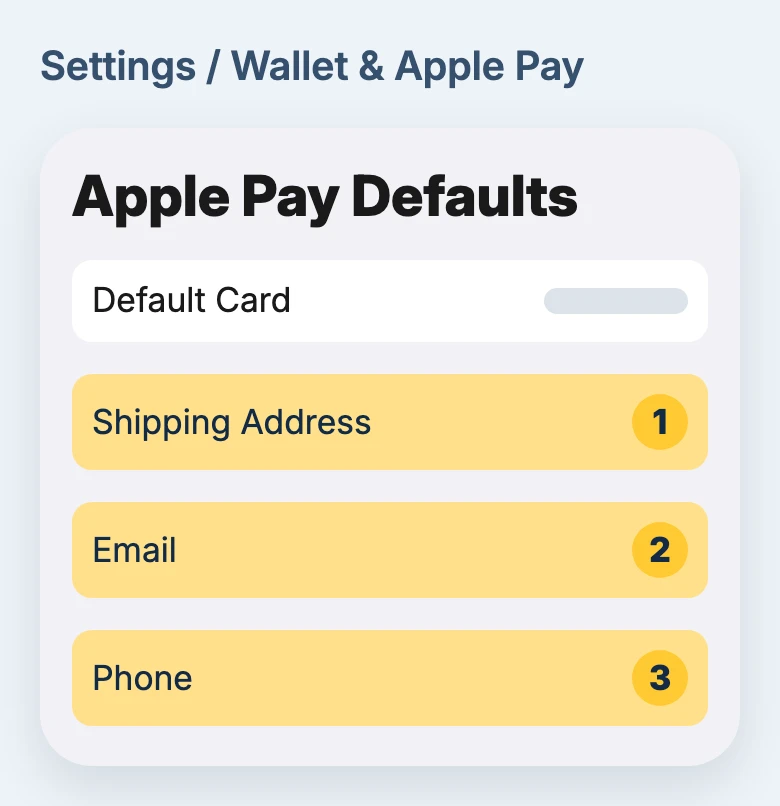
Open Shipping Address and choose or edit your preferred address. Check the recipient, street, apartment or unit, city, state and ZIP code. A missing apartment number can still send a delivery to the wrong place.
Return to the defaults and update Email and Phone as needed. These details go to the seller when you buy something. An old email address can send order messages to the wrong inbox even when your shipping address is correct.
Check the selected values after returning to the defaults screen. If several addresses are saved, check that the one you want is selected. A newly added address may still need selecting for your next purchase.
The route is through Settings on both Face ID and Home button iPhones. Opening Wallet by double-clicking a device button brings up payment cards; it doesn't take you straight to the shipping-contact defaults.
Review the payment sheet before confirming a purchase
When checking out in an app or on a website that supports Apple Pay, inspect the payment sheet's delivery and contact details before approving the transaction. Some merchants let you change that information during checkout.
Check the recipient and full address, not only the city. If the sheet still shows your old address, choose the correct shipping contact there when offered. Don't authorize a payment while the delivery destination is wrong.
The default is for future checkouts, so check what this purchase actually shows. A merchant account can also have saved address details, so check which fields are being used.
I'd check a checkout sheet after editing the default, then leave without paying if you're only verifying the change. There is no need to place a test order to see whether the address shown is correct.
The iPhone purchase guide includes reviewing and changing payment information before authentication. Review those details before you approve the payment with Face ID, Touch ID or your passcode.
Update the defaults for Apple Watch and iPad
To change Apple Watch defaults, open Watch on its paired iPhone. Open Wallet & Apple Pay, scroll to Transaction Defaults, and update the shipping address, email and phone number there.
Use this route when purchases made with your watch show the old contact details. Don't stop after changing a card on the phone and assume you've inspected the watch's defaults too.
On iPad, open Settings > Wallet & Apple Pay. Look for Apple Pay Defaults in the current settings layout, or Transaction Defaults where the fields appear directly. Update the delivery and contact fields in that section.
Return to checkout on the device you actually use and review its payment sheet. That lets you spot a wrong address without changing unrelated card settings or removing a working payment card.
If the watch's payment cards aren't available at all, use the separate Apple Watch payment checks. Shipping-contact changes won't restore missing cards or reverse a payment decline.
Use Contact and Shipping on a Touch ID Mac
For a Touch ID Mac, open Apple menu > System Settings > Wallet & Apple Pay, then select Contact and Shipping. Update the shipping address, email and phone number.
System Preferences is the name on older macOS releases. Open its Wallet & Apple Pay pane to reach the contact defaults.
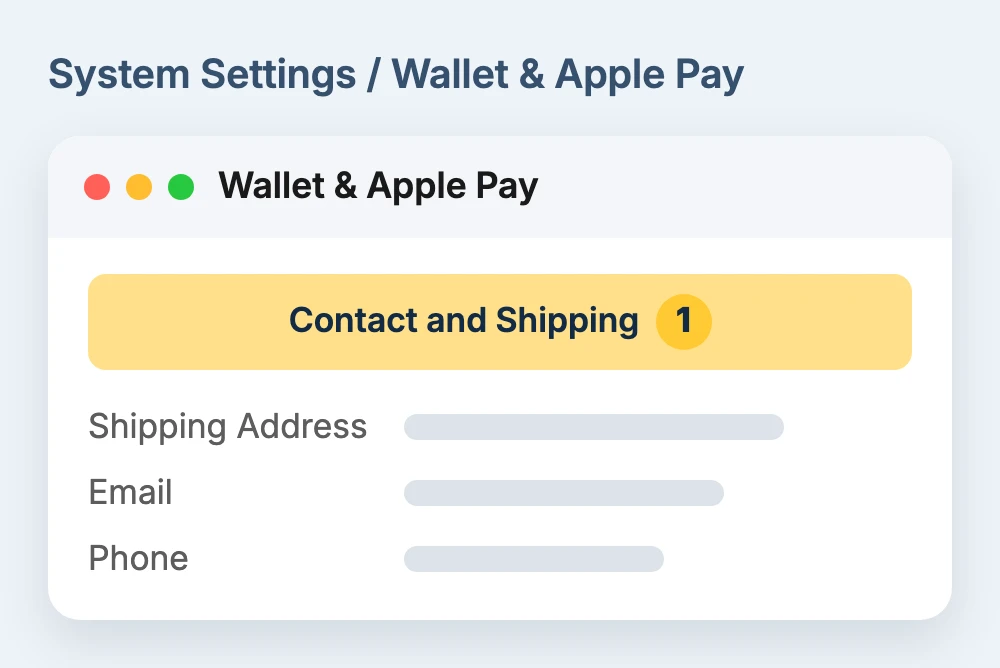
These Mac steps require Touch ID. A Mac that approves Apple Pay through a nearby iPhone or Apple Watch has a different setup. Check the defaults on that iPhone or watch, then check the checkout details.
A browser's ordinary address autofill is another separate feature. If a normal web form fills the wrong address before the Apple Pay sheet opens, check that saved form information as well as the payment sheet.
Keep billing changes separate from delivery changes
For a card's billing address on iPhone, open Wallet, select the card, then choose More > Card Details > Billing Address. In iOS 15 and earlier, the extra Card Details step isn't shown.
On Apple Watch, open Watch > Wallet & Apple Pay on the phone, select the card, then Billing Address. On iPad, select the card under Settings > Wallet & Apple Pay to reach its billing address.
For a Touch ID Mac, select the card in System Settings > Wallet & Apple Pay and use its Billing Address menu. This is different from Contact and Shipping, which holds the delivery contact defaults.
If payment itself fails after the details are correct, follow the iPhone Apple Pay troubleshooting route. Selecting another shipping address won't fix a payment your card issuer has declined.
Get help with an order that already has the wrong address
For a completed purchase, give the merchant your order number and ask whether they can still change its shipping address. Your Apple Pay default affects future payments, so the seller still needs to correct an existing order.
For defaults that won't save, ask Apple Support to check Wallet & Apple Pay shipping and contact information. Name your device and say whether the wrong details appear in Settings, the payment sheet or only the merchant's order record.
The Short Version
Update shipping, email and phone under Wallet & Apple Pay defaults. Use the Watch app for watch defaults and Contact and Shipping on a Touch ID Mac. Check the payment sheet before confirming, and send existing-order changes to the merchant.
Checked November 29, 2026.
 If you have any business, I can build it online