Apple Pay needs a card added to the Apple Watch itself, even when that card already works on your iPhone. Check Watch > My Watch > Wallet & Apple Pay on the phone first, then unlock the watch and double-click its side button to pay.
A missing card, an unresponsive reader, and a declined payment need different fixes. Match the fix to the screen you see instead of removing every card from both devices.
In this guide
1. Check that the card is actually on the watch
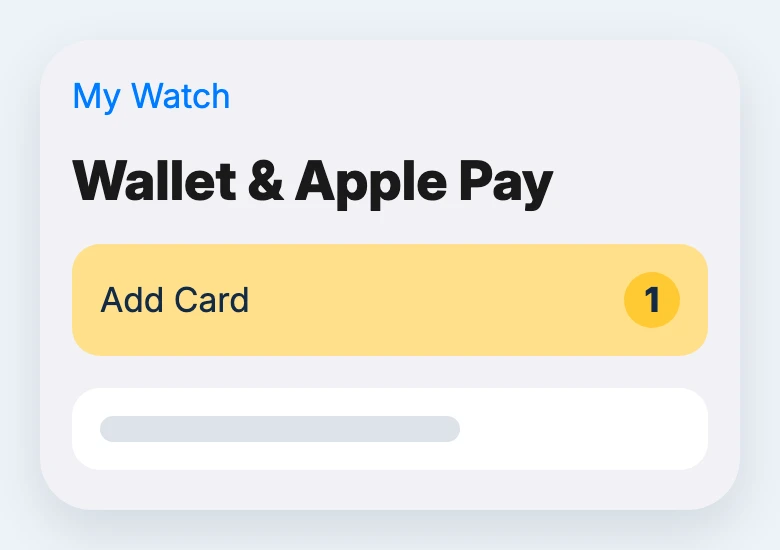
On your paired iPhone, open the Watch app. Tap My Watch > Wallet & Apple Pay and look for the card you want to pay with. Seeing it in the iPhone's Wallet app alone doesn't mean it's ready on your wrist.
If it hasn't been added, tap Add Card. Choose Debit or Credit Card for a new card, or Cards Found For You for a previously used one. Tap Continue and follow the instructions to enter or scan the card details.
Complete any verification your bank requests. That can mean supplying more information or using the bank's app. Until that verification is finished, you can't pay with the card, even if its details appear in Wallet.
Apple says you can also add a card through Watch Wallet. Using the paired iPhone makes it easy to check whether a card on your phone was also added to the watch.
After setup, open Wallet on the watch and confirm the card appears there. If adding it produces an error, go to section 4. If it appears normally, try paying with the side button next.
2. Unlock the watch and press the correct button
Wake your watch. If it shows the lock screen, enter the passcode. Then double-click the side button, the flat control next to the round Digital Crown. The Crown opens apps. One side-button press opens Control Center on current watchOS.
Scroll to the card you intend to use. Hold the watch close to the contactless reader with the display facing the reader. Keep it there until you feel the tap and hear the beep that confirm payment information was sent.
That tap and beep tell you the watch sent payment information to the terminal. Wait for the merchant's final approval message before another attempt. Otherwise, you could mistake a completed payment for a missed tap.
A passcode prompt can be normal. With Wrist Detection turned off, the watch asks for its passcode when you double-click to authorize Apple Pay. Enter the code to continue. That prompt is part of how this security setting works.
If the watch locks repeatedly while you're wearing it, use the Apple Watch repeated-locking checks to address the fit or detection problem. Keep that separate from a card that opens correctly but gets declined.
3. Try another accepted card or contactless terminal
Ask the cashier whether that terminal accepts your card network as well as Apple Pay. A merchant can support contactless payments without accepting every card stored in Wallet. The payment logo won't tell you which cards the shop accepts.
Choose another supported card on the watch if you have one. A successful payment with that card points toward the original card or its issuer, rather than a general failure of the watch's payment controls.
If the terminal never reacts, ask to use another reader. Compare the same card on your iPhone when convenient. A working phone payment narrows the problem, but the card must also be set up on your watch.
I'd compare cards and readers before deleting anything from Wallet. They give you a clearer answer at the checkout, and you won't need to complete bank verification again just to discover the shop's reader was the problem.
The iPhone Apple Pay checks apply when payments fail on the phone too. Opening Wallet on a locked iPhone uses different controls from the watch's side button.
4. Resolve an Add Card or verification error
For Could Not Add Card, Invalid Card, or Card Device Limit, contact the card issuer. Ask them to check why that card won't add to Apple Pay on an Apple Watch, rather than only checking whether the physical card is active.
Before calling, check the requirements: a compatible watch, current supported software, a watch passcode, a supported country or region, and a participating issuer. Your Apple Account also needs two-factor authentication enabled.
Use Settings > General > Software Update on the iPhone to check its software. Check the watch through Watch > My Watch > General > Software Update. Follow the update screen's instructions, then try adding the card again.
An outage or connection problem can also interrupt adding a card. Wait until the phone can connect reliably, then retry. If several cards suddenly fail to add, ask Apple Support to check for service problems or account restrictions.
Removing the watch passcode or signing out of iCloud removes payment cards from that device. If this started after either change, set up the passcode and account again, then add the card back through Wallet & Apple Pay.
5. Send a declined transaction to the card issuer
A declined message after the watch reaches the reader is different from the reader ignoring it. The issuer approves or declines Apple Pay transactions. Watch settings can't override that decision.
Call the bank through its app or the number on the card. Give the time, merchant, card, and fact that you used an Apple Watch. Ask whether the watch's Apple Pay card needs attention or the purchase itself was rejected.
If cards are present and unlocked but the watch won't reach different working readers, report that Apple Pay connection problem to Apple Support. Report which cards and readers failed and whether iPhone payments still work.
Bring the watch and paired iPhone if support arranges an appointment. With those comparisons, support can decide whether the watch, its card setup, or the issuer needs attention first, without starting by erasing your watch.
The Short Version
Confirm the watch has the card, finish verification, unlock it, and double-click the side button. Face its display toward the reader. Ask the issuer about errors or declines, or Apple Support about repeated failures at working readers.
Checked November 29, 2026.
 If you have any business, I can build it online