
You double-click the side button expecting your cards and nothing comes up. That is a bad moment when there is a queue behind you.
Two different settings decide whether your cards appear at all, and only one of them has an obvious name.
Let me get you to both, because people tend to find one, fix nothing, and give up.
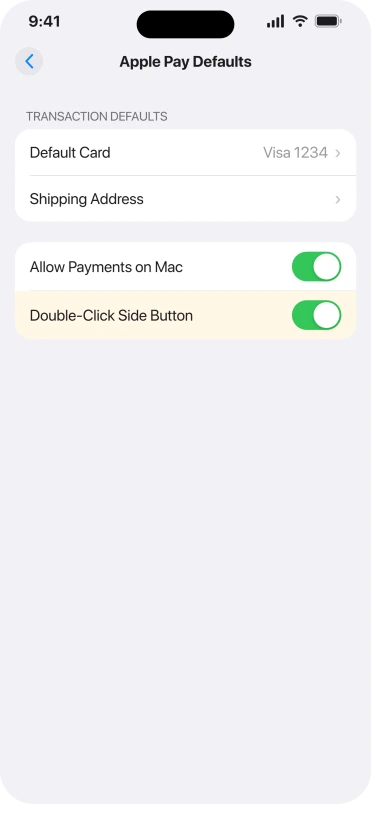
The second one is not in Wallet settings at all
If that switch is already on and your cards still do not appear, check which app your phone hands contactless payments to. Apple sets this out on its default contactless app page.
Apple: "If you select another contactless app as your default app, it will impact how you use Apple Pay & Wallet. When you double-click the side button or hold your iPhone near a contactless reader in-store, your selected app will launch automatically after you have unlocked your iPhone. The cards you've saved in your Apple Wallet to make Apple Pay transactions will no longer be presented."
A banking app can take that slot. Check it at Settings > Apps > Default Apps > Contactless App, and choose Apple Wallet to get the shortcut back.
Apple gives a way to pay in the meantime, and the middle step is the one people miss: open Wallet, select your card, then double-click the side button to authenticate with Face ID or your passcode before you tap.
If the cards will not appear while the phone is locked
Two switches live on the same Settings screen, and this article's symptom needs both.
Go to Settings, tap Face ID & Passcode (or Touch ID & Passcode) and enter your passcode.
- Under Allow Access When Locked, turn on Wallet. Apple frames this one as allowing access to passes when iPhone is locked.
- Under Use Face ID For, turn on Wallet & Apple Pay. With this off, Face ID will not authorize a payment at all.
Our guide to Face ID not working on iOS 26 covers the second list in full, because every entry on it governs something different.
If Face ID simply fails at the counter, you are not stuck.
Apple offers the passcode instead, and its security documentation says the passcode is offered automatically after two unsuccessful face matches, and required after five.
Where to hold the phone
Apple's guide is specific: "Hold the top of your iPhone near the card reader until you see Done or a checkmark on the screen."
Its support article words the same step slightly differently, asking you to hold it near the contactless reader until Done and a checkmark appear. Take the stricter reading and wait for both before moving.
Apple does not explain why the top edge, so treat that as an instruction to follow rather than a fact about where the aerial sits.
Things that silently switch every card off
These are not payment failures. They remove or suspend the cards, and none of them announces itself at the till.
- A passcode that is turned off. Apple's platform security documentation lists an inactive passcode among the conditions that render Apple Pay cards unusable.
- Signing out of iCloud. Apple is blunt: "If you sign out of iCloud in Settings > [your name], all your credit and debit cards for Apple Pay are removed from iPhone."
- Lost Mode. Marking a device as lost suspends payment cards and other services, by design.
If Apple Pay stopped the same day you changed one of those three, that is the place to look before any switch on this page.
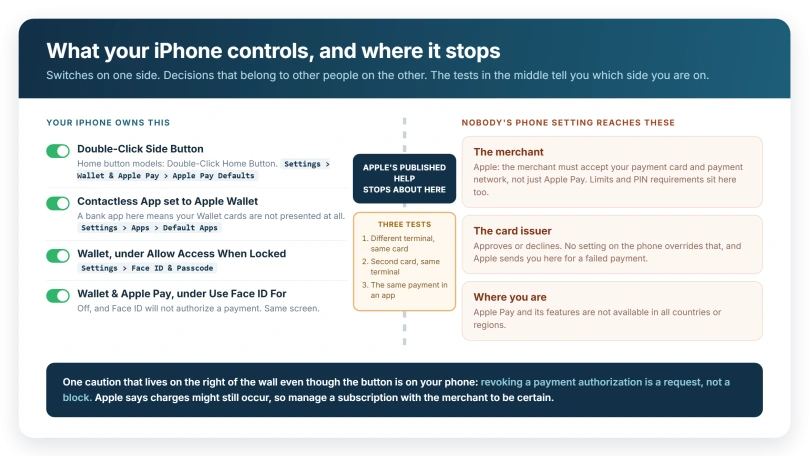
What no setting on your phone can change
Two conditions belong to other people, and Apple names both.
Where you are. Apple: "Apple Pay and its features aren't available in all countries or regions."
What the shop takes. Apple: "In addition to accepting Apple Pay, the merchant must accept your payment card and payment network." A contactless symbol does not promise your particular card will go through.
Apple adds a third that surprises people: card issuers and merchants can set transaction limits or PIN requirements, so you might be asked to enter a PIN, sign a receipt, or verify some other way for a larger amount.
Subscriptions, and the setting that does less than it looks
Wallet keeps a list of recurring payments authorized through Apple Pay, and this is the part to read carefully, because getting it wrong costs money.
Open Wallet, tap the More button, tap Preauthorized Payments, then tap a merchant for details.
Apple's own order puts the merchant first: "To manage your payment preferences, tap Manage with [Merchant] to visit the merchant's site." Revoking is the fallback, for when you cannot change or cancel it there.
And revoking does less than the name suggests. Apple:
> "When you revoke a payment authorization in the Wallet app, you don't cancel your subscription or other associated payments. Instead, Apple requests that the merchant not charge the Apple Pay payment method for future transactions. In some cases, charges might still occur. To be certain that you won't be charged, go to the merchant's site or app to manage your payment preferences directly with the merchant."
So it is a request, not a block, and you may still be billed. You also still owe for the service, because Apple adds that "the terms of your service are between you and the merchant".
Removing the card from Wallet does not help either. Apple: "The preauthorized payment isn't canceled and any associated accounts aren't closed."
Two conditions on that list, from Apple: it needs an iPhone on the latest iOS with an Apple Account signed in, and it only shows supported cards from participating merchants.
A subscription missing from the list is not proof it has stopped.
If a pass has vanished
Passes fail differently from payment cards, and an archived pass is not a deleted one.
Hide Expired Passes, at Settings > Wallet & Apple Pay, files old passes out of sight. To get one back, open Wallet, tap the More button, tap Expired, then tap the pass to view, restore or delete it.
If a pass is missing on a second device instead, that is sync: Settings, tap your name, tap iCloud, then turn on Wallet.
What this is not
Adding a card and using one fail for different reasons.
Apple describes adding as a handshake between your phone, Apple, the card network and your bank, and our guide to Could Not Add Card in Apple Wallet covers both the bank call and the iPhone settings that block it.
Transit gates are their own mechanism, because Express Transit is built to work without authentication, and Apple notes it keeps working even when Wallet is not your default contactless app.
Our guide to Express Transit not working covers that case.
On an Apple Watch, the Wallet option can vanish from the Watch app itself, and the Watch Wallet page covers that.
On a Mac, Apple Pay in Safari can start asking for a double-click on Touch ID, and toggling one setting brought back the single touch.
If none of the switches were the problem
At that point the phone has done its part. Apple's guidance for a payment that fails is to contact the merchant or the card issuer.
Three tests tell you which side the fault is on, and they take a few minutes between them.
- A different terminal, same card. If it works, the first terminal or its network is the problem.
- A second card in your Wallet, same terminal. If that one succeeds, your phone is fine and the first card is the question.
- The same payment in an app rather than in a shop. In-app payments do not use the contactless hardware at all, so a success there narrows it further.
Whoever you call next will get to an answer faster with those three results than without them.
What does not help
- Removing and re-adding a card while the shortcut is switched off. The new card behaves exactly as the old one did.
- Pulling the phone away as soon as it buzzes. Apple asks you to hold it there until Done or a checkmark appears.
- Treating a decline as an iPhone fault. No setting on the phone overrides a card issuer's decision.
- Turning on Express Transit to fix ordinary shop payments. It is a different mechanism aimed at gates.
- Revoking a payment authorization and assuming the money has stopped. Apple says charges might still occur.
Status: current for iOS 26.6. Apple documents the Double-Click Side Button switch, the default Contactless App, and that revoking a payment authorization is a request rather than a block.
Why is Apple Pay not working on my iPhone?
Check two settings before anything else. Double-Click Side Button, under Settings, Wallet and Apple Pay, Apple Pay Defaults, controls the shortcut. Separately, if another app is set as your default Contactless App, Apple says your Wallet cards will no longer be presented when you double-click or tap a reader, even with that switch on.
Why does double-clicking the side button not open Apple Pay?
Either the shortcut is off or another app has the contactless slot. Turn on Double-Click Side Button under Apple Pay Defaults, then check Settings, Apps, Default Apps, Contactless App and choose Apple Wallet. On a Home button iPhone the shortcut row is called Double-Click Home Button instead.
Does revoking a payment authorization stop the charges?
Not reliably. Apple says revoking does not cancel your subscription, that Apple only requests the merchant stops charging that payment method, and that in some cases charges might still occur. Apple's own advice is to manage the payment on the merchant's site or app to be certain you will not be charged.
Why did my pass disappear from Wallet?
It may be archived rather than deleted. Hide Expired Passes, under Settings, then Wallet and Apple Pay, files old passes away. To bring one back, open Wallet, tap the More button, tap Expired, then tap the pass to view, restore or delete it.
The Short Version
- Double-click doing nothing? Settings > Wallet & Apple Pay > Apple Pay Defaults > Double-Click Side Button, or Double-Click Home Button.
- Still nothing? Another app may hold the contactless slot. Settings > Apps > Default Apps > Contactless App.
- Two Wallet switches sit on the Face ID & Passcode screen: one under Allow Access When Locked, one under Use Face ID For.
- Face ID failing? Apple offers the passcode after two failed matches and requires it after five.
- Hold the top edge to the reader and wait for Done and a checkmark.
- Cards gone entirely? A passcode turned off, an iCloud sign-out, or Lost Mode each remove or suspend them.
- Revoking a payment authorization is a request, not a block. Apple says charges might still occur, so manage it with the merchant.
- Merchant, network and region are conditions no phone setting changes.
Two iPhones held together instead of a card reader: That is a different set of features entirely, and our guide to NameDrop and the other proximity features separates them, including Tap to Cash.
Orders appearing in Wallet on their own: That is a separate setting rather than a payment fault, and our guide to the two switches behind Wallet order tracking covers both of them.
Where to Next
Two settings, and finding one of them and stopping is how most people end up still stuck.
Check the double-click setting, then check which app has the contactless slot, because a banking app can quietly take it.
If both are right and your cards still will not appear at a reader, tell me in the comments whether they show up in Wallet itself, because that splits the problem in half.

Isaac Smith is the founder and editor of PC Glance, a website that covers computers, laptops, and technology. He is a tech enthusiast and a computer geek who loves to share his insights and help his readers make smart choices when buying tech gadgets or laptops. He is always curious and updated about the latest tech trends.