
A convincing box doesn't settle whether an iPhone is real. Inspect the phone: compare its model information with the hardware, check repair history, and have the seller demonstrate activation and normal use.
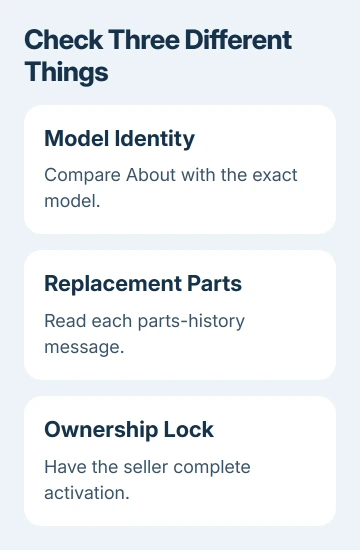
A genuine iPhone can have a replacement screen or battery, and someone else's account can still lock a genuine device. Those are different problems, so don't treat one successful check as an answer to all three.
Compare the model with the phone in your hand
Open Settings > General > About on the phone. Read Model Name, Model Number, and Serial Number there, rather than accepting a photograph of another device's settings.
Tap the entry beside Model Number to display the A-number used to identify the model. The first value shown can be a part number, so a different-looking code at first isn't automatically a problem.
Compare the A-number and physical details with the official model descriptions. Check the camera arrangement, charging connector, and presence or absence of a Home button against that exact model.
Regional versions can have different model numbers and SIM arrangements. A missing physical SIM tray on a version designed without one isn't, by itself, evidence that the phone is counterfeit.
Read the full description for that model, including any notes about regional versions. Don't compare an older phone with a picture of the newest model and reject it because its buttons or camera housing look different.
The iPhone IMEI guide explains where its cellular identifier appears. Keep identifiers private when asking for help; a public sales listing doesn't need to expose every digit.
Don't let a serial number replace the inspection
Copy the serial number from the device's About screen when dealing with support. Packaging and receipts can be useful supporting records, but you're buying the phone, not the box it happens to come in.
A recognized serial number is only one check before buying. It doesn't tell you the phone's condition, which parts were replaced, or whether it's locked to its owner. Check those separately, even when the paperwork looks convincing.
If the model shown on the device conflicts with the seller's description, ask them to explain the difference before paying. A seller calling a phone a different model is a reason to stop the purchase until the identity is clear.
I'd ask for a live inspection or a clear return agreement before trusting a bargain based only on screenshots. The practical advantage is simple: you get a chance to check the device you'll actually receive.
If you still suspect the phone itself is counterfeit, arrange to have Apple or an authorized provider inspect it in person. Don't rely on a remote serial-number check for a final answer about a phone that hasn't been inspected.
Read Parts and Service History accurately
On iOS 15.2 or later, look in Settings > General > About for Parts and Service History. Whether this section appears, and which components it can report, depends on the model and its repair history.
Apple explains the different repair messages on its parts-history page. Genuine means the repair used genuine parts and processes. Used means the replacement came from a part already installed or used in a different iPhone.
Unknown has several possible causes, including a nongenuine part or a part that isn't working as expected. It doesn't mean that every other part of the phone is fake. Ask which component was repaired and request the repair record.
Unverified refers to a previously replaced logic board and may affect features such as Apple Pay. Finish Repair means the repair still needs completing through the supported repair process.
Don't expect identical detail from every generation. The iPhone 11 models can report battery and display information; the XR, XS, XS Max, and second- or third-generation SE report battery information in this table.
Newer supported models report more components. An older phone without a camera-history entry hasn't necessarily hidden a camera repair. Check what that model supports before reading meaning into a missing row.
Only the most recent service appears when the same part has been serviced more than once. Compare this screen with the seller's records and the phone's physical condition. It isn't a lifetime log of every repair.
Have the seller show that the phone can be activated
Turn the phone on. A Lock Screen, Hello screen, and iPhone Locked to Owner screen mean different things. A powered-on display alone doesn't tell you whether you'll be able to use the phone after purchase.
A Lock Screen means the phone is still set up for the seller. On Face ID models, slide your finger upward from the screen's lower edge. Press Home on a Home-button model. The seller enters the passcode for the About and parts checks.
When those look right, ask the seller to erase the phone before you pay: Settings > General > Transfer or Reset iPhone > Erase All Content and Settings. They may need their Apple Account password.
A Hello screen means the phone has been erased. Complete setup, including activation, before you pay and before treating it as ready to use. That opening greeting isn't the same as a completed activation.
If iPhone Locked to Owner appears, the seller must remove Activation Lock using their own credentials. Don't buy the phone while that lock remains. For an online purchase that arrives locked, request a return.
A carrier-locked iPhone is another separate issue. Carrier Lock in About concerns cellular-network restrictions; it isn't the previous owner's Activation Lock.
Check ordinary functions before accepting the phone
After setup reaches the Home Screen, inspect the display and test touch across the screen. Open the camera, take a picture, and switch cameras. Play sound and check the buttons and charging connection.
Check Settings > Battery > Battery Health & Charging, or the battery-health entry offered by that model. Read any service message alongside the reported capacity. A worn battery affects condition; the phone can still be genuine.
Look for scratches, dents, connector damage, or a display that doesn't respond consistently. The parts label tells you about a repair, while the touch test checks whether the screen responds. Use both when judging a repaired phone.
If the phone won't charge or start, postpone the purchase rather than accepting a promise that it only needs an update. The seller should be able to show a working device before you accept it as one.
Book an authorized inspection if you still have questions about the phone's identity or repairs. Bring the phone and purchase record, and explain the model mismatch or parts message. Arrange this before your return deadline expires.
The Short Version
Compare About with the model's hardware, read its parts history, and check activation before paying. Repairs and ownership locks are separate issues. Get an authorized inspection when the device's identity remains uncertain.
Checked November 8, 2026.

Isaac Smith is the founder and editor of PC Glance, a website that covers computers, laptops, and technology. He is a tech enthusiast and a computer geek who loves to share his insights and help his readers make smart choices when buying tech gadgets or laptops. He is always curious and updated about the latest tech trends.