
To get more iCloud storage, buy iCloud+ or upgrade the plan you already have. Choose a larger plan in your account's iCloud settings; the button depends on your software version and whether you're already paying.
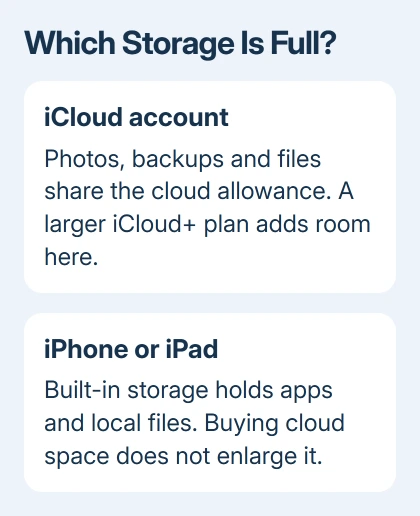
First, check whether it's your iCloud storage that's full. A larger cloud allowance won't increase an iPhone's or iPad's built-in capacity, and one subscription serves the devices using that Apple Account.
Check which storage needs more room
Start in your iPhone's or iPad's Settings > your name > iCloud. Read the storage total and the categories using it. Photos, backups and files can all use this space, so choose a plan with room for everything in your account.
Compare that with Settings > General > iPhone Storage or iPad Storage. That second screen measures space inside the device. Buying iCloud+ changes the cloud total, not the device total.
For a warning about the phone itself, use the device-versus-iCloud storage explanation. Otherwise, continue with the purchase route that matches your device.
I'd check how much space you're using before picking a plan. A plan that only just fits today's photo library can leave little room for the next backup. The purchase screen shows the allowance and recurring price before you confirm.
Buy or upgrade from an iPhone
Apple's iCloud+ purchase instructions separate a first subscription from an upgrade. Find your installed version under Settings > General > About if your menus don't match.
On iOS 27 or later, open Settings > your name > iCloud. Existing subscribers choose Manage Plan under iCloud+ Features. For a first subscription, tap Storage or Almost Full, then Get More Storage.
Choose a plan with more space and follow the purchase prompts. An iCloud Storage Almost Full notification in Settings can also open the upgrade process directly.
On iOS 18.4 through iOS 26, an existing subscription is under Settings > your name > Subscriptions > iCloud+ > See All Plans. Pick the replacement plan from that list.
For a first subscription on those versions, use Settings > your name > iCloud, scroll, and tap Upgrade to iCloud+. Looking under Subscriptions won't find an active iCloud+ plan if you haven't bought one yet.
On iOS 18 through iOS 18.3, use Settings > your name > iCloud > Manage Plan. On iOS 17 or earlier, use iCloud > Manage Account Storage > Change Storage Plan after opening your account settings.
Check the plan details, then follow the onscreen steps to approve the purchase. Return to the iCloud storage page afterward and check that its total reflects the plan you chose before buying anything again.
Use the matching iPad or Mac controls
On iPadOS 27 or later, open Settings > your name > iCloud. Choose Manage Plan under iCloud+ Features for an existing subscription, or Storage > Get More Storage for a first plan.
The Storage button can say Almost Full instead. Choose the allowance you need and finish the prompts. The plan belongs to your account, so your other devices using that account can use the space too.
On iPadOS 18.4 through iPadOS 26, existing subscribers use Settings > your name > Subscriptions > iCloud+. A first purchase starts in Settings > your name > iCloud > Upgrade to iCloud+.
On iPadOS 18 through 18.3, open your account's iCloud > Manage Plan page. On iPadOS 17 or earlier, choose iCloud > Manage Account Storage > Change Storage Plan instead.
For a Mac running macOS Sequoia or later, open Apple menu > System Settings > your name > iCloud. Existing subscribers select Manage Plan under iCloud+ Features; new subscribers select Upgrade to iCloud+.
On macOS Sonoma, existing subscribers use Manage Plan > Change Storage Plan from that account page. On an older Mac with System Preferences, use its Apple ID and iCloud controls or buy on another signed-in device.
Choose the plan and approve the purchase when prompted. Intel and Apple silicon Macs don't need different subscription steps; the macOS interface is what changes the route.
Choose an allowance without buying twice
The free iCloud allowance is 5 GB. Paid tiers are 50 GB, 200 GB, 2 TB, 6 TB and 12 TB. Prices vary by country or region, so read the amount and billing terms on your own purchase screen.
An upgrade replaces your existing iCloud+ tier. It doesn't add a separate block of storage just for one phone. Check the Apple Account shown in Settings, especially if you use a different account for purchases elsewhere.
A family member may already share an iCloud+ subscription you can use. Check the family storage setup before paying for another personal plan. Sharing capacity leaves each person's photos and files private.
If you already pay for Apple One, check its included iCloud storage too. Check how much storage your account already includes before assuming you need to add the smallest paid plan.
More space lets backups and other services that need storage continue, but it doesn't change your backup or photo settings for you. After upgrading, return to the feature that stopped and check its current status.
For example, open Settings > your name > iCloud > iCloud Backup on your iPhone or iPad if a backup failed. Tap Back Up Now when you're ready, then check the time of the completed backup. Buying more space doesn't mean the backup has run.
Finish on Windows or resolve a missing purchase
In iCloud for Windows, open the app and click Manage. Existing subscribers select Change Storage Plan. Choose the allowance, click Next, enter the Apple Account password and select Buy.
Use the iCloud app for these controls. Signing into the iCloud website to read mail or photos isn't the same purchase route, and a subscription bought on an iPhone doesn't need buying again on the PC.
If the purchase fails, save the exact payment message and check the account details in the app. If a charge appears without extra storage, ask Apple Support to match your receipt and iCloud+ subscription to the Apple Account.
Choose the iCloud or Billing and Subscriptions subject when starting support through the Apple Support app. Give your old storage amount, the plan you tried to buy, purchase date and device version so the adviser can check the transaction.
The Short Version
Check the account's iCloud usage, choose the purchase route for your software version, and confirm the new plan. Compare family sharing and Apple One first. A cloud upgrade doesn't enlarge the storage built into your device.
Checked November 9, 2026.

Isaac Smith is the founder and editor of PC Glance, a website that covers computers, laptops, and technology. He is a tech enthusiast and a computer geek who loves to share his insights and help his readers make smart choices when buying tech gadgets or laptops. He is always curious and updated about the latest tech trends.