
A laptop that's too quiet at full volume can have another volume control turned down in the app or Windows Volume mixer. Start by turning up that control. When every app sounds weak, check the chosen speakers and audio enhancements.
Windows laptops and MacBooks both have app-level controls, but their system settings differ. A quiet video, quiet built-in speakers and quiet headphones need different checks, so start with the sound you're actually trying to hear.
1. Raise the volume inside the app that's quiet
Keep the affected video or song playing and find its own speaker button. Unmute it and raise its volume. The laptop's keyboard volume buttons change system output; they don't necessarily raise a video player's separate slider.
Play another recording in that app, then try one in a different app. One quiet movie with normal music elsewhere points toward that recording or player. The speakers don't need replacing just because a particular upload has low audio.
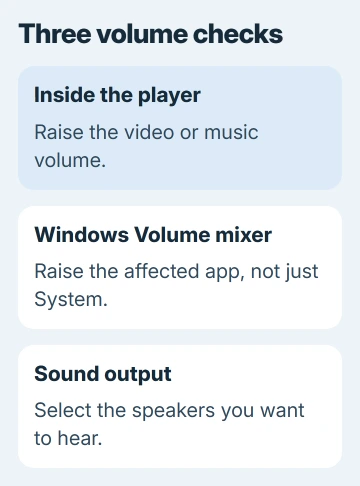
On Windows 11, open Start > Settings > System > Sound > Volume mixer. Under Apps, raise the affected app's volume and check its mute button. Keep the app playing so its entry is easy to identify.
On Windows 10, right-click the taskbar's volume icon and choose Open Volume mixer. Raise the app slider as well as the device slider. Microsoft recommends these checks in its quiet-audio instructions.
On a Mac, check the player's own control too. In Music, look for the volume control at the top. A web video may have a separate slider inside the player. macOS doesn't provide the Windows Volume mixer menu.
If the whole browser is silent while other apps play normally, use the Chrome sound-permission checks. That's a different symptom from a video that plays audibly but too softly.
2. Make sure the sound is reaching the right speakers
A dock, monitor or Bluetooth device can change where the audio goes. Listen at the laptop itself while something plays. Sound coming from a small monitor speaker can seem much weaker than the laptop's own speakers.
On Windows 11 or 10, open Settings > System > Sound and choose your laptop's speakers under Output. The exact name depends on its audio hardware. Choose the built-in speakers rather than an HDMI display when that's what you want to hear.
For a MacBook, open Apple menu > System Settings > Sound > Output. Select its built-in speakers, raise Output volume, and check that Mute isn't selected. On older macOS, open System Preferences, then Sound > Output.
Disconnect headphones and external audio equipment for this comparison. When testing headphones, check their own volume controls too. A powered speaker or headset can have another control that the laptop's slider doesn't move.
If selecting another output restores a normal level, keep using that output. If that device stays quiet in several apps, check its settings next. Leave the individual players' controls alone for now.
3. Turn off Windows audio enhancements and compare
Audio enhancements apply effects to the audio sent to your speakers. They can reduce or distort volume on some setups. Try this when several apps became quiet together, especially after an audio-software change.
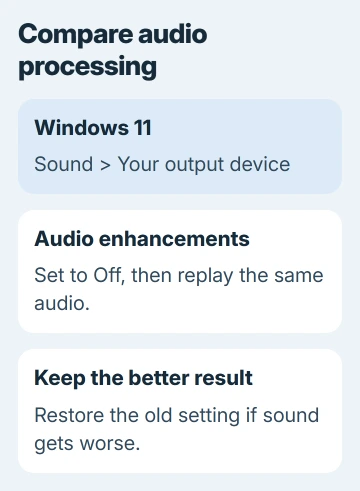
In Windows 11, open Settings > System > Sound, select the affected output, then set Audio enhancements to Off. Replay the same passage so you're comparing the setting rather than two recordings with different volume levels.
In Windows 10, right-click the volume icon, choose Sounds, and open Playback. Select your speakers, choose Properties > Enhancements, enable Disable all enhancements, then select OK.
The controls depend on your driver. If that tab or option isn't offered, continue to the next check. Don't replace the driver just to make an optional enhancement switch appear.
If disabling processing helps, leave it disabled. If sound gets worse, return to the previous setting. I'd compare the two settings before installing software: it's quick, and the result is easy to hear.
4. Try another audio format on Windows
A device can also sound quiet when its audio format isn't suitable. The format controls how Windows sends audio to the device; picking the largest available number doesn't automatically make speakers louder.
On Windows 11, return to the output's properties in Settings > System > Sound. Find Format or its advanced audio controls, select another offered format, and test the same audio again.
On Windows 10, open Sounds > Playback, select the device, then choose Properties > Advanced. Under Default Format, choose another listed format and test playback. Keep the old choice available so you can restore it.
Use only choices offered for that device. If the difference is obvious, keep the working setting. If every format is equally quiet, repeated changes won't help; compare the speakers with another output next.
5. Compare headphones before repairing the audio driver
Connect headphones you know work, begin with the volume low, and play the same recording. Then compare the built-in speakers. Normal headphone audio with weak speakers narrows the problem toward the speaker output or its settings.
If both outputs are quiet in several apps, a shared setting or audio software could be the cause. That comparison helps you explain the fault without pinning it on a particular broken part.
On Windows, open Device Manager > Sound, video and game controllers. Right-click the affected audio device, choose Update driver, and restart when requested. For a reinstall, use the laptop maker's audio package for your exact model.
Have that package ready before removing an existing driver. Laptop audio can depend on the maker's own components, so a package chosen for another model can leave you with fewer working controls.
For audio that has disappeared entirely, the computer sound-repair steps cover the missing-output and service checks. Those are more useful than volume adjustments when nothing plays at all.
When the speakers stay weak
Contact the laptop maker with your model, system version and headphone comparison. Ask for its speaker diagnostic and exact audio package. If your MacBook's speakers stay quiet, ask Apple Support to check whether they need service.
Explain whether both speakers are weak, one side is silent, or the sound crackles. Those details help distinguish a setting from a speaker fault. Software can't give small speakers unlimited volume; stop raising it if sound distorts.
The Short Version
Raise the player and Windows app volumes first. Confirm the output, compare enhancements and formats, then compare headphones with speakers. Use the maker's audio package or speaker diagnostic when several apps stay quiet.
Checked November 9, 2026.

Isaac Smith is the founder and editor of PC Glance, a website that covers computers, laptops, and technology. He is a tech enthusiast and a computer geek who loves to share his insights and help his readers make smart choices when buying tech gadgets or laptops. He is always curious and updated about the latest tech trends.