
Text moves on a Mac with Command+X, then Command+V. Files in Finder work differently: select the file, press Command+C, open the destination folder, then press Option+Command+V to move it there.
That extra Option key is the part that often catches people moving from Windows. Command+X isn't Finder's file-cutting shortcut, even though it works for selected words in many Mac apps.
Decide whether you're moving words or a file
For words inside a document, message or text box, use the app's Cut and Paste commands. Cutting removes the selected words and keeps them on the clipboard, your Mac's temporary holding place for text you're about to paste.
For a document's file icon in Finder, use the file-moving method. Moving that icon changes where the document is stored. It doesn't move one paragraph from inside the document into another paragraph.
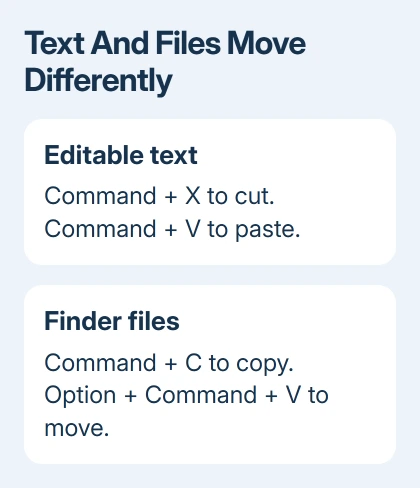
Look beside the space bar for Command. Option can also be marked Alt. A plus sign between key names means hold the keys together; the plus sign isn't something to type.
Intel Macs and Apple silicon models use these same actions. A MacBook with an M-series chip doesn't need an extra app or a different shortcut to move files.
Move selected text into its new position
Open a document or message that you can edit. Drag across the words to highlight them, then check that the selection contains exactly what you want to move, including any punctuation or spaces that belong with it.
Press Command+X. The selected text should disappear from its original position. Click at the new location so a blinking insertion point appears, then press Command+V to put the text there.
For example, move a sentence from the end of a draft to its opening paragraph. Cut the sentence, click before the first word of the opening, and paste. Read both locations afterward for missing spaces or doubled punctuation.
Don't copy something else between cutting and pasting. That replaces the current clipboard content, so the next Paste command won't necessarily insert the text you just removed.
If the move was wrong, use Edit > Undo or Command+Z promptly. Undo reverses recent actions in the app you're using, so check which document is active before pressing it repeatedly.
Prefer the mouse? Apple says the menus also work: use Edit > Cut and Edit > Paste, as its Mac clipboard instructions explain. Control-clicking a selection can offer the same commands when the app allows them.
The menu is useful when you aren't sure a keyboard shortcut reached the app. If Cut is available there, select it once. If it's dimmed, check that you've selected something you can edit before blaming the keyboard.
Move Finder files with the extra Option key
Open Finder and click the file or folder once to select it. For several separate items, hold Command while clicking each one. Check the highlighted icons before starting so an unrelated item doesn't travel with them.
Press Command+C. The file stays in its original folder for now. Open the destination folder in Finder, then press Option+Command+V. Finder moves the selected item from the original location into that folder.
The Finder shortcut reference describes this as moving the files you copied from their original folder to the folder you're in. Plain Command+V pastes a copy instead, leaving the original behind.
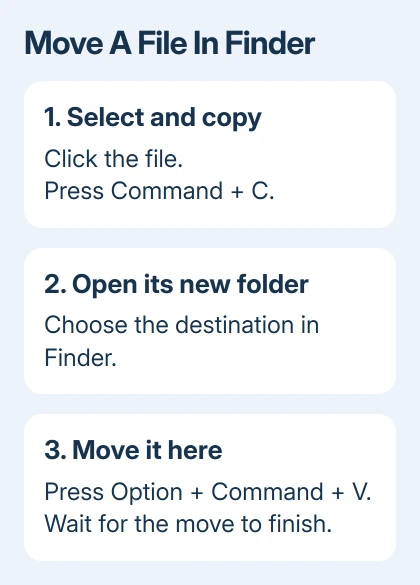
Let a large transfer finish, then check the destination before closing the windows. After the move finishes, the item should be in the new folder, with no copy left in the original folder.
For a menu route, choose Edit > Copy, open the destination, then hold Option while opening Edit. The paste command changes to Move Item Here, or its plural form for several items. Choose that command while holding Option.
I prefer this route for an important first move because the menu spells out the action. It also makes the difference from ordinary Paste visible before you commit.
If Finder reports that an item with the same name already exists, read the choices carefully. Replacing a file can discard the destination's existing version. Compare the two files before proceeding when both versions matter.
Keep the text but match its new appearance
Regular Paste can bring the original font, color and size into the destination document. That can make moved words look different even when they landed in the correct paragraph.
In an app that supports it, choose Edit > Paste and Match Style, or press Option+Shift+Command+V. The pasted words take on the surrounding text's style rather than keeping their original appearance.
This is a text-formatting choice, not Finder's move command. The four-key match-style shortcut changes text formatting; the three-key file move shortcut moves files. Choose the one for the app you're using.
For ordinary duplication rather than moving, the computer copy-and-paste steps cover leaving the original where it is. Check that distinction before removing anything you still need in both places.
Handle a dimmed Cut or a move that fails
A web page, PDF viewer or read-only document may let you copy text without cutting it. The app decides which content can be changed. Try the command in an editable document if you need to check whether the shortcut itself works.
Finder's Cut command isn't available for files. Use the file-moving steps instead. If Move Item Here fails too, check whether the error mentions folder access, available storage or restrictions on the destination.
An NTFS-formatted external drive is normally read-only on a Mac. A file can be readable from that drive while the Mac can't write new files onto it. Don't erase the drive simply to complete a move when it holds your only copy.
For confusing key behavior in several apps, use the Mac keyboard shortcut checks. Trying the Edit menu first helps you tell whether you can use the command at all or the app just isn't responding to your keys.
If the move still fails, tell Apple Support the exact Finder error, both folder locations and whether copying works. For a shared work folder, ask its owner to check your write access before changing the system.
The Short Version
Move editable text with Command+X and Command+V. Move Finder files with Command+C and Option+Command+V. Use Paste and Match Style for text appearance, and read any replacement or permission prompt before continuing.
Checked November 9, 2026.

Isaac Smith is the founder and editor of PC Glance, a website that covers computers, laptops, and technology. He is a tech enthusiast and a computer geek who loves to share his insights and help his readers make smart choices when buying tech gadgets or laptops. He is always curious and updated about the latest tech trends.