

An Excel drop-down inside a cell is usually a Data Validation list. Select the cells, open Data > Data Validation, and choose Clear All on the Settings tab, then OK. The drop-down disappears, but your existing values stay in place.
Arrows in column headings are different: those are filters. Turn off Data > Filter to remove them. Decide which kind you're looking at before changing the worksheet, especially when you need to keep its existing entries.
Remove the list rule from the cells you select
Click a cell that offers the unwanted choices. Check its address in the Name Box beside the formula bar, so you're changing the cell with the drop-down, not the separate range that supplies its choices.
For example, a status column might show Approved in D2, while the allowed words are stored on another sheet. Remove the rule from D2. Deleting the source words can affect other cells using the list. It doesn't remove D2's rule.
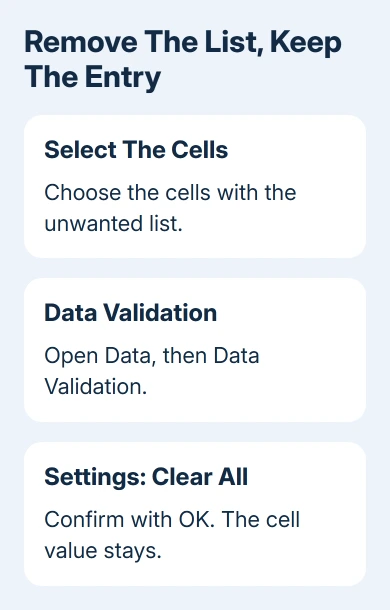
Microsoft says to remove a list through Data Validation in desktop Excel:
- Highlight the cells whose lists should go.
- Open Data > Data Validation.
- Select the Settings tab and click Clear All.
- Confirm with OK.
For separate cells on Windows, hold Ctrl while clicking each one before opening the dialog. For one continuous block, drag across the required cells. Don't include the heading or an adjacent column unless those cells need the same change.
Click one of the changed cells afterward. Its old value should still be there, but you shouldn't see the drop-down anymore. Save the workbook when the selected range looks right.
This removes the validation rule, not just its visible control. You can now enter values that the old list wouldn't allow. That matters in a shared status sheet where formulas or reports expect a fixed set of words.
Use the Mac or browser version's validation controls
In Excel for Mac, highlight the cells you want to change, then open Data > Data Validation. On Settings, use Clear All, then OK. Some Mac interfaces label the validation command Validate.
In browser Excel, highlight the cells you want to change before opening Data > Data Validation. Choose Settings > Clear All > OK. Expand the Data ribbon if its commands are tucked into a smaller group.
Work in a copy with editing enabled. You can't change the rules in a view-only copy, even though it shows the cell's current value.
If Data Validation is unavailable, check whether the worksheet is protected or the workbook uses sharing restrictions. Ask its owner to allow the change. The normal sheet-unlocking controls apply when you have the password and permission.
Describe the affected range when asking for help, such as Orders!D2:D200. That tells the owner which cells need unlocking so other areas can stay protected.
Find matching lists without clearing unrelated rules
For a large desktop worksheet, the lists may be scattered. Go To Special can select cells with validation so you don't have to locate every one by hand.
On Windows, select a cell with the target list, press Ctrl + G, then choose Special > Data Validation. Choose Same to find cells with matching validation, or All to select every kind of validation on the active sheet.
Inspect which cells were highlighted before clearing their rules. All can include date limits, whole-number restrictions and other rules as well as lists. I'd use Same when removing one department's status choices from a mixed worksheet.
For instance, a sheet may have status lists in column D and quantity limits in column F. Removing every validation rule would also stop Excel rejecting an impossible quantity. Matching the status rule avoids that extra change.
Repeat on other worksheets only where needed. This isn't a command to strip rules from every tab in the workbook at once. After saving, check a cell on each sheet you've changed.
Hide the chooser while keeping the allowed values
Sometimes you want a cleaner sheet but still need to limit what people can enter. In that case, keep the List rule and turn off its visible chooser instead of clearing the rule.
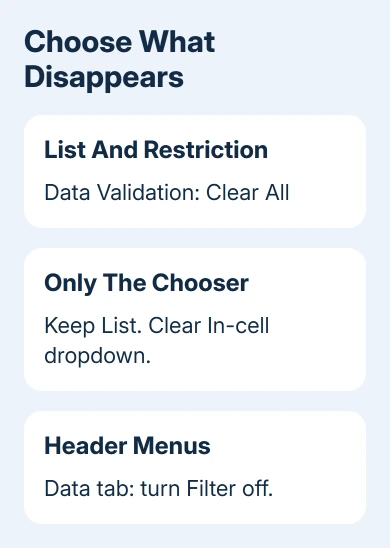
Select the target cells and reopen Data Validation > Settings. Leave Allow set to List, clear In-cell dropdown, then confirm. The source range remains part of the rule.
How Excel handles a value outside the list also depends on Error Alert. A Stop alert rejects a typed value outside the list; Warning or Information can let a person continue. Hiding the chooser doesn't strengthen those settings.
The list-creation walkthrough explains the source range and alert choices. Use that route if you want fewer visible controls but still need consistent entries.
Remove column-header filters or only one list choice
When every column heading has a small menu, click inside that data range and select Data > Filter. This turns off filtering for the range and removes its header controls.
Choosing Clear Filter inside one column's menu only clears the filter you've applied. The menu stays available. Use that when you want hidden records back but still intend to filter the list later.
If the problem is one unwanted choice inside a cell list, edit the source instead. A list based on an Excel table updates from its source entries. A fixed range may need a revised reference after you remove an entry.
Don't use Home > Clear > Clear All for list removal. That command clears cell contents and formatting. The similarly named button inside Data Validation changes the validation settings instead.
For a remaining control that floats over cells, ask the workbook owner whether it's a form control. Tell them which workbook, sheet and cell area it's in. A floating object needs a different removal method from a drop-down inside a cell.
The Short Version
Remove a cell list through Data Validation > Settings > Clear All, keeping its current value. Hide only the chooser with In-cell dropdown, or turn off Data > Filter for column-heading menus. Check the selection before saving.
Checked November 9, 2026.

Isaac Smith is the founder and editor of PC Glance, a website that covers computers, laptops, and technology. He is a tech enthusiast and a computer geek who loves to share his insights and help his readers make smart choices when buying tech gadgets or laptops. He is always curious and updated about the latest tech trends.