
Minesweeper, Highwater, and The Queen's Gambit Chess support offline play on iPhone through Netflix Games. Download and open the game while connected, finish its account setup, and check its offline mode before leaving Wi-Fi.
These games need an active Netflix subscription. Apple Arcade is another subscription route, while separately purchased games have their own offline rules. A game being installed doesn't mean every mode can work without internet.
Pick a game with an offline mode
Choose the kind of game you actually want to play before downloading several large apps. A quick puzzle, a longer adventure, and a chess game suit different trips. Check the current App Store listing for compatibility and availability.
These games now have higher requirements in the App Store than their older help pages show. Check the store's Compatibility entry for the version you can download now.
Netflix lists offline support on individual game pages. That helps distinguish a game with local play from one that downloads successfully but still needs a server whenever it opens.
Minesweeper for a puzzle you can pick up quickly
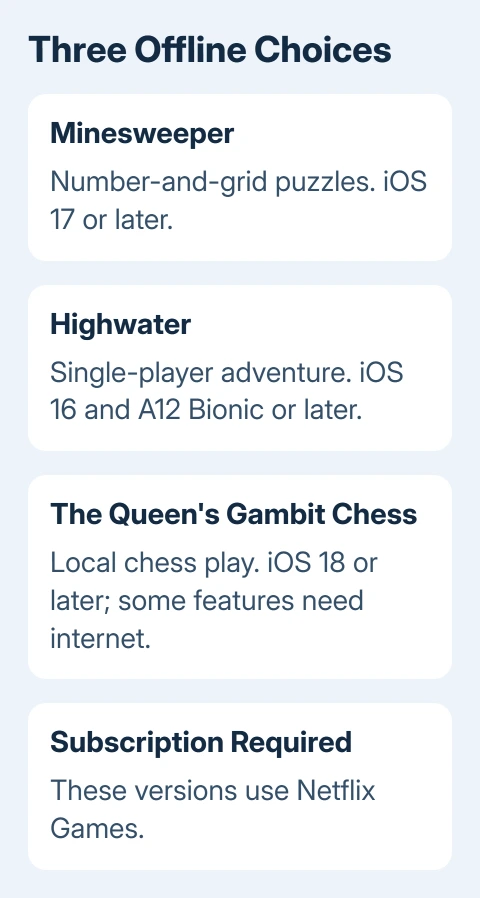
Minesweeper is a number-and-grid puzzle, with an underwater travel theme in this version. Its current App Store listing requires iOS 17 or later; the help page confirms offline play.
Try the local puzzle mode when you check whether it works offline. The page lists both single-player and multiplayer, so don't assume that playing against another person is included when the phone has no connection.
This is the first option I'd check for a short journey. It has a clear puzzle task, and you can try an actual round before deciding whether it belongs on your phone for the trip.
Highwater for a longer single-player adventure
Highwater follows a journey through a flooded world. It is listed as a single-player adventure with offline play, rather than a competitive game that needs other players online.
The current store listing requires iOS 16 and an A12 Bionic chip or later. Your phone needs to meet both requirements. An older iPhone can have the right iOS version but still lack the chip the game needs.
Open the App Store listing on the phone you plan to take and check its Compatibility section. A successful installation on another phone won't tell you whether it works on yours.
The Queen's Gambit Chess for chess away from Wi-Fi
The Queen's Gambit Chess is another offline-capable choice. Its current App Store listing requires iOS 18 or later. Some features still need internet access.
Choose a local chess activity before the trip, then check that it opens without a connection. Online opponents, connected events, and account services are separate from the local game you plan to play.
Game availability can change by region and over time. If a listed game isn't offered in your App Store, use another supported title and avoid lookalike downloads from other providers.
Install and open the game while connected
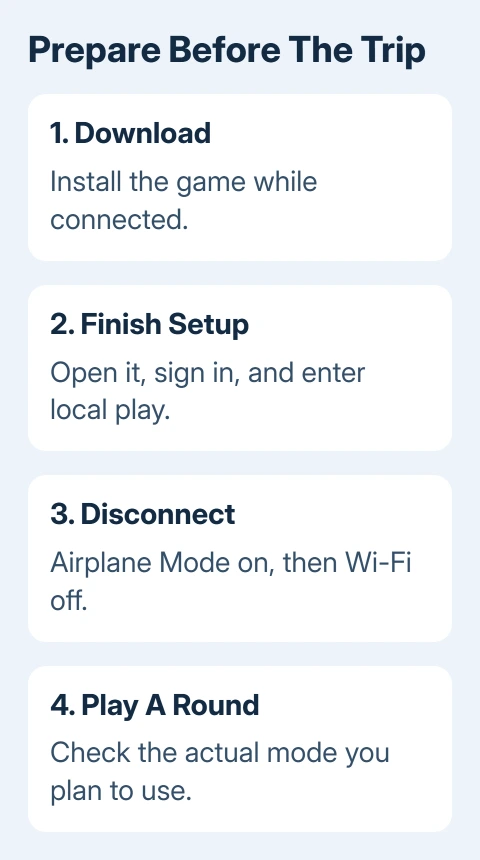
Open App Store, tap Search, and search the exact game name. Check the listing and its provider before tapping Get or the cloud download button. Confirm your Apple Account if the store asks.
The Netflix app offers another route: find its Mobile Games row, select the game, and tap Get Game or Play Game. That leads into the App Store download. The game then has its own Home Screen icon.
Launch the installed game while internet access is available. Sign in to the Netflix account when requested, choose the intended profile, and let any extra content finish downloading before closing the app.
Start a playable session rather than stopping at the title screen. A first-run login or content download is much easier to finish at home than in a train carriage with weak reception.
If storage is tight, make room before installing. Keep enough space for the game's download and any content it requests on first launch. The app may need more files than the size shown in the store.
Check the game with Wi-Fi and cellular off
Open Settings > Airplane Mode and turn it on. Then check Settings > Wi-Fi and switch Wi-Fi off too. An iPhone can keep or re-enable Wi-Fi in Airplane Mode, so the airplane symbol alone isn't the complete check.
Open the game and enter the local mode you want to use. Play long enough to get past its opening screen and make a move or complete a small task. Check that you can use the controls and reach the content you need.
Reconnect afterward. If the game stops at a sign-in request, finish that request online and try local play again. If a particular mode still demands a connection, choose a different local mode or another game for the journey.
You've checked the version installed on your phone and the mode you played. Repeat the check after a major game update if you're relying on offline play for an upcoming trip. Don't wait until departure to discover a new content download.
Use Apple Arcade as a separate option
For an Arcade subscription, open App Store > Arcade, choose a game, and download it. The Arcade instructions also cover its location in the newer Games app.
Keep the subscription active and complete any setup while connected. Follow the same offline check for the exact game and mode. Multiplayer and other online features still need an internet connection.
If App Store itself is missing, restore access to the store first. A cloud download icon beside a game means its local copy still needs downloading.
A large download needs local phone storage. Free iCloud space doesn't expand iPhone storage, so check the phone's own available space before adding more games.
If a game won't open a local mode that its help page says works offline, open that support page and use its contact option. Include the game version, iPhone model, iOS version, and the screen where the connection request appears.
The Short Version
Choose a game with stated offline support, download it, and finish setup online. Check a real local session with Wi-Fi and cellular unavailable. Netflix games need their subscription, and online modes remain separate from offline play.
Checked November 9, 2026.

Isaac Smith is the founder and editor of PC Glance, a website that covers computers, laptops, and technology. He is a tech enthusiast and a computer geek who loves to share his insights and help his readers make smart choices when buying tech gadgets or laptops. He is always curious and updated about the latest tech trends.