

A laptop can run a local AI model if the app supports its processor and the model fits in memory. Start by checking RAM, graphics memory and free storage, then try a small model before spending money on an upgrade.
The AI label on a laptop isn't the deciding factor. A newer processor can't make an oversized model fit, and a laptop without a dedicated graphics card may still handle a smaller model through a supported app.
Record the laptop's hardware before choosing a model
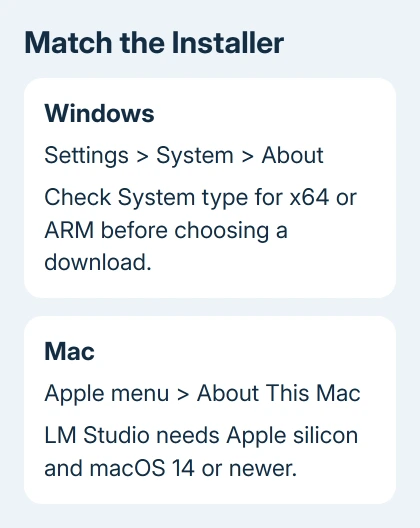
On Windows 11 or 10, open Settings > System > About. Write down the processor, installed RAM and system type. Use the system type to choose an x64 or ARM installer; the processor name alone isn't enough.
Those details appear in the Windows device information page. Next, open Settings > System > Storage to see how much room you have for model downloads.
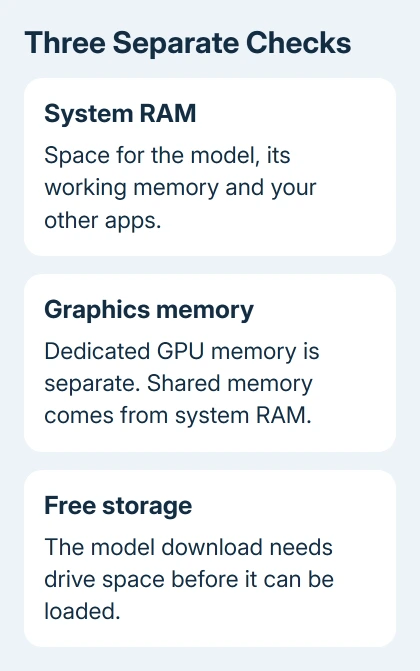
Press Ctrl+Shift+Esc and open Performance in Task Manager. On Windows 10, select More details first if necessary. Under Memory, check what's available while your normal apps are open.
Open the GPU tile for its hardware name and memory readings. Dedicated GPU memory belongs to the graphics hardware.
Shared GPU memory comes from system RAM. Don't add the two advertised amounts together as though you had two separate pools of memory.
If that entry is missing, the Task Manager GPU checks explain the driver requirement. A missing graph doesn't automatically mean your laptop has no graphics hardware.
On a Mac, choose Apple menu > About This Mac. Record Chip or Processor, Memory, and the macOS version. Apple silicon and Intel Macs need separate compatibility checks even when their installed RAM is the same.
Compare the app's requirements with those exact details
Choose the program before choosing the model. Its hardware support decides whether it can use your CPU or GPU. Each app has its own requirements, so check the one you plan to use.
LM Studio's requirements recommend at least 16 GB of RAM. On Windows, its x64 build requires AVX2, a processor instruction set. If you're unsure whether your CPU supports it, check the CPU maker's specifications.
Its Windows guidance also recommends at least 4 GB of dedicated graphics memory. That recommendation doesn't mean every model fits in 4 GB, or that every GPU with that capacity has the same speed or support.
For Macs, this app requires Apple silicon and macOS 14 or newer; Intel Macs aren't supported. Its guidance allows that an 8 GB Mac may work with smaller models and modest context sizes, while recommending 16 GB or more.
Context is the amount of conversation or document text a model handles at once. It needs memory on top of what the model itself uses. A model that loads for a short chat can run out of room with a much longer document.
I'd use the 16 GB RAM decision guide before ordering memory. Check whether your laptop's RAM is replaceable and whether an upgrade solves the limit you actually found.
Choose a small download with room left for the computer
Get the installer for your operating system and processor from the LM Studio download page. Check the listed platform before opening it, especially on an ARM Windows laptop.
Open Discover in the app to find a model. Start with a smaller option offered there and read its download size. Keep enough drive space for the operating system and your work as well as the model file.
A model's download size and its memory needs while running are different. Loading adds working memory, and other applications still need RAM. A download that fits your SSD can still be too large to run comfortably.
Model names often include a parameter count and a compressed format. Parameters are the stored values used by the model. A compressed, or quantized, version stores those values more compactly, trading some precision for a smaller footprint.
Don't select the largest parameter count simply because it appears more capable. Begin with a model your app expects to fit, then increase size only after the smaller one works with the task you care about.
Load it and check a real piece of work
In LM Studio, open Chat, open the model loader and select your downloaded model. Wait for loading to finish before judging response speed. The download and the loading stage are separate operations.
Ask it to do a short version of your intended task. For summarizing, use a harmless sample document. For writing help, use the kind of paragraph you'll actually bring to it. Check the answer as well as the waiting time.
Keep your usual browser and work apps open for a second attempt. A laptop that works only after everything else is closed may not suit your normal day, even though it technically loads the model.
If loading fails, record the exact error, model file, context setting and available memory. Try a smaller model or a shorter context as appropriate to the message. Adjust settings separately so you'll know which change helped.
If you already use Ollama, run ollama ps while a model is loaded. Its PROCESSOR column shows whether the model is in GPU memory, system memory, or split between them. That's more useful than guessing from the fan noise.
Decide whether local chat or network hosting is needed
Chatting with a model on your laptop is one job. Letting other devices use that model is another. First get one local conversation working. A network connection won't solve a model that can't load into memory.
Ollama listens on 127.0.0.1:11434 by default, which keeps that service on the same computer. Its network configuration instructions explain changing the listening address when another device must connect.
Don't expose a local model service to the internet just to test it from another room. Before connecting other devices, set up the connection and control who can use it. First, check whether the laptop can run the model.
If a supported model repeatedly crashes or won't load, send the app's support channel your specifications, app version, model name and error. LM Studio's documentation links to its community for loading problems.
The Short Version
Compare processor support, available RAM, graphics memory and storage. Test a small model with your usual apps before increasing its size. Get a local conversation working before setting up network hosting.
Checked November 9, 2026.

Isaac Smith is the founder and editor of PC Glance, a website that covers computers, laptops, and technology. He is a tech enthusiast and a computer geek who loves to share his insights and help his readers make smart choices when buying tech gadgets or laptops. He is always curious and updated about the latest tech trends.