

A computer table becomes more ergonomic when the keyboard is near elbow height, the mouse is close and the screen doesn't make you bend your neck. Fit your chair and foot support first.
A laptop usually needs a separate keyboard and mouse before raising its screen helps.
Set your sitting position before moving the screen
Sit back in the chair so its backrest supports you. Adjust the seat until your feet rest comfortably on the floor and your thighs have support. Leave enough space behind your knees to avoid pressure from the front of the seat.
Relax your shoulders and let your upper arms hang near your sides. Bring your forearms toward the keyboard. The work surface should let you type without shrugging your shoulders or bending your wrists sharply.
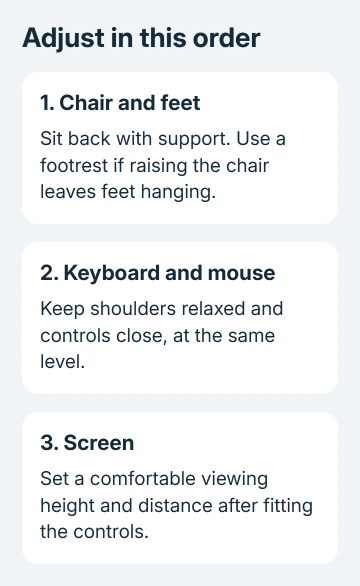
If a fixed table is too high, raising an adjustable chair may bring your arms to a better working height. Add a stable footrest if your feet then lose comfortable contact with the floor. Don't leave them hanging just to reach the keyboard.
A low table can leave your knees cramped even when the keys feel comfortable. Clear obstructions from the leg area. If the surface still presses against your legs, the desk needs adjustment or replacement.
I'd get the chair and keyboard height right first. Raising a monitor won't help much when the table still forces your shoulders upward every time you type.
Bring the keyboard and mouse into easy reach
Place the keyboard directly in front of you for the work you're doing. Keep the mouse beside it, at the same height. Reaching over a high keyboard tray to use a mouse on the tabletop creates two different arm positions.
Move both devices close enough that your elbows can stay near your body. WorkSafe Queensland's workstation setup guidance suggests about 4 to 6 inches from the desk edge.
That space can support the forearms without making the keyboard a long reach. Adjust for your own body and desk; you don't need to match that measurement exactly.
Check your wrists while typing a few ordinary sentences. Keep them roughly in line with your forearms, rather than bent upward to reach raised keys. Try the keyboard flat if its rear feet make that bend worse.
Move objects out from between the mouse and keyboard before buying new equipment. A narrower keyboard may help when the mouse still sits too far to the side. The aim is a shorter reach.
Raise the display while keeping text comfortable to read
Put the main display in front of you, with the top of the viewing area around eye level or a little lower. Start at about an arm's length and adjust so ordinary text is readable without leaning forward.
Apple recommends arranging the workstation for comfort in its healthy Mac work environment guidance. The physical setup matters whether the computer runs macOS, Windows or ChromeOS.
Use the monitor's height adjustment or a stable riser. Check that the stand's entire base is supported. If the display wobbles at its new height or the support blocks another device's vents, use a different support.
For glasses with a near-vision area, the most comfortable screen position may be lower. Check whether you tip your head back to read. Change the height to suit the lenses rather than forcing your neck to match a standard picture.
Increase text size when the screen position is comfortable but letters are too small. In Windows 11, open Settings > Accessibility > Text size. Our computer zoom guide covers the separate setting that enlarges more of the interface.
On a Mac, open System Settings > Displays and choose a display setting with larger text when available. On a Chromebook, open Settings > Device > Displays and adjust Display and text size (or Display size) for the selected screen.
Give a laptop screen and keyboard separate jobs
A laptop's screen and keyboard are attached, so you can't adjust their heights separately. With the keys at a comfortable height, the screen can be too low. Raising the whole laptop improves the viewing position but raises the keys too.
For longer sessions, connect a separate keyboard and mouse. Then raise the laptop on a stable stand so its screen sits at a comfortable viewing height. Keep the external controls at your normal typing level.
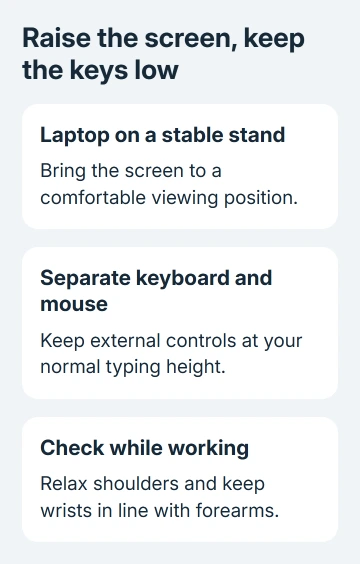
Another option is a separate monitor with the laptop placed where it doesn't crowd the main workspace. Center the screen you use most. If both screens get equal use, position them so switching between them doesn't require a large twist.
For a two-screen Windows setup, the multiple-monitor arrangement steps can help the pointer follow their physical positions. You'll need to adjust both the screen layout in Windows and the monitors' positions on your desk.
Clear knee space, reflections and cable tension
Move storage boxes and spare equipment out from under the table. Leave room to change your leg position and pull the chair close enough for typing. Keep essential items within easy reach on the desktop.
Arrange cables so normal chair movement doesn't pull on the computer or monitor. Allow extra slack for a height-adjustable desk through its full intended movement. Secure the cables while leaving enough slack for that movement.
Place the screen to reduce reflections from windows and lamps. Adjust blinds or the lamp position when bright glare makes you lean or twist to see the display. Increasing brightness alone doesn't remove a reflected window.
Keep frequently read documents close to the screen if you copy from paper. Put a phone or headset where taking a call doesn't make you hold the handset between your shoulder and ear.
Check the standing position and get help with persistent pain
For a sit-stand table, set the standing height separately. Keep shoulders relaxed, elbows near your sides and the keyboard at a comfortable forearm height. Recheck the screen position after raising the desk.
Alternate positions and move during the day instead of replacing all-day sitting with all-day standing. A good setup lets you change position; staying in one posture won't stay comfortable all day.
Try a normal task and adjust anything that still makes you reach or tense up. For continuing pain, numbness or tingling, ask your employer for a workstation assessment and a health professional for advice.
The Short Version
Fit the chair and foot support, then bring the controls close at a comfortable height. Raise the screen separately and use external controls with a raised laptop. Leave leg room and recheck the setup when standing.
Checked November 9, 2026.

Isaac Smith is the founder and editor of PC Glance, a website that covers computers, laptops, and technology. He is a tech enthusiast and a computer geek who loves to share his insights and help his readers make smart choices when buying tech gadgets or laptops. He is always curious and updated about the latest tech trends.