
Parsec can show a shared screen without letting you control the mouse when the host hasn't given you permission. Have the host enable mouse and keyboard access first.
When desktop input works but the game's camera won't turn, check mouse capture. A missing cursor or an administrator window needs a different fix.
1. Give the guest mouse and keyboard permission
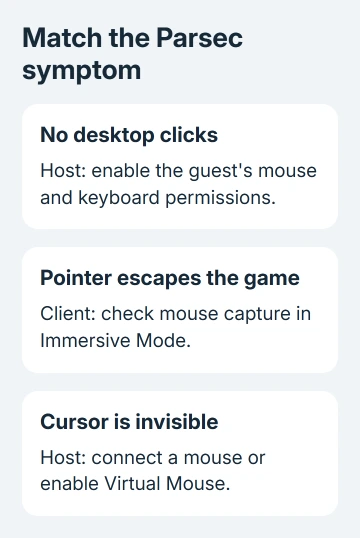
On the computer sharing its screen, open Parsec and click the connected guest's profile picture at the bottom of the app. Enable the mouse and keyboard permissions that person needs, then have them try clicking inside the streamed desktop.
The host is the computer being controlled. The client is the device displaying that stream. Changing client mouse settings won't override a host that hasn't allowed input.
Guests start with controller permission; the account owner has full access. A connection alone doesn't let a friend move the mouse. The host can change that friend's default permissions in Friends.
Parsec's mouse and keyboard troubleshooting steps identify missing guest permission as one cause of input failing.
Try moving a normal window and opening a desktop context menu. If both work, the session can receive mouse movement and right-clicks. Next, check the game or app that's failing; you don't need to change that working permission again.
If the stream pauses outside a particular app, ask the host to check Settings > Approved apps. It stops guest input outside approved apps. Change the list only if the host wants to allow access to more apps.
2. Capture the mouse for games that need it
Click inside the Parsec stream so it has focus. Open the client's Settings > Client and check Immersive Mode. Select Mouse or Both when the pointer needs to stay inside the stream.
Mouse capture keeps your mouse movement inside the stream instead of letting the pointer escape onto your own desktop. It's useful when a game turns the camera with the mouse and the pointer otherwise reaches the edge of the local window.
Use Ctrl+Shift+I to toggle Immersive Mode on Windows, or Command+Option+I on macOS. Ctrl+Alt+Z on Windows, or Command+Option+Z on macOS, temporarily detaches input. Click the stream again to reattach it.
On a Mac client, Immersive Mode requires HID Mode to be on. HID is the mode Parsec uses to send input at the device level. Enable that setting and restart Parsec before checking mouse capture again.
With several Parsec windows, mouse capture can keep the pointer in the active display. For full-screen streams across multiple local displays, the Immersive Mode guidance recommends keyboard-only capture.
I'd confirm desktop right-click before testing camera movement. If the context menu opens but the camera won't turn, check the game's input handling or capture rather than treating the mouse connection as dead.
3. Stop the host mouse taking priority
On the host, open Settings > Host and find Exclusive Input Mode. Turn it off temporarily, then restart the host's stream so the change takes effect. Ask the guest to reconnect and retry the same movement.
This option gives the host's physical mouse priority. Even small movements from that mouse can keep a guest from taking control. It can look like the remote pointer refuses to move even though permission is enabled.
Keep the host mouse still while the guest retries. If the guest can control the pointer with Exclusive Input Mode off, decide with the host whether to keep it off for shared sessions. If nothing changes, check the next matching symptom.
4. Restore a cursor on a host without a mouse
A hidden pointer doesn't always mean your mouse input has stopped. A Windows host without a physical mouse can stop displaying its cursor, and that missing pointer is reproduced in the stream.
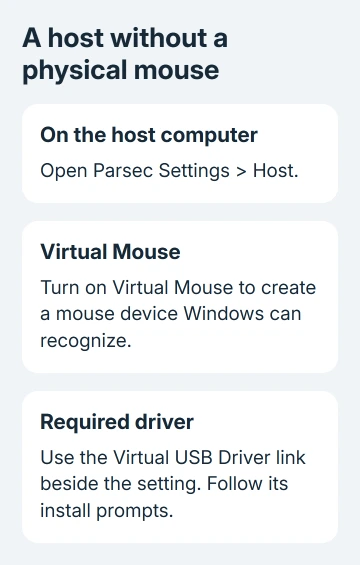
Connect a physical mouse to the host if possible. Alternatively, open the host's Settings > Host in Parsec and enable Virtual Mouse. This creates a mouse device that Windows can recognize even when a real one isn't attached.
Virtual Mouse requires Parsec's Virtual USB Driver. Use the download link beside that setting on the host and follow the installer prompts. Reconnect after completing any required restart, then check the desktop pointer.
If a cursor is missing locally too, the Windows pointer checks cover the wider desktop problem. A virtual mouse isn't a replacement for guest permission or a fix for every game's camera controls.
5. Fix input that stops at administrator windows
Try a normal desktop application, then compare it with the window that refuses clicks. If only Task Manager or another administrator application fails, Parsec may lack the system permissions needed to control that window.
Use the installed host service, which lets Parsec control elevated programs. Follow the system-permissions link in its mouse help page to check or repair that service. Someone at the host computer may need to approve the repair.
Don't lower Windows security settings to make a remote click pass through. Repair the Parsec host service so it has the permissions it needs, then reconnect and compare the same two windows.
6. Check the local right-click and the host platform
Right-click something on the client outside Parsec. If that also fails, fix the local mouse or trackpad first. On a Mac, open System Settings > Trackpad > Point & Click > Secondary click, or Mouse > Secondary click for a supported mouse.
Apple's secondary-click instructions explain the available gestures. For a Mac trackpad that loses a previously working corner click, our trackpad right-click checks cover that separate fault.
A Mac acting as the host doesn't have full mouse support for first-person games. Changing a Windows client setting won't add that support to the Mac host. Check which machine is hosting before spending time changing a working client setup.
Anti-cheat can block remote input. If only a protected multiplayer game fails, check its current remote-input policy. Use a supported input method rather than trying to bypass that protection.
Send Parsec support both operating systems, app builds and the affected game if it still fails. Include the desktop right-click result and which permission, capture or elevated-window checks changed the behavior.
The Short Version
Allow guest mouse input first. Check capture when the pointer escapes, host priority when it won't move, and Virtual Mouse when the cursor is missing. Check elevated windows and game support separately.
Checked November 9, 2026.

Isaac Smith is the founder and editor of PC Glance, a website that covers computers, laptops, and technology. He is a tech enthusiast and a computer geek who loves to share his insights and help his readers make smart choices when buying tech gadgets or laptops. He is always curious and updated about the latest tech trends.