
Safari's A problem repeatedly occurred message means the same webpage keeps failing. Reopen it, then try a private window. If it works there, clear that site's saved data on Mac before considering a full history wipe.
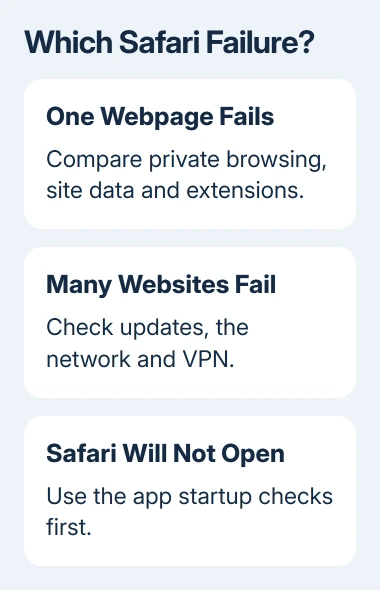
One website failing needs different checks from Safari crashing on every page. Use another ordinary website for comparison, and follow the Mac or iPhone and iPad steps that match your device.
1. Reopen the failing page without restoring the loop
On a Mac, press Command+R to reload. If the same error returns, close that tab and open the address in a fresh tab. Copy any unsent text you can still reach before closing the page.
If Safari itself stops responding, quit it and reopen it. When an old tab immediately brings the failure back, hold Shift while opening Safari to stop unwanted windows from reopening automatically.
On an iPhone or iPad, close the failing Safari tab and try the address again. If the app won't respond, dismiss its preview in the app switcher. One fresh tab lets you check whether that address still triggers the failure.
For devices without a Home button, start at the bottom edge, swipe upward, and pause midway to show recent apps. For a device with a Home button, double-click it. Dismiss Safari by swiping its preview upward, then reopen Safari.
Try another website afterward. If Safari opens and other pages load, work through the site-data and extension checks next. If Safari can't open at all on an iPhone, use the Safari app-startup checks.
2. Compare a private window and remove faulty site data
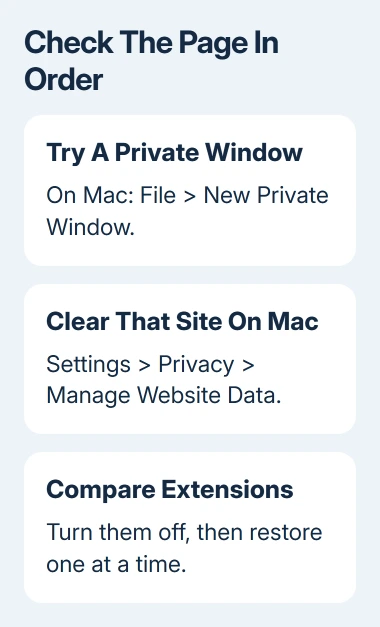
On a Mac, choose File > New Private Window, or press Shift+Command+N. Enter the failing address directly. If it loads there, the normal window's saved cookies or other website data may be involved.
Apple's Safari troubleshooting recommends that comparison before removing a site's data. Extensions can have different permissions in private browsing, too. If the page works there, check both its saved data and your extensions.
In the normal Safari window, open Safari > Settings > Privacy > Manage Website Data. Older versions use Preferences in place of Settings. Select the affected website, choose Remove, then Done, and try it again.
Have your sign-in details ready before removing data, because the site may ask you to log in again afterward. Removing that site's data lets you keep your browsing history.
On current iPhone or iPad, open Settings > Apps > Safari > Advanced > Website Data. The Remove All Website Data option removes stored cookies and cache without erasing browsing history. Earlier releases put Safari directly in Settings.
Use that broader clearing option when you're ready to sign back in to affected websites. The separate Clear History and Website Data control also removes history; it isn't required simply because the message mentions a webpage.
Reopen Safari and enter the address again. If it loads, check the same action that failed, such as opening an article or signing in. If the error returns immediately, stop clearing data repeatedly and compare extensions next.
3. Turn off extensions for a useful comparison
On a Mac, open Safari > Settings > Extensions, then uncheck the extensions to turn them off. Load the failing page again. Content blockers and other extensions can change what a webpage is allowed to load.
If the error stops, restore one extension, reopen the page, then repeat for the others. Update or leave off the one that brings the failure back. This gives you a specific extension to discuss with its developer.
On current iPhone or iPad software, open Settings > Apps > Safari > Extensions and turn off the relevant extension or content blocker for the comparison. On older versions, start with Settings > Safari > Extensions.
If JavaScript is off on your iPhone or iPad, go to Settings > Apps > Safari > Advanced and turn JavaScript on. Many interactive pages depend on it. Reload the page and check whether the expected controls now appear.
I'd change one group of settings at a time here. A page that starts working after both data removal and several unrelated changes leaves you unsure which setting to keep when the problem returns.
4. Restart the device and update its system software
Restart the device if fresh tabs, site data, and extensions haven't resolved the error. On a Mac, select Apple menu > Restart. Then open System Settings > General > Software Update to check for an available macOS update.
On an older Mac, open System Preferences > Software Update instead.
Safari updates on a Mac arrive through the software updates offered for that macOS version. Use Software Update rather than downloading a replacement Safari installer from an unrelated download page.
For a Face ID iPhone, hold Side along with Volume Up, releasing both when the shutdown slider shows. On an iPhone 6, 7, 8, or SE (2nd or 3rd generation), hold Side alone; an older top-button iPhone uses Top.
For iPads without Home, use Top together with Volume Down to show the shutdown slider. With Home, hold Top alone.
For either device, drag the slider and let it shut down. To start it again, hold its power button. Release it once the screen shows Apple's logo. Try Safari after unlocking, before changing any other settings.
On iPhone and iPad, open Settings > General > Software Update. Install the update offered for your device, then return to the same address and action that failed. Safari is updated with the device's system software.
If Safari won't stay open on a Mac long enough for these checks, use the Mac Safari startup guide. It covers the app failing to launch, including the different safe-mode procedures for Mac hardware.
When several pages fail rather than one, note whether another browser also has trouble. A repeated error on one complex site isn't enough to conclude that the Mac needs more memory or a full system reinstall.
5. Compare the network and report a site-specific failure
On iPhone, try the page using cellular data instead of Wi-Fi. On an iPad without cellular service, try another Wi-Fi network. If it loads there, review the original connection and any VPN instead of clearing Safari again.
If a VPN is on and you're allowed to disconnect it, turn it off briefly and try the page again. Your organization's administrator may control the device's VPN settings. Restore the required connection after the comparison.
For an iCloud+ user on Mac, try View > Reload and Show IP Address for the failing site. This compares the page without Private Relay. On iPhone or iPad, Private Relay can be temporarily turned off in iCloud settings.
If one site fails across browsers or devices, give its support team the exact address and action. Include the Safari and system versions, whether private browsing worked, and whether a different network helped.
Safari 26 on Mac also offers Report a Website Issue from the Page Menu after reloading a page. Use it to describe a compatibility failure. If many unrelated sites still crash, give Apple Support your examples and ask for help with Safari.
The Short Version
Reopen the page, compare private browsing, and clear that site's data on Mac if the comparison works. Then check extensions, updates, and the network. Report persistent single-site failures with the address and versions.
Checked November 9, 2026.

Isaac Smith is the founder and editor of PC Glance, a website that covers computers, laptops, and technology. He is a tech enthusiast and a computer geek who loves to share his insights and help his readers make smart choices when buying tech gadgets or laptops. He is always curious and updated about the latest tech trends.