
Windows 11 Setup stuck at 46% on Getting updates can be held up by its update-download stage. Restart that setup attempt with Dynamic Update disabled to skip the download check, then install Windows updates after setup finishes.
That advice applies to setup.exe running inside an existing Windows installation. A percentage shown after the PC restarts, or while booted from a USB installer, is a different stage. Don't interrupt those screens just to try this command.
1. Confirm that Getting updates is the stalled stage
Read the heading and text in the setup window, not just the percentage. The relevant case is an installer still running on your normal desktop, checking for updates before it offers the final installation choices.
Dynamic Update is the part of Setup that searches for newer setup files, drivers, and related updates. Skipping it means this setup attempt won't download those newer files. It doesn't turn off Windows Update permanently.
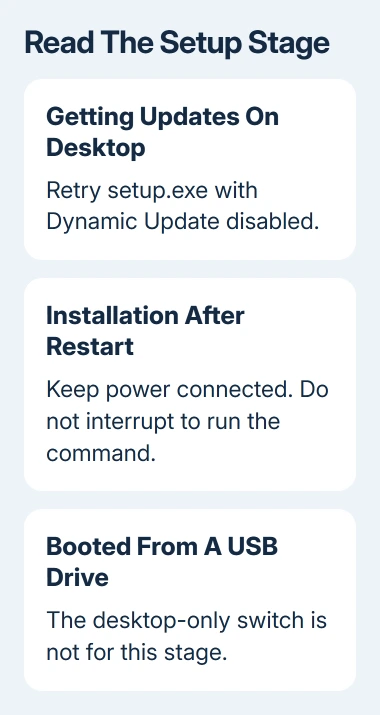
A percentage that stays the same for a short time doesn't mean the installer has stopped. Leave the laptop plugged in while an active setup attempt continues. There isn't a reliable universal time limit for every PC and connection.
If the desktop setup window remains at the update check and you decide to retry, use its Close or cancellation control and allow cleanup to finish. Restart Windows normally before starting a fresh attempt if cleanup requests it.
Do not force the power off during the full-screen installation phase. If the PC has already restarted into installation, keep its exact screen text for support; this desktop-only workaround isn't the right way to judge that stage.
For a stuck percentage inside Settings > Windows Update, use the Windows Update stuck guide. That route has its own update-service checks and isn't the same as rerunning an ISO's setup.exe.
2. Prepare a compatible Windows installation image
Back up important files before restarting installation, even when you intend to keep everything. Have the recovery key for a BitLocker-encrypted PC available too, since recovery prompts can require it.
Use an official Windows 11 ISO or installation drive for your PC. To repair Windows without removing your apps and files, the installer must offer a choice to keep them. Edition, language, architecture, and version can affect those choices.
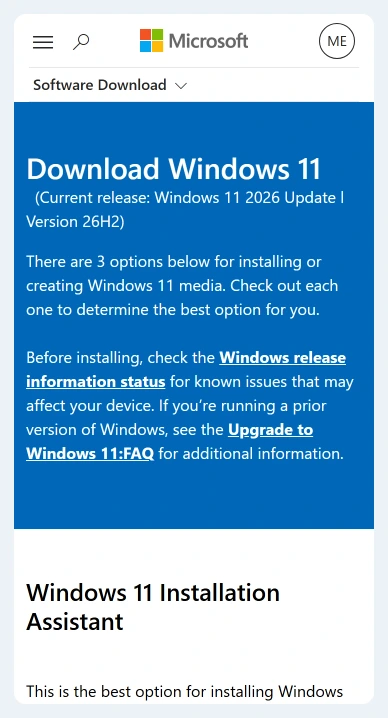
The Windows 11 download page offers the official downloads. Check the heading of the download you choose. The command in the next section runs setup.exe from the installation files, not the Installation Assistant or Media Creation Tool.
For an ISO downloaded to the PC, right-click the file in File Explorer and select Mount. Windows opens it as a virtual DVD drive. Note the drive letter shown under This PC, such as D: or E:.
If you're using a USB drive containing the installation files, note its letter instead. Stay signed in to the current Windows desktop and open the media there. Booting from USB takes a different installation route.
I'd check the drive letter in File Explorer rather than copying one from an example. A command using D: won't start the right installer if your mounted image is E:, or if D: belongs to a different drive.
3. Start setup.exe with Dynamic Update disabled
Open Start, type cmd, and choose Run as administrator for Command Prompt. Confirm the permission prompt. Use the setup.exe inside the mounted image or prepared installation drive.
If your installation files are on D:, enter:
D:\setup.exe /DynamicUpdate Disable
Replace D: with your actual media drive letter. Keep the space between DynamicUpdate and Disable. This is a Windows Setup option, not a command to run against the Installation Assistant download.
Microsoft says Disable prevents Dynamic Update operations. It applies when setup.exe starts from Windows 10 or later.
The setup window should open normally. Continue through its prompts and see whether it reaches the license, compatibility, and installation-choice screens without returning to the same update-download wait.
This switch isn't a repair for every failure that happens to display 46%. If the installer now reports a compatibility block, missing space, or another error, address that named problem rather than repeatedly skipping the update check.
If the command reports that the path can't be found, open File Explorer and check that the image is still mounted with setup.exe at the drive's top level. Correct the drive letter or reconnect the installation files before trying again.
4. Review what Setup will keep before installing
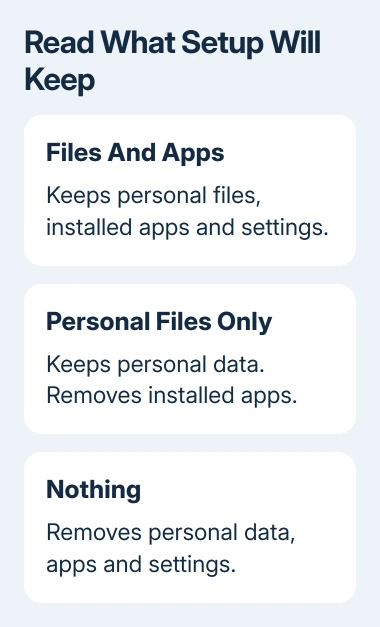
At Ready to install, read the summary and select Change what to keep when needed. Select Keep personal files and apps if you want to keep your existing apps and files and Setup offers that choice.
Keep personal files only removes apps. Keep nothing removes personal data, apps, and settings. Don't proceed with either option by accident because the expected keep-everything choice is unavailable.
The installation-media instructions explain those choices. If that choice isn't available, cancel. Check that your installation files match your Windows edition and language and support the upgrade you're trying to make.
Once the correct summary is shown, select Install and let the PC complete its restarts. The percentage and screen will change during installation. Keep the computer connected to power throughout this part.
After reaching the desktop, open Settings > Windows Update > Check for updates. Apply the offered updates, then complete any requested restart. Skipping Setup's downloads doesn't remove the need to update the installed Windows system.
5. Use the next error to choose the repair
If the attempt fails, write down the complete error code and the screen where it appeared. Note whether it still stopped during Getting updates, failed during compatibility checks, or restarted and rolled back to the previous installation.
Avoid deleting installation logs while looking for the cause. Ask Microsoft Support or your PC maker to inspect the Setup logs and the exact error. A new failure after bypassing the download stage calls for a different repair.
If you need to keep your files but the installer won't offer that choice, ask support to help choose compatible installation files before continuing. A clean installation is a separate decision; a stalled update check doesn't require one.
For an installer that reports insufficient space, the Windows drive-space guide covers freeing space safely. Give support the available space and media version along with the failure code if installation still won't continue.
The Short Version
For desktop setup.exe stuck on Getting updates, retry with /DynamicUpdate Disable. Confirm the choice to keep files and apps, then install and run Windows Update. A stall after restart needs its own stage and error checked.
Checked November 9, 2026.

Isaac Smith is the founder and editor of PC Glance, a website that covers computers, laptops, and technology. He is a tech enthusiast and a computer geek who loves to share his insights and help his readers make smart choices when buying tech gadgets or laptops. He is always curious and updated about the latest tech trends.