

Too many tabs, a busy extension or full storage can slow a Chromebook. Close unused pages and apps, then restart. When menus respond quickly but websites load slowly, check the connection before considering a reset.
Tabs that keep reloading suggest pressure on working memory. A low-space warning points to storage instead. Both can feel like a slow computer, but freeing one doesn't automatically fix the other.
1. Close unused pages and give the device a restart
Save your work, close unnecessary tabs and quit unused apps. Keep just the page or document you need. Use the power controls in the clock menu for a restart. If needed, shut down there and power the Chromebook on again.
Sign in and open only the same everyday task that felt slow. If it's responsive until several more apps or tabs are opened, the number of things running at once is part of the problem.

Google's Chromebook troubleshooting steps recommend closing unused tabs and apps when tabs keep refreshing. Working memory holds active tasks; storage keeps files after you turn the computer off.
Don't judge the restart by opening every previous window at once. Bring back the pages you actually need and notice when the slowdown returns. That makes it easier to identify a heavy page or app without changing the whole device.
If the Chromebook stops responding completely instead of just slowing down, use the Chromebook freezing checks. A frozen device can need a different restart route from a responsive but overloaded one.
2. Find the busy task before removing anything
Press Shift + Esc to open Chrome's Task Manager. Look at the listed pages, extensions and other tasks. Compare CPU, the processor's activity, and Memory footprint, the working memory a task uses.
A page can be busy briefly while loading or playing video. Watch whether one task stays unusually demanding after the page has settled. No single memory limit lets you judge every task on every Chromebook.
Save any work you need from that page, select its task and choose End process if it won't settle. Ending a task can discard unsaved edits. Reopen that page alone to see whether the slowdown follows it.
If the same website is always responsible, try a simpler view or reduce the number of its open tabs. If an extension stays busy, turn that extension off next rather than repeatedly ending its process.
I'd start with the task that's keeping the computer busy. Removing a different app just because it takes up lots of storage won't necessarily help a tab that's overworking the processor.
3. Compare extensions with a guest session
In Chrome, open More > Extensions > Manage extensions, or enter chrome://extensions in the address bar. Turn off extensions you don't currently need, then retry the slow page.
If performance improves, re-enable the useful extensions one at a time. When the slowdown returns after a particular extension is enabled, leave that one off and check for an update or a replacement from its developer.
To check more than just your extensions, save your work and sign out of the Chromebook. Select Browse as Guest at sign-in, if offered. Open a normal public page without signing into your account or adding extensions.
Guest browsing lets you try the Chromebook outside your usual profile. A faster guest session suggests checking that profile's extensions, apps and settings before treating the computer as too old to use.
Exit with the clock menu's Exit guest when finished. Guest files and browsing data are removed when the session ends, so use this for a quick check rather than a place to keep documents.
If a managed Chromebook doesn't offer Browse as Guest, ask the administrator. Managed devices can restrict guest access and extension changes; don't try to bypass those controls.
4. Free storage when the device is nearly full
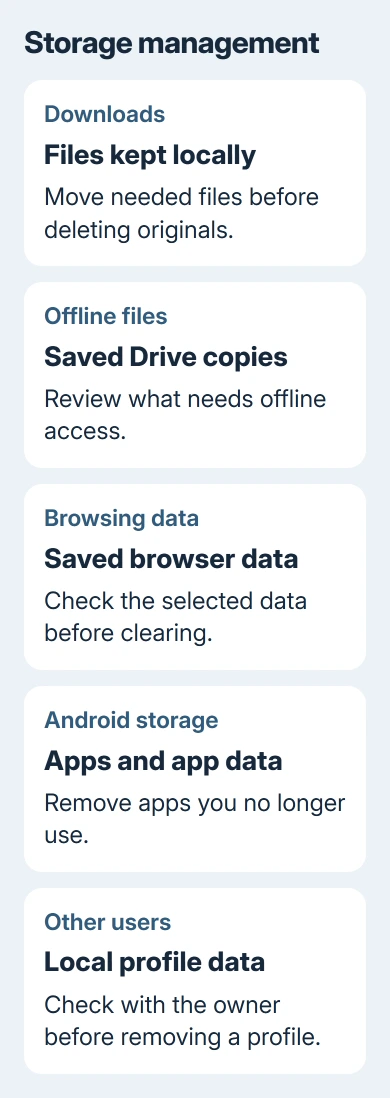
Select the clock, then Settings > System preferences > Storage management. The storage summary separates Downloads, offline files, browsing data, Android storage and other users' data.
If your Settings list looks different, search Settings for Storage management. Check what occupies the space before choosing something to remove.
Copy needed Downloads to a folder in Drive or to a USB drive. Open those copies before deleting the local originals. Delete unneeded files and uninstall apps you no longer use. Storage isn't the same as the memory shown in Task Manager.
The storage cleanup instructions list slow loading, download trouble and settings that won't save among the possible low-space symptoms. Those instructions don't give a fixed percentage of free space for every Chromebook.
Review Other users with the device owner before removing a profile. Removing its local files is different from deleting the person's online Google Account. Don't use someone else's stored work as a quick cleanup target.
After cleanup, reopen Storage management and confirm that available space increased. Retry the task that was slow. If space is now available but the same page remains sluggish, continue with connection and update checks.
5. Check whether only the internet feels slow
Open Settings or a downloaded document. If those respond quickly but websites don't, see whether a second device loads sites slowly over that Wi-Fi too. If both devices are slow, check the network next.
Connect the Chromebook to a different trusted network if possible. Faster loading there gives the original network's owner or provider something to check. Clearing browser data repeatedly won't repair a connection fault.
Open Settings > About ChromeOS > Diagnostics for connection checks. The app can test the current connection and offer details about failures. Record the failed check rather than assuming every network error is weak Wi-Fi.
If just one website is slow while others work, retry that site later or contact its support with the affected page and time. You don't need to factory-reset your computer because one overloaded service is slow.
6. Finish updates and check persistent hardware symptoms
Open Settings > About ChromeOS > Check for updates. Let an offered update download, then save work and complete the requested restart. The Chromebook update guide covers managed devices and downloads that won't finish.
For a slow device with few apps open, launch Diagnostics from About ChromeOS, or search the launcher. It requires ChromeOS 90 or newer. Review processor usage and run a CPU or memory test.
CPU tests can make normal work slow while they run, so judge everyday performance after testing ends. A failed CPU test may indicate a processor or cooling problem; a failed memory test may indicate faulty memory.
Send the test details, model, ChromeOS version and failure message to the manufacturer. For a managed Chromebook, send them to your administrator first and ask them to check performance and whether any hardware needs repair.
Consider Powerwash only after these checks and a backup of local files. Ask support whether a reset is appropriate for the results you recorded. It can't add working memory or repair a component that failed a hardware test.
The Short Version
Close unused tabs and apps, check Task Manager, compare extensions and free storage when needed. Separate slow websites from a slow device, finish updates and use Diagnostics for persistent processor or memory symptoms.
Checked November 9, 2026.

Isaac Smith is the founder and editor of PC Glance, a website that covers computers, laptops, and technology. He is a tech enthusiast and a computer geek who loves to share his insights and help his readers make smart choices when buying tech gadgets or laptops. He is always curious and updated about the latest tech trends.