

Add a note in Excel by right-clicking the cell and choosing New Note, then typing your explanation and clicking another cell. The note stays attached to that cell without replacing its number, text or formula.
Choose New Comment instead when you need a conversation with replies. Modern Excel separates comments from notes, which is why an older tutorial's comment instructions can open the wrong kind of box.
Put the explanation on the right cell
Select the cell the explanation belongs to. A note about a total should normally attach to that total, while a note about a whole column can attach to its heading. Readers can then find the explanation beside the value it describes.
In Excel for Windows, right-click the cell and select New Note. Shift+F2 is another way to insert a note or edit an existing one. If your keyboard uses function keys for hardware controls, use the menu instead.
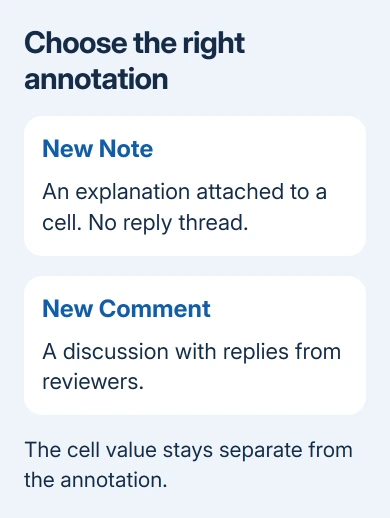
Type the explanation into the note box, then click outside it. Excel normally leaves a small indicator on the cell. Hold your pointer over that cell to see the note again without opening the cell for editing.
A useful note explains something the value alone can't tell the reader. For example, say that a total excludes returns or that a date is awaiting confirmation. Keep the actual amount numeric so formulas can continue using it.
Don't type the explanation into the formula bar unless you intend to change the cell's contents. The note box is a separate place for the explanation. Selecting another cell should leave the original value unchanged.
Microsoft's instructions for notes and comments cover both tools. In older Excel editions, a note may be called a Comment because that version didn't have comments with replies.
Edit or remove a note without changing the value
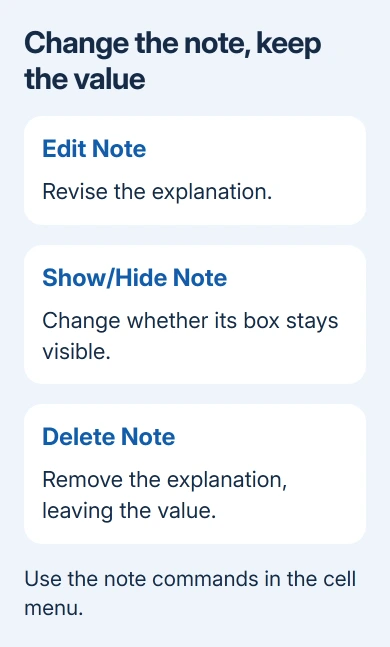
Right-click a cell that already has a note and select Edit Note. Depending on the Excel version and menu layout, note commands can appear inside a Notes submenu. Change the text in the note box, then click away.
Changing the note doesn't update the amount or formula in its cell. If you've changed the calculation, read the note too so its explanation still matches the worksheet.
To remove the note, right-click the cell and choose Delete Note. Check the indicator afterward. Deleting the note should leave the cell's value in place, which is the result you want when only an outdated explanation needs removal.
Pressing Delete while the cell itself is selected clears its contents instead of being the normal way to remove its note. Use the named note command so you don't clear a working value by mistake.
Keep a note visible while you work
For one note, right-click its cell and choose Show/Hide Note. This is useful when you're checking a calculation against the explanation and don't want to keep hovering over the cell.
In desktop Excel, the Review > Notes menu provides note controls, including showing notes and moving between them. Use the next and previous note commands when your notes are spread across a worksheet.
If indicators have disappeared in Windows Excel, open File > Options > Advanced. Under Display, look for For cells with comments, show. That older wording covers note visibility too.
Choose Indicators only, and comments and notes on hover for the usual behavior. Indicators and notes, and comments on hover keeps notes displayed. No comments, notes, or indicators hides the visual signs you're looking for.
Changing these display settings doesn't delete notes. If a note reappears, it was hidden rather than lost. Choose a view that makes the explanations easy to find without covering your worksheet.
I'd keep ordinary notes on hover and pin only the one I'm using. A sheet full of open note boxes can cover the values the notes were meant to explain.
Follow the Mac or web controls
On a Mac, right-click or Control-click the target cell and choose New Note. Type your note and click outside it. Use Edit Note from the cell's context menu to revise it later.
For default visibility in Mac Excel, open Excel > Preferences > View. In the comments display options, choose indicators with notes shown on rollover, or the option that displays comments and indicators together.
That Mac preference panel can still say comments even though the worksheet menu calls them notes. Check the cell's actual menu before deciding that an older label means the wrong feature.
Excel for the web also supports notes. Right-click the cell and choose New Note; use the Notes submenu when your menu groups the commands there. You'll still be adding a note, rather than starting a discussion with replies.
Notes pinned to the grid or resized in the web app keep those display changes only for the current session. For note boxes that stay arranged that way, use Excel on your computer rather than the web app.
Editing a desktop note in the web app removes existing rich-text formatting from it. For a note containing special formatting or pictures, use the desktop app to preserve those details while editing.
Copy an explanation without overwriting the data
Select the cell with the note and copy it. Select the destination cell, then open Home > Paste > Paste Special. In the Windows dialog, choose Comments to paste just the note, then select OK.
On a Mac, choose Comments and Notes in Paste Special to copy just the note. Check for an existing note in the destination cell first: the copied note replaces it.
Press Esc after the paste to end copying. On Windows, don't press Enter after pasting just the note; that can copy the source cell's contents into the destination too.
If you want to copy the calculation itself, use the separate Excel formula-copying steps. Copying a note doesn't copy the formula it describes or adjust that formula's cell references.
Choose a printed explanation when hovering won't help
A note is designed for someone working with the workbook. It isn't automatically a visible explanation on every printed page. Decide whether the recipient will open the file or receive only a paper copy.
For a report that needs a visible reference beside a table, use a worksheet footnote or page footer. That keeps the explanation available without expecting the reader to discover a hover box.
If New Note is unavailable in a shared workbook, ask its owner whether you have permission to edit. If the file has no restrictions, try a blank workbook, then tell Microsoft Support what happened and which Excel version you use.
The Short Version
Choose New Note for an explanation or New Comment for a discussion. Use the note menu to edit, display or delete it. Use Paste Special to copy just the note without replacing the destination value.
Checked November 10, 2026.

Isaac Smith is the founder and editor of PC Glance, a website that covers computers, laptops, and technology. He is a tech enthusiast and a computer geek who loves to share his insights and help his readers make smart choices when buying tech gadgets or laptops. He is always curious and updated about the latest tech trends.