
Printer not activated, error code 30 can come from a program's PDF printer rather than the physical printer. In Sage 50, start by selecting a normal Windows default printer instead of Sage 50 E-mail Writer.
If only PDF or email output fails, repair the matching program's PDF components.
The same message also appears in other Sage products, with different repairs. Record the application and version before downloading a driver. A Sage 50 E-mail Writer repair and a Sage 100 Paperless Office update aren't interchangeable.
1. Identify the output that actually fails
Note whether the error appears when printing paper, creating a PDF or emailing a document. Check which printer is selected in that application's print window.
A virtual printer creates a file; it doesn't send a page to your physical printer.
Print a simple document from another application to your ordinary printer. If paper comes out there but the accounting program fails during PDF creation, concentrate on that program's PDF writer.
Replacing ink or reconnecting Wi-Fi won't repair its software driver.
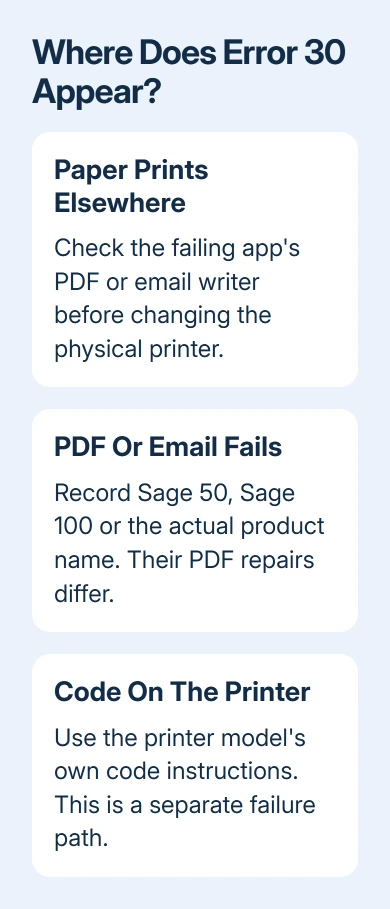
If the physical printer itself shows a code, use its model-specific instructions.
The HP error-code guide explains why a number on the printer's display needs different treatment from an application popup.
For error 30, note the full message, including any minus sign. Record recent changes, such as moving PCs or installing a Windows or application update. Those details help the software vendor choose the right PDF component.
2. Give Sage 50 a normal Windows default printer
Sage's error-30 instructions list a missing default or Sage 50 E-mail Writer set as default among the causes. Check that choice before removing drivers.
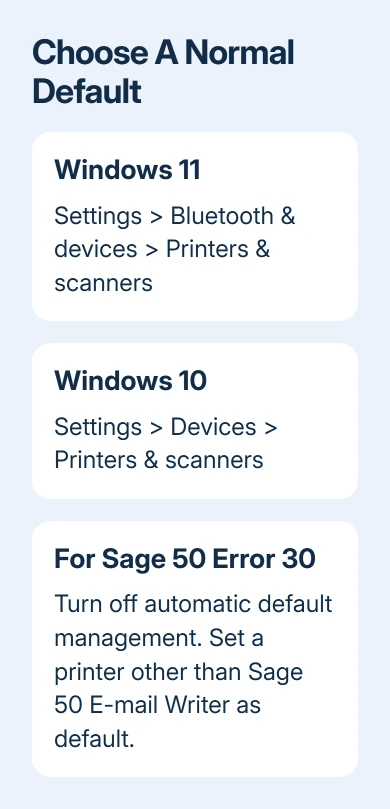
On Windows 11, open Settings > Bluetooth & devices > Printers & scanners. Switch off Let Windows manage my default printer. Select your ordinary printer, then choose Set as default. Its status should change to Default.
On Windows 10, open Settings > Devices > Printers & scanners. Clear Let Windows manage my default printer, choose the printer, select Manage, then Set as default. Pick a printer other than Sage 50 E-mail Writer v3.
The Windows default-printer controls also explain a missing Set as default button: automatic management needs to be off before manually choosing the default.
Close and reopen the affected application, then repeat the same print or email action. If it works, keep that default and finish the job.
If the default keeps changing later, the default-printer settings deserve a separate check.
3. For Sage 50 email output, match the app permissions
When emailing fails, the repair instructions call for running both Sage 50 and your email program as administrator. Close both first, then apply the setting to both programs rather than changing just one.
Right-click the Sage 50 shortcut > Properties > Compatibility > Change settings for all users. Select Run this program as an administrator, choose Apply, then OK.
Repeat for the supported email program's shortcut, then reopen both.
On Windows 10, the instructions note that a Compatibility tab may be missing for Outlook or Sage. In that case, use Properties > Shortcut > Advanced, select Run as administrator, then confirm.
The change may need approval from an administrator.
Test emailing the same document again. If the email sends, that part is working again. Printing on paper alone doesn't check the connection between Sage and your email program.
If error 30 remains, move to the PDF writer repair rather than changing Windows permissions across unrelated folders.
On an office PC, ask the software administrator to make this change. It gives both programs administrator access, so they need to check that it fits your email software and the organization's setup.
4. Repair the Sage 50 E-mail Writer components
If Sage 50 still fails, the repair instructions call for removing Sage 50 E-mail Writer v3 and older Peachtree or Sage E-mail Writer entries, removing the named Amyuni driver packages, then running Repair from the Sage installer.
Back up the company data before this deeper repair and have the matching installer available.
This changes printing software that other programs may share, so I'd ask the Sage administrator to handle it rather than delete every PDF printer on the computer.
The instructions specifically name Amyuni Document Converter 550 and 450, if present. They aren't a reason to remove a differently named converter belonging to another application.
Give support the exact printer and driver names visible on your PC.
After Repair, set up the writer through Printer properties > Ports > Add Port > Local Port > New Port, with PDF1 as the port name.
Under Advanced, enable advanced printing features and select direct printing, then restart.
Repeat the original email or PDF action after restarting. If it still fails, the same support article has narrower checks for damaged form files and a Windows user profile.
Tell support which action still fails and ask which check fits that problem. Don't delete company files to try to clear the error.
5. Use the Sage 100 repair for Paperless Office
In Sage 100, error -30 or a PDF filename prompt can follow a changed Amyuni driver.
The Paperless Office repair instructions separate supported product updates from older converter reinstalls.
The documented fixes include Sage 100 2020 Product Update 3, 2021 Product Update 1, and 2022. A separate Amyuni driver update covers 2019.5, 2020.0 through 2020.2, and 2021.0.
Match the installed release before choosing the package.
For the documented older converter reinstall, an administrator opens Sage 100 as administrator, selects File > Run, enters PL_AdvancedOptions_UI, checks Use Lockfile, and chooses Install PDF Converter, then Test PDF Converter.
That utility is the Sage 100 route. Don't search for it in Sage 50 or install a converter package from an unrelated product. A successful converter test is the first check; repeat the real report or register output afterward.
When the PDF writer still won't activate
Contact the application's support with its product name, version, Windows version, full error and the output that fails. For Sage 50, reference solution 221924850014659; for Sage 100 Paperless Office, reference 220924360103205.
Ask for the supported PDF writer repair for that installed release. For another program, its own PDF component needs its own instructions. The error number alone doesn't tell you which driver to use or which registry setting to change.
The Short Version
Check whether error 30 belongs to the application PDF writer. In Sage 50, select a normal default printer, then check paired email permissions and the writer repair.
In Sage 100, match the Paperless Office update or converter procedure to the installed release.
Checked November 10, 2026.

Isaac Smith is the founder and editor of PC Glance, a website that covers computers, laptops, and technology. He is a tech enthusiast and a computer geek who loves to share his insights and help his readers make smart choices when buying tech gadgets or laptops. He is always curious and updated about the latest tech trends.