
Start with computer keyboard shortcut keys for tasks you repeat: Ctrl+C to copy, Ctrl+V to paste and Alt+Tab to switch windows. Add file, editing and screen-capture commands as you need them, rather than memorizing a long list.
These combinations work on Windows 10 and 11; follow any steps listed for your version. A Mac uses different combinations for many commands; use the Mac keyboard shortcut guide when your keyboard has Command instead of a Windows key.
Start with one short editing task
Open a note you don't need to keep and type a sentence. Select a few words with the mouse, hold Ctrl, tap C, then release both keys. Click another position and press Ctrl+V to paste a copy there.
The plus sign means hold the keys together; you don't type a plus character. For three-key combinations, hold the first two keys and tap the last. Release the keys before entering ordinary text again.
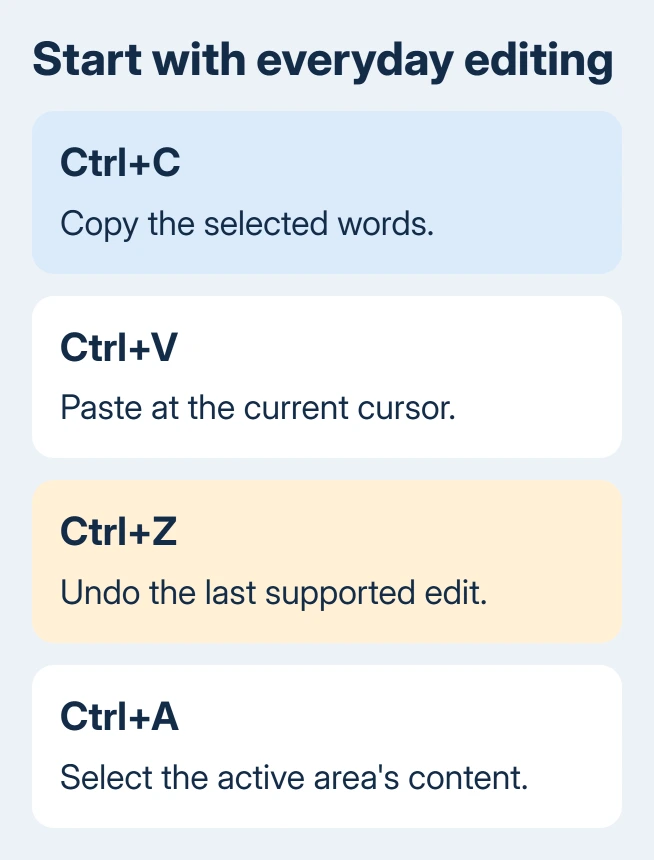
Microsoft's Windows keyboard reference lists the default combinations and notes that apps can change their behavior. Practice in a note first so the result is clear without affecting an important document.
| Task | Keys | What to check |
|---|---|---|
| Copy selected text | Ctrl+C | The selection stays in place. |
| Cut selected text | Ctrl+X | The selection is removed for moving. |
| Paste | Ctrl+V | The copied or cut content appears at the cursor. |
| Undo | Ctrl+Z | The last supported edit is reversed. |
| Select all | Ctrl+A | Everything in the text area you're using is selected. |
Click inside the intended document before selecting everything. Ctrl+A in a file window selects files; in a text editor it selects text. What gets selected depends on which window you're using and where your cursor is.
Try Ctrl+Shift+V for plain-text paste when the receiving app supports it. This can keep copied fonts and colors out of your note or email. It isn't handled the same way in every application, so check the pasted result.
Move through text and use the document's commands
Hold Ctrl and press Left or Right to move by words in a text field that supports it. Add Shift to select as you move. This helps replace a phrase without dragging across it with the mouse.
Use Home or End to reach the start or end of the line in a normal text editor. Ctrl+Home and Ctrl+End move to the beginning and end of the document. On a laptop, you may need to hold Fn to use Home and End.
Press Ctrl+F to search the current document or page. Type a word that's easy to recognize and check the match. Search finds text inside the app you're using; it doesn't search every document on the computer.
Use Ctrl+S to save in apps that support it, and Ctrl+P to open their print controls. Saving a new file can first open a dialog asking for its name and location. Ctrl+P doesn't necessarily start printing right away.
For spreadsheets, the Excel shortcut procedure covers cell selection and ribbon commands. What those commands do depends on where you're working in the spreadsheet, so use the Excel steps for those tasks.
Switch apps and arrange the desktop
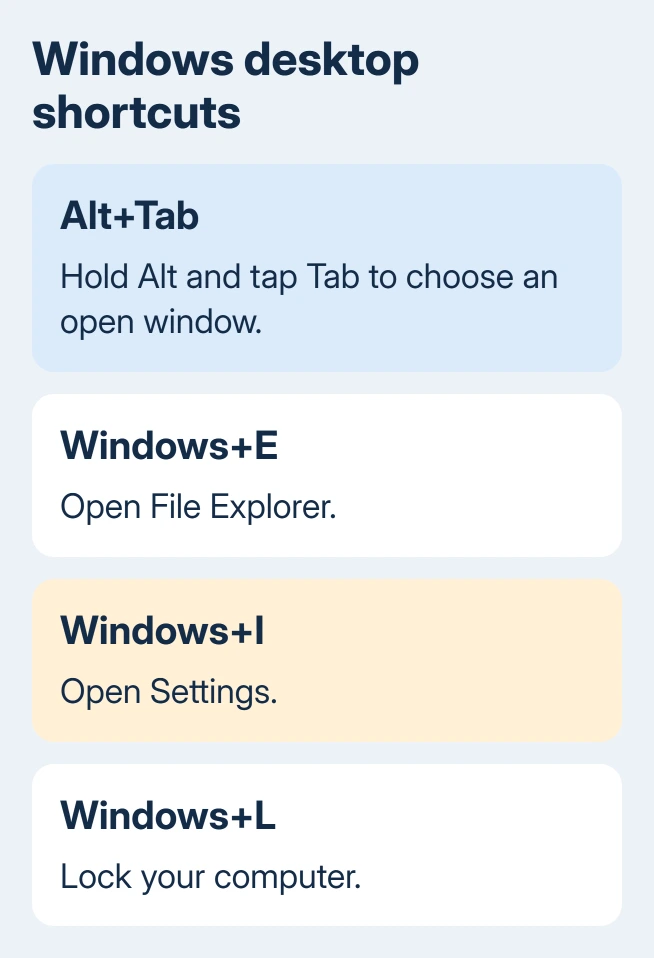
Hold Alt and tap Tab. Keep Alt held while you tap Tab to move through the open windows, then release Alt on the one you want. That window comes to the front, ready for you to use.
Add Shift while cycling to move in the opposite direction. This is useful when you pass the window you intended to open. You can keep cycling instead of starting again with the mouse.
Press Windows+D to display the desktop, then press it again to return to your windows. Windows+L locks the computer when you're leaving the desk; unlock it through your usual sign-in method when you return.
For side-by-side work, select a window and press Windows+Left or Windows+Right. These names mean the arrow keys on the keyboard. The window moves to that side, making room for another app beside it.
On Windows 11, Windows+Z opens Snap layouts, which offers arrangements for the active window. Windows 10 doesn't use the same Windows 11 layout picker. The side-snapping combinations are useful on both systems.
Use Alt+F4 to close the active window when you're finished. Check which window is active first. With no windows open, the same shortcut can show the shutdown prompt instead of closing an app.
Open files, settings and screen capture
Press Windows+E to open File Explorer. Once you're inside a folder, Ctrl+Shift+N creates a new folder. Type its name and press Enter, then confirm it appeared in the intended location.
Select a file and press F2 to rename it. Review the selected item before typing. If F2 changes brightness or volume on your laptop, use the laptop maker's Fn combination for the actual F2 key.
Press Windows+I to open Settings, or Windows+S to search. Enter the name of the app or setting, then select its search result. Search is a convenient route when you can't remember a menu's location.
For part of the screen, press Windows+Shift+S and choose the capture area. The captured image goes to the clipboard, where you can paste it into a supported app. Check Snipping Tool for its save and editing options.
What PrtScn does depends on its setting on current Windows systems. It won't always work like the other screenshot shortcuts. I'd learn Windows+Shift+S first because it lets you select exactly what belongs in the image.
Add shortcuts gradually and check failures in context
Pick two combinations that match your work and use them until you stop looking them up. Add another pair afterward. A long list is useful as a reference, but remembering commands you never use doesn't make the work faster.
Look beside commands in an app's menus for its own shortcuts. A browser tab, an open document and a file list can give the same key a different job. Check that app's help when its behavior differs from the Windows default.
If ordinary letters work but combinations don't, try the other Ctrl or Alt key. Check for a keyboard gaming mode when only Windows-key combinations fail. Our Windows key repair guide covers those locks.
If a shortcut fails in just one app, report your Windows version, the keys you pressed and what happened to its support team. If that key fails across apps, ask the keyboard or laptop maker about its Fn settings and hardware checks.
The Short Version
Practice copying, pasting and undoing. Add Alt+Tab for switching, Windows+E for files, Windows+I for Settings and Windows+Shift+S for captures. Check which app is active; check its own shortcut list when a combination behaves differently.
Checked November 10, 2026.

Isaac Smith is the founder and editor of PC Glance, a website that covers computers, laptops, and technology. He is a tech enthusiast and a computer geek who loves to share his insights and help his readers make smart choices when buying tech gadgets or laptops. He is always curious and updated about the latest tech trends.