

Start with Ctrl+C, Ctrl+V, Ctrl+Z and Ctrl+S for copying, pasting, undoing and saving in Windows Office. Then learn your app's keys: a Word paragraph shortcut can have a different job in Excel or PowerPoint.
On a Mac, many editing commands use Command instead of Ctrl, but app-specific combinations need checking separately. This reference covers desktop Word, Excel and PowerPoint, with Mac differences in their own section.
In this guide
Use the shared editing keys first
Select the text, cells or object first. Hold Ctrl while pressing the letter, then release both. A sequence written with commas means pressing the keys in order rather than holding the whole sequence together.
| Action | Windows desktop shortcut |
|---|---|
| Copy the selection | Ctrl+C |
| Cut the selection | Ctrl+X |
| Paste clipboard contents | Ctrl+V |
| Undo the last action | Ctrl+Z |
| Save the current file | Ctrl+S |
| Apply or remove bold | Ctrl+B |
| Open print controls | Ctrl+P |
These work across the desktop Office apps covered here. What they change depends on what you've selected: PowerPoint can copy a slide or an object, while Excel can copy a cell range. Click the intended area before using the keys.
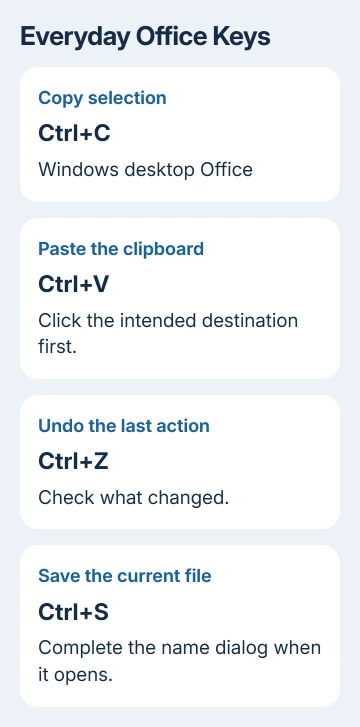
Saving a new file can ask you to choose its name and location. Finish that step so the document gets saved. Print opens the print controls so you can check the printer, pages and copies before sending the job.
I'd learn Save and Undo alongside Copy and Paste. Those four cover frequent actions without making you memorize a long list before you can get back to work.
Format and search a Word document
Click inside a paragraph and press Ctrl+L to align it left, Ctrl+E to center it, or Ctrl+J to justify it. Justified text aligns to both margins by adjusting the spaces between words.
To apply the change to several paragraphs, select them first. For Ctrl+B and Ctrl+I, select the words you want bold or italic. With no selection, the formatting can apply to text you type next instead.
Press Ctrl+F to open document search, enter a term and choose a result. Ctrl+H opens replacement controls in Windows desktop Word. Check the found text before using a replace-all action across the whole document.
Microsoft says its Word shortcut list covers separate Windows, Mac and web controls. Use the section for the app you're running when a combination behaves differently from this desktop reference.
For movement, Ctrl+Home goes to the document's beginning and Ctrl+End goes to its end. Add Shift to those combinations to select from where your cursor is to the beginning or end.
If Copy or Paste fails only in Word while other apps respond, use the Word shortcut repair checks. If a shortcut has been reassigned, you'll need to correct that assignment rather than keep trying the default keys.
Edit Excel cells without losing your place
Select a cell and press F2 to edit its contents. You can then change the existing entry instead of replacing it when you start typing. Press Enter to finish, or Esc to cancel the edit.
While editing a cell on Windows, Alt+Enter starts another line inside that same cell. Plain Enter completes the entry instead. Check where the cursor is before pressing the keys so the line break goes where you need it.
Use Ctrl+Semicolon to insert today's date into the active cell. This enters the current date as a value; it isn't a formula that changes to tomorrow's date when the workbook recalculates.
For Ctrl+D, select the source cell at the top and the destination cells beneath it, then press the shortcut to fill down. The command copies the top cell's contents and formatting through the selected range.
Check copied formulas before using the results in a report. Filling a relative formula can adjust its cell references for each row, which helps when each row needs its own calculation but isn't the same as copying one fixed number.
For range selection and ribbon sequences, the Excel keyboard guide covers the fuller procedure. Click back into the worksheet before using a spreadsheet command if you've been working in another dialog.
Build PowerPoint slides with the correct selection
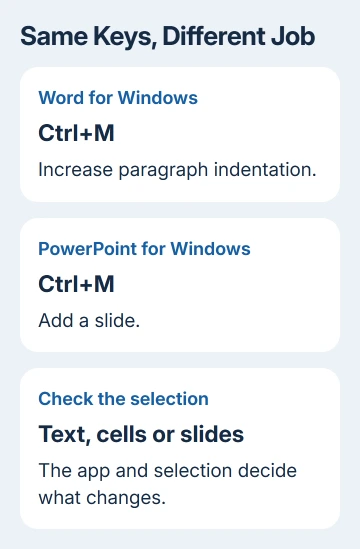
Press Ctrl+M to add a slide in PowerPoint for Windows. Confirm that the new slide appears in the slide list, then choose its layout if the current one doesn't suit the content.
The same keys aren't universal across Office: Ctrl+M increases a paragraph's indent in Windows Word. That's why it's useful to learn slide commands inside PowerPoint rather than treating an Office shortcut sheet as one shared command map.
To copy a whole slide, select its thumbnail before using Ctrl+C, then paste at the intended position. Selecting text inside a slide instead copies that text. Check what's selected so the shortcut copies the part you want.
Press F5 to start the slide show and Esc to end it. Check the presentation window after exiting; you'll return to editing rather than closing the presentation file.
On a laptop where the top row controls sound or brightness, use the keyboard's Fn combination to make it act as F5. Follow the laptop's keyboard setting rather than assuming a brightness change is a PowerPoint failure.
Use Command for the common Mac actions
In desktop Office on a Mac, Command+C, Command+X, Command+V and Command+Z cover copying, cutting, pasting and undoing. Use Command+S to save, Command+B for bold and Command+P for print controls.
Command and Control are separate Mac keys. Press the one named in the app's shortcut rather than substituting the Windows Ctrl key everywhere. Excel and PowerPoint have combinations that don't follow a simple Ctrl-to-Command replacement.
Check the app's menu beside a command to see its current shortcut. This is especially useful for presentation controls and function keys, where the keyboard's macOS settings can change what the top-row keys do.
Check focus, layout and app version when keys fail
Click the document, worksheet or slide before trying again. Otherwise, your keystrokes can go to a search box or open dialog instead. Browser Office has separate shortcut lists because the browser handles some combinations.
The documented combinations use a US keyboard layout. Other layouts can place punctuation on different keys, so check the app's own reference for punctuation-based shortcuts rather than guessing from a key's physical position.
For a recurring failure, tell Office support the app, operating system, exact keys and result. If that key also fails in other apps, have the keyboard manufacturer check its hardware and function-row settings.
The Short Version
Learn shared editing keys, then the commands for your app. What you've selected and where you've clicked decide what changes. Mac Office uses Command for common actions; app-specific and browser shortcuts have separate references.
Checked November 15, 2026.
 If you have any business, I can build it online






