

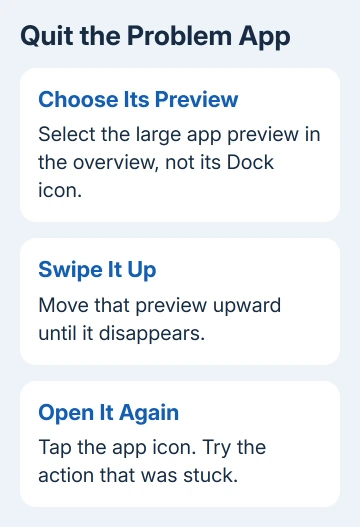
To quit an iPad app, start a swipe at its bottom edge and pause to open previews. Swipe its preview upward to dismiss it. On Home-button iPads, double-click Home to reach those previews. Tap its icon to reopen it.
Quitting is useful when an app freezes or stops responding. Returning to the Home Screen is a different action, and you usually don't need to clear all your app previews as a daily cleanup.
Open the app previews with the right gesture
Begin with your finger touching the display's bottom edge. Drag upward, pause with your finger still on the screen, then lift it when the app previews appear. A quick swipe that ends immediately normally returns to Home instead.
The pause makes the difference. Starting in the middle of a webpage can just scroll the page. Start at the screen edge so the iPad recognizes the swipe as an app-switching gesture. Try this with one app before attempting a faster sequence.
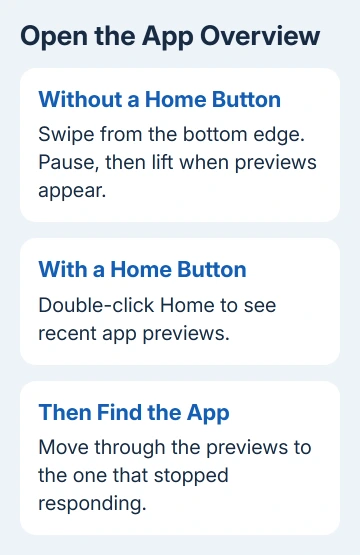
For a Home-button iPad, double-click Home. That means two quick presses, not holding the button down. The app previews should appear without needing the bottom-edge gesture.
The Home button is the physical round control beneath the display on models that have one. A Touch ID sensor built into the top button isn't a Home button. If you're unsure, check which iPad model you have.
Recent iPadOS instructions call the overview Exposé. Older screens and instructions call it the App Switcher. Either way, look for previews of apps you recently used, rather than their small icons in the Dock.
Swipe away the app that needs to quit
Move through the previews to find the troublesome app. Put your finger on that app's preview and swipe upward until it leaves the overview. Swiping sideways through the previews only changes which one you're looking at.
The visible result is simple: that preview disappears. Tap an empty area to leave the overview, or return to Home. Then tap the app's icon to open it again and check the action that was failing.
Save a document or let an upload finish before quitting a responsive app. Forcing an app to stop can interrupt work it hasn't saved. A frozen app may prevent you from saving first.
Start by quitting only the troublesome app. If reopening makes its controls respond, leave the working apps alone. That gives you a useful result without interrupting everything else.
An app that returns to the same document hasn't necessarily failed to quit. Apps can reopen saved content. Judge whether its buttons respond and the original fault is gone, rather than expecting a blank screen on every launch.
Close a window when that is the actual goal
On recent iPadOS versions, an app may open in a movable window with controls at the top. To close that window, open its Window Controls and choose Close Window. Closing a window isn't the same as returning to Home from a full-screen app.
Apple's quit-and-reopen instructions include the window route alongside the app-overview gesture. Use the controls on the window you intend to close, particularly when several documents are visible.
If your screen doesn't have window controls, use the app-preview method. A Home-button iPad with an older system doesn't need a window setting turned on just to quit a frozen app.
For a change in multitasking after an update, the iPad window and Split View explanation covers the broader layout. If all you need is to restart one app, you can leave the rest of your layout as it is.
Leave healthy apps alone
The overview is a way to switch between recently used apps. An app showing up there isn't necessarily using the processor the whole time. A preview alone doesn't mean that app is draining your battery.
Apple says the iPad manages background apps itself. Quitting unused apps doesn't prolong battery life, according to the current user guide. Closing everything every few minutes adds work without fixing a particular unresponsive app.
I'd quit the one that's stuck, reopen it and carry on if it behaves normally. That is a more useful habit than checking the overview every time the battery percentage changes.
If an app is playing music or navigating, use its own Pause, Stop or end-trip control when that's what you want. That stops the music or trip directly, without assuming something is wrong just because the app works in the background.
Restart the iPad when gestures or the app stay stuck
If the app still misbehaves after reopening, restart the iPad normally. Open Settings > General > Shut Down, drag the slider and wait for it to turn off. Start it again by holding its top button.
For an unresponsive screen without Home, briefly press the volume button nearest your top button, then release it. Repeat using the other volume button. Now hold the top button down and release at the Apple logo.
For the Home-button sequence, hold Home plus the top button together. Release both at the Apple logo. Use the sequence for your hardware; the volume-button steps won't replace the Home-button steps on a model that has Home.
Once the iPad starts, open the affected app and try the failing action. If Home works normally and only one app still fails, focus on that app. If gestures fail everywhere, ask for help with the iPad itself.
Update a repeat offender before deleting it
Open App Store, tap your profile picture, then App Updates on the current interface. Update that particular app if a newer version is offered. In older App Store layouts, the account page may display pending updates without another tap.
If no app update is offered, check Settings > General > Software Update for an iPadOS update. The unresponsive-app steps start with restarting and updates; deletion and a fresh download come later.
Deletion can remove data stored only inside the app, so check its backup or account-sync options first. Contact the app developer if one app keeps failing; include the iPad model, iPadOS version and exact action that makes it freeze.
If app previews won't open anywhere after a restart, contact Apple Support for help with system gestures. Explain whether Home double-click works, whether touch works elsewhere and whether the problem started after an update.
The Short Version
Use a paused upward gesture or double-click Home to reach app previews. Swipe the problem app's preview upward, then reopen it. Use window controls for one window; restart if the interface stops responding.
Checked November 10, 2026.

Isaac Smith is the founder and editor of PC Glance, a website that covers computers, laptops, and technology. He is a tech enthusiast and a computer geek who loves to share his insights and help his readers make smart choices when buying tech gadgets or laptops. He is always curious and updated about the latest tech trends.