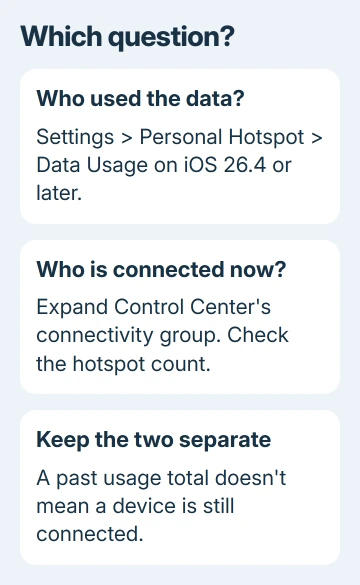
Personal Hotspot's Data Usage page shows which devices have used your iPhone's connection on iOS 26.4 and later. Open Settings > Personal Hotspot > Data Usage to review it.
To check who's connected now, check the hotspot connection count in Control Center instead: a saved data total doesn't mean that device is still connected.
These two views answer different questions. One helps explain where your allowance went; the other helps check whether sharing is active at this moment.
In this guide
Open the per-device usage view on newer iOS
Open Settings > Personal Hotspot > Data Usage on the sharing iPhone. If the row is missing, enable sharing and let a trusted device connect and use data before checking again.
An owner confirmed the route on Ask Different, showing separate Apple-device entries and last-connected information on their phone.
Read the device label together with the amount used and any last-connected detail shown. A laptop entry can explain a large transfer, but the amount is a running total. It isn't a live speed reading or a list limited to the current session.
Devices that aren't individually identified can be grouped as Other Devices. That label alone doesn't identify a stranger. Compare your own computers, tablets, and earlier sharing before deciding what the entry represents.
If Data Usage isn't present, open Settings > General > About and check the iOS version. An owner with iOS 26.5 still reported the row missing, while later replies confirmed it on iOS 26.6.
If it stays absent, try Settings > Cellular, then Personal Hotspot in the usage list when available.
Cellular's label varies by region. This usage entry is different from the top-level Personal Hotspot page used to enable sharing. Look through the data-usage list rather than just the switches that turn sharing on.
Check whether the hotspot is being used right now
Open Control Center on the sharing iPhone. For Face ID models, start at the upper-right corner and swipe downward. For a Home button model, swipe upward, beginning at the bottom of the display.
Touch and hold the group of connectivity controls to expand it, then inspect Personal Hotspot. Use the connection count when shown to check active sharing.
The exact arrangement varies with the iOS version and your Control Center layout.
The number shows current connections, but it doesn't reliably tell you who's using them. One person can connect several devices, so it isn't a head count.
To match a connection to your own device, disconnect that device from the hotspot and check again after the view refreshes. On a laptop, switch to home Wi-Fi; on a tablet, choose another network in Wi-Fi settings.
Reconnect only that device when you need a second check. This is more useful than guessing from a historical data entry, especially when several family devices have shared the phone recently.
If the phone reports sharing when every familiar Wi-Fi device is disconnected, check for a USB cable or a Bluetooth network connection to a computer. Personal Hotspot supports those methods too.
Match data totals to the period they cover
Go to Settings > Cellular to check how much cellular data you've used and the period it covers. Before resetting anything, note the current totals and the date so you keep the information you're trying to understand.
The phone's statistics don't necessarily begin on your carrier's billing date.
Apple's cellular usage instructions say to contact the carrier for accurate billing-period usage.
A carrier's hotspot allowance can also be tracked separately from the total cellular allowance. Compare the carrier app's billing period with the phone's displayed period before deciding that the two totals disagree.
On a dual-SIM iPhone, Personal Hotspot uses the line chosen for cellular data. Check Settings > Cellular > Cellular Data before looking at a different line's allowance or calling the wrong carrier.
I'd save a screenshot of an unexpected total before clearing the counters. That gives your carrier the amount and period to compare with its own records if the charge needs checking.
An entry for a device that's disconnected can still help explain your data use. A computer's cloud sync, game download, or update can consume data without you actively browsing on that computer.
Stop unfamiliar password-based connections
If the live count includes a connection you don't want, open Settings > Personal Hotspot and turn off Allow Others to Join. This stops ordinary sharing while you decide which devices should return.
To replace a password you've shared too widely, open Wi-Fi Password and set a new one. Use at least eight characters from the supported English letters, numbers, and punctuation.
Give the new password only to devices you intend to reconnect.
Changing a password doesn't identify the previous user. It changes access for future password-based connections. Use it to control who can connect next, rather than to work out who used the old connection.
Apple devices on your account and devices using Family Sharing have their own ways to connect. Review those if a familiar iPad or Mac returns without asking for the hotspot password.
The complete hotspot off controls explain Auto-Join Hotspot and family approval. Use that procedure for a device that keeps reconnecting automatically.
For USB sharing, remove the USB cable from the phone or computer. For Bluetooth tethering, disconnect the iPhone's network connection in the computer's Bluetooth settings.
Turning off the computer's Wi-Fi doesn't stop either of those routes.
Get help with the count or a billing discrepancy
If a known connection disappears unexpectedly, use the hotspot disconnection checks.
A count that changes because the connection drops needs a different fix from an unexplained past data total.
For a count that stays wrong, send Apple Support your software version and connection method. Describe what happened when each known device disconnected, and identify the screen showing the wrong value.
For data charges, ask your carrier to compare hotspot consumption for the exact billing dates. Include the screenshots and selected SIM line. The device label in Settings can't tell you how your carrier worked out a charge.
The Short Version
Use Personal Hotspot > Data Usage on iOS 26.4 and later for past device consumption. Check Control Center for current connections.
Review the statistics period before comparing bills, and change access settings when an unwanted connection returns.
Checked November 11, 2026.