Scheduled restarts can make a Samsung Galaxy reboot unexpectedly. For idle reboots, turn off unwanted options in Device care > Auto optimisation > Auto restart. A crash during use or a repeating Samsung logo needs separate checks.
A phone that reaches its Home screen gives you time to check settings and apps. A phone that never reaches the lock screen needs the power and startup checks first.
In this guide
1. Check automatic restarts when it happens while idle
Open Settings > Device care > Auto optimisation > Auto restart. Look for Restart when needed and Restart on schedule. Turn off either option if you don't want that kind of automatic restart.
Names and locations vary with the Galaxy model and software. Some releases call the main section Battery and device care. Search Settings for Auto restart if the route on your phone is different.

Scheduled restarts explain a phone that works normally during the day but asks for its unlock code after sitting unused. Those options don't explain every restart that occurs in the middle of a call or while you're using an app.
Samsung's automatic-restart guidance says a system restart can still occur with both options off. Emergency security updates can also restart a device, depending on the country or region.
So compare what happens after changing the setting. If the unwanted idle restart stops, the setting change has helped. If it restarts again during normal use, continue with the next checks rather than repeatedly changing the same switches.
2. Recover a frozen phone or repeating startup logo
For a frozen modern Galaxy, press Side + Volume Down and hold them beyond seven seconds, waiting for the restart. This gives a stuck system a chance to start normally without erasing its contents.
If it reaches the lock screen, unlock it and check whether it remains usable. The Samsung restart guide covers the ordinary menu and on-screen power controls when you simply need a normal reboot.
When the battery may be depleted, connect a Samsung-approved charger and cable. Try another working cable and charger if you have them. The charging symbol may take time to appear when the battery is empty.
Check the port and case for visible damage, liquid or a button being held down. Remove a case that presses a button. Have a damaged or wet charging port checked before trying to charge again.
If the logo keeps repeating and the phone never becomes usable, don't spend time hunting through settings you can't reach. The Galaxy startup and boot-loop checks lead into repair when the device can't start reliably.
3. Update the software when Settings stays open
With the phone running, open Settings > Software update > Download and install. Let any available update finish, including its restart. Then check whether the unwanted reboots return. A restart during installation is normal.
Check updates for your installed apps too. Start with an app that began crashing or was added shortly before the restarts. Use its store update page rather than downloading an unrelated replacement package.
Notice whether the phone restarts only when you open that app or while using built-in apps too. This helps you compare what happens in Safe mode and gives support a specific action to try.
I'd check a recent app change before erasing the phone. It takes less work to remove one troublesome app than to rebuild the phone, and the next section helps decide whether downloaded apps are involved.
4. See whether restarts continue in Safe mode
Hold Side + Volume Down to bring up the power menu. Touch and hold Power off, then tap Safe mode. Stop holding the physical buttons when the menu appears; keeping them pressed forces a restart instead.
Safe mode runs the core phone apps and leaves downloaded apps inactive. Look for the Safe mode label, then try the activity that usually makes your phone restart.
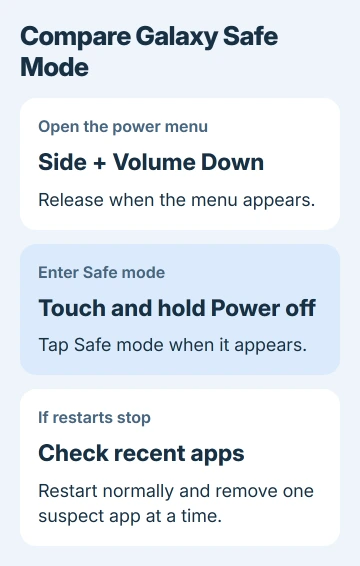
If the restarts stop, a downloaded app could be responsible. Restart normally, open Settings > Apps, select a recently installed app and tap Uninstall. Check the phone again before removing another app.
Work backward through recent additions and keep a list of what you remove. Removing several apps together leaves you uncertain about which one mattered. Restore the unrelated apps once the phone is stable.
If your phone still restarts in Safe mode, arrange a service check. This makes downloaded apps a less likely explanation, especially with damage or charging trouble too.
The Android backup guide helps check what is saved before a repair or reset. Do that while the phone can still stay on long enough to finish.
5. Back up before considering the final software reset
A factory reset deletes your personal content from the phone. Save copies of important files, then check your sign-in access for the Google and Samsung accounts you'll need afterward.
If your microSD card is encrypted, decrypt it before the reset so you can still read its data afterward.
Once you've done that, open Settings > General management > Reset > Factory data reset. Review the listed information, tap Reset, then Delete all, and enter the account sign-in details it asks for.
The phone needs a network connection to sign out of the Samsung account during this process. If an account prompt blocks the reset, use that account's recovery process to regain access rather than guessing passwords repeatedly.
After setup, check whether the phone still restarts before restoring all your apps. If it does, another round of app removals isn't the next step.
Arrange a Samsung service check. Tell the technician whether it rebooted in Safe mode and whether it still reboots after the reset.
If Settings won't open or startup never finishes, ask Samsung support about boot-loop repairs and keeping your data. Give them the model, when this started and whether it followed a drop, liquid exposure or software update.
The Short Version
Check Auto restart for idle reboots. For crashes during use, recover the phone, update and try Safe mode. A repeating logo or persistent Safe mode reboots need service help. Protect your files and account access before erasing.
Checked November 12, 2026.