

A hand cursor means Windows 11 recognizes a clickable link. If clicks fail inside a browser, check the mouse and browser. For links from other apps that never launch a browser, check the default browser choice.
Start with the situation that matches what you see. A missing mouse click, a failed browser launch and a website that opens an error page need different fixes.
In this guide
1. Compare the same link with the keyboard
On a familiar webpage, press Tab until the intended link has keyboard focus, then press Enter. In a desktop app, use its keyboard navigation to select the link and activate it when that control supports it.
If Enter opens the link but a left click doesn't, the address and browser are working. Check the mouse button, touchpad and anything covering the webpage before changing Windows web-link associations.
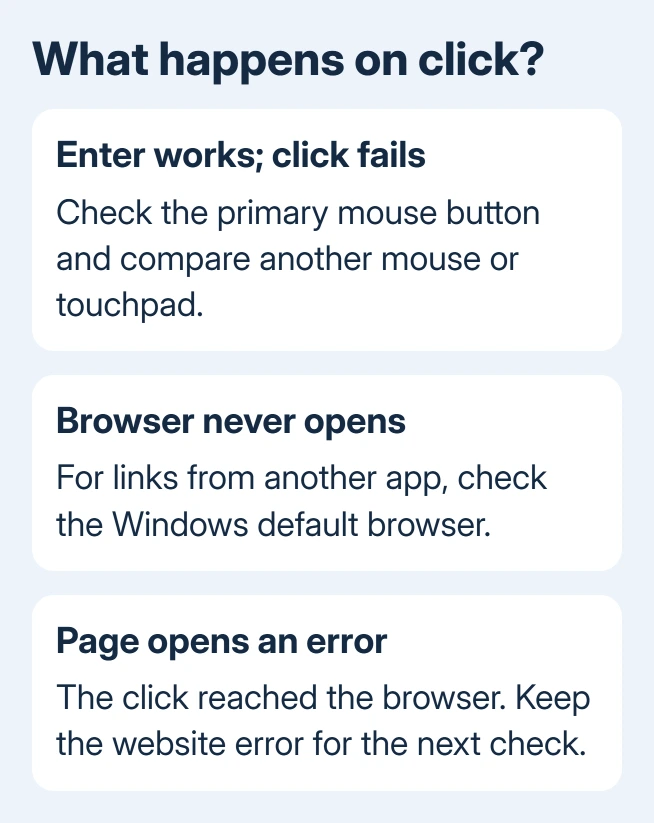
Try left-clicking a normal Windows button, such as a Settings category. If that also fails, use another mouse or the laptop touchpad. A pointer can still move when its primary button isn't registering reliably.
If keyboard activation and mouse clicks both fail on one page, open another familiar site. A broken website control or an unfinished sign-in overlay doesn't mean every Windows hyperlink is damaged.
I'd make these comparisons before resetting the browser. These comparisons check clicking, the website and the app launching your browser without removing saved browsing data.
2. Fix a primary button that isn't reaching the page
For a USB mouse, unplug it, wait briefly and try a different built-in USB socket. Leave out a hub during this check. For a wireless USB receiver, reconnect the receiver and check the mouse's battery or charge.
Try another mouse if available. The Windows mouse troubleshooting steps use another port or computer to separate a failing device from the PC.
Open Settings > Bluetooth & devices > Mouse in Windows 11. Check Primary mouse button. If it's set to Right, a left click isn't the primary action. Choose the button you intend to use, then retest a normal link.
For a touchpad, compare a physical click with a tap. If physical clicking works, check tapping under Settings > Bluetooth & devices > Touchpad > Taps, where supported. Touchpad options depend on the laptop hardware.
Close an unexpected menu or dialog with Esc, then return to the page. If clicks fail across Windows after that, restart the computer using its normal Restart option. Save open work with the keyboard first.
3. Check the page and extensions when the browser is open
Open the same trusted page in a private browsing window. In Edge, use Ctrl+Shift+N for InPrivate. Chrome uses the same shortcut for an Incognito window. Compare the same link after any required sign-in.
If the link works there, check what's different in your normal window, including extensions and saved website data. Private mode doesn't always turn off every extension; some can be allowed to run there too.
In Edge, open Settings and more > Extensions > Manage extensions. In Chrome, use menu > Extensions > Manage Extensions. Temporarily switch off extensions that alter pages, block content or change clicking behavior, then reload the site.
If clicks work, restore each extension and retest. Leave the faulty one off and tell its developer the affected site. Update Edge through Help and feedback > About Microsoft Edge, or Chrome through Help > About Google Chrome.
When only one website remains affected, delete that site's stored data, then sign back in. The site-specific cookie steps let you target that site rather than erase every account's browsing session.
4. Restore the browser choice for links from other apps
Use this section when a website address selected from email or another desktop app doesn't launch a browser. It isn't the first fix for links inside a browser that is already displaying pages normally.
Open Settings > Apps > Default apps. Select your intended installed browser. Choose Set default if offered, then test the same trusted link from the original app again.
If launch still fails, review HTTP and HTTPS. Assign each to your chosen browser. Microsoft explains both app-level and link-type choices in its default-app instructions.
HTTP and HTTPS tell Windows which app opens website addresses. A mailto link requests an email app, and a file or network-share link uses other handlers. Don't reset every file association for a problem affecting only one link type.
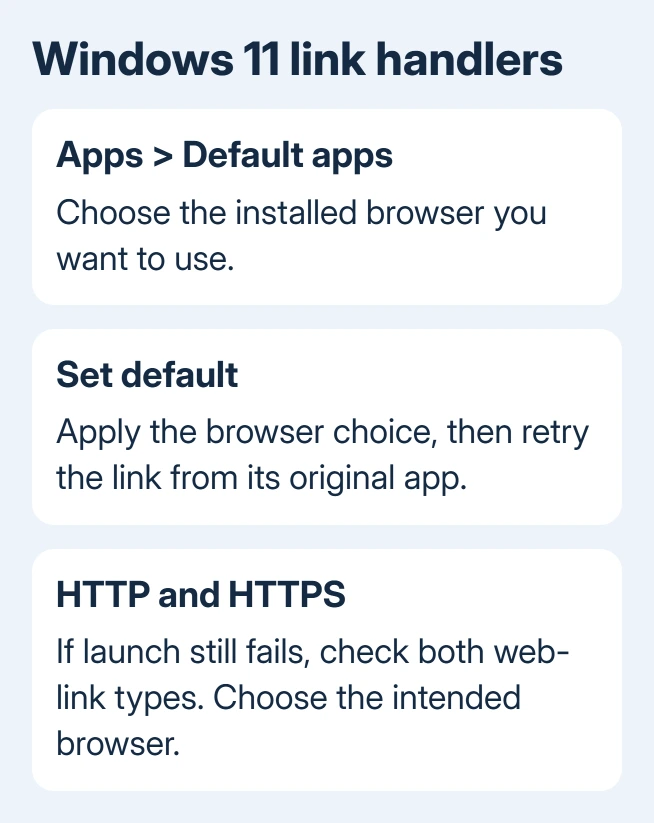
Close and reopen the source app after correcting the browser choice. If the browser now launches but shows an error page, the app has opened the browser successfully. Use the page's error to check the address or connection.
5. Handle Outlook and blocked links in their own settings
Outlook can choose its browser separately from the Windows default. A link that works from another program but fails from Outlook needs the Outlook hyperlink checks rather than another mouse driver change.
For new Outlook, the browser preference is under Settings > General > Files and links. Classic Outlook places it under File > Options > Advanced > File and browser preferences, when the option is available.
A warning about unsafe content or your organization's policies needs different handling. Keep suspicious links blocked. For a work account, give IT the exact warning and app version so they can check the intended policy.
If a verified address fails when pasted into the address bar, the mouse isn't stopping it. Save the website's error message. A missing page, expired session or refused access needs that website's support or administrator.
Repair the affected browser if it still won't open
For Edge on Windows 11, open Settings > Apps > Installed apps. Find Microsoft Edge, select its three-dot menu, choose Modify, then Repair. The repair needs internet access and may require administrator permission.
Use the Edge repair instructions if Edge fails to launch even from Start. On a managed PC where Modify isn't available, ask IT to repair the installation.
For continuing failures, send browser support the Windows build, browser version, source app and keyboard-test result. Include whether other websites work and whether the browser launches at all; those details lead to different repairs.
The Short Version
Compare Enter with a mouse click first. Check input when only clicking fails, browser extensions for failing webpage links, and HTTP/HTTPS defaults when another app can't launch the browser. Keep policy and unsafe-link warnings intact.
Checked November 12, 2026.
 If you have any business, I can build it online






