

No, not as one shared, live workspace. Vivaldi syncs open tabs between Windows and iOS, but remote pages open as local tabs on the other device. You get access to the pages without making both browsers share the same workspace layout.
Use Open Tabs sync to continue browsing, or Send to Your Devices for one page. A missing desktop workspace menu on the iPhone isn't a reason to reset your sync data.
In this guide
Choose between remote tabs and a shared workspace
A Windows workspace organizes tabs inside the desktop browser. Opening those pages on an iPhone doesn't copy the workspace's name or tab arrangement, or keep later changes matched between devices.
The supported mobile route is Remote Sessions in the Tab Switcher. It lists pages open on synced devices. When you tap a page there, it opens locally among the phone's own tabs.
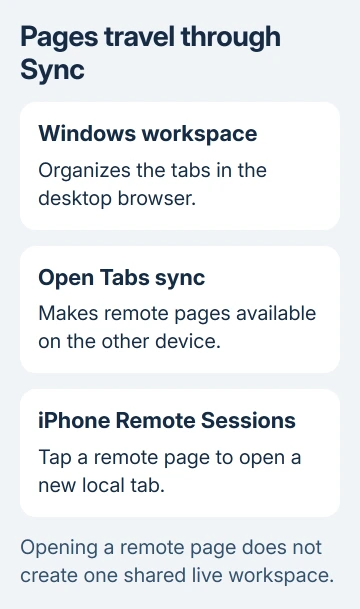
For example, leave a reference page open on the Windows PC. Open that page from the PC's remote session on the iPhone, then keep reading there. You're opening another copy of the page, rather than moving the desktop tab to the phone.
Don't expect closing that local copy to reorganize the Windows workspace. Vivaldi's iOS tab instructions describe remote pages opening locally; that's how you can continue reading on the other device.
If the aim is to keep a set of important addresses, bookmarks are easier to revisit than a long list of open tabs. Use browser sync for the bookmarks and keep a separate export for anything you need to preserve.
Connect the Windows browser to Sync
In Vivaldi on Windows, open Settings > Sync. Sign in with your Vivaldi account's username and login password. The same account must be used on the iPhone or iPad that should see the tabs.
After signing in, enter your encryption password. It protects your synced browser data and is separate from your account's login password. Signing in to the account alone can leave you unable to access that data.
For a first-time setup, create the encryption password requested by the browser. The current requirement is at least 12 characters. Save it securely so you can connect the second device without resetting the stored data.
Enable Open Tabs, or select all supported data types for syncing. Give the computer a recognizable device name so the mobile list is easy to identify when several computers use the same account.
Leave a normal page open on the PC while you connect the phone. Choose a page you can recognize by its title, rather than testing with several identical new-tab pages. That makes the result easy to check.
For bookmarks currently held in Chrome, the Chrome bookmark export steps produce a separate HTML file. Chrome's account sync doesn't become Vivaldi sync just because both browsers are on the same PC.
Sign in on iPhone or iPad and open Remote Sessions
Open Vivaldi on the iPhone or iPad. Use Vivaldi menu > Settings > Sync > Log in, then enter the same Vivaldi account credentials used on Windows.
Enter the matching encryption password when asked. Enable Open Tabs if you're selecting individual data types. Bookmarks appearing doesn't mean tab sync is enabled too, so check the data choices when only the tab list is missing.
Open the Tab Switcher, then select Remote Sessions, the section for synced tabs. Find the Windows device and tap the reference page you left open. It should open in a normal local tab on the mobile device.
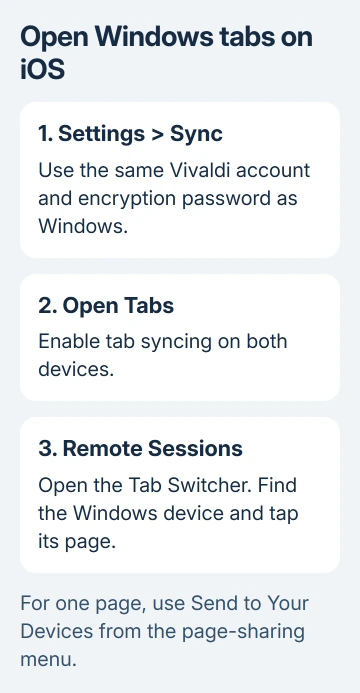
If that page opens, the cross-device tab route is working. Return to the remote list for another page instead of searching for a mobile copy of the Windows workspace selector.
Allow extra time for a large profile's first sync. If Windows never appears, check both devices' connection and sync status. If Sync is still asking for the encryption password, it hasn't finished connecting to the stored data.
On Windows, remote pages from the phone are available through Synced Tabs on the tab bar or in the Windows and Tabs Panel. Open the device's entry and choose the page you want to bring into the desktop browser.
Send one page directly to the other device
For a single page on Windows, right-click the tab itself or a blank part of that page. Choose Send to Your Devices, then select the iPhone or iPad. Tab syncing needs to be enabled for this feature.
On iOS, open the page, then choose Vivaldi menu > Share Page > Send to Your Devices. Select the Windows PC from the synced-device list. This is useful when you know exactly which page should arrive next.
On the receiving phone, tap the notification to open the page. On Windows, look for the received-page notification on the Synced Tabs menu button, then select the item sent from the other device.
I'd use this for one article or form and Remote Sessions for browsing a group of open pages. Sending a page avoids hunting through a large remote tab list, but it still doesn't create a shared editable workspace.
If the destination isn't listed, check its Sync account and Open Tabs setting. Sending repeatedly to a device that isn't connected won't repair its sign-in or encryption setup.
Keep a recoverable copy before changing sync settings
Sync isn't a replacement for a backup. Keep bookmarks for pages you need to retain, and save an export before removing profiles or clearing stored sync data. Open tabs on a lost device aren't a dependable archive.
If you're moving from Chrome, the bookmark bar guide helps locate saved pages before exporting them. Importing saved addresses doesn't also sync your open tabs.
In Vivaldi's Sync settings, save the backup encryption key while you still have access. It can unlock the synced data if you later forget the encryption password. Store the key somewhere that survives losing the current device.
Don't choose Reset Remote Data as an ordinary response to a missing workspace. That control deletes the stored sync data. Make sure you have a usable copy on one of your devices before considering it.
If tab sync itself fails, update both browser copies. Use the desktop browser's update option and the App Store update procedure for the iOS app, then check account, encryption, and Open Tabs again.
For a continuing failure, use the support links in the Vivaldi Sync guide. Include both browser versions, the device names, the sync error, and whether bookmarks work while remote tabs remain missing.
The Short Version
Enable Open Tabs with the same Vivaldi account and encryption password on both devices. Use mobile Remote Sessions for Windows pages, or send one page directly. This shares the pages without mirroring the workspace as one live layout.
Checked November 12, 2026.
 If you have any business, I can build it online






