

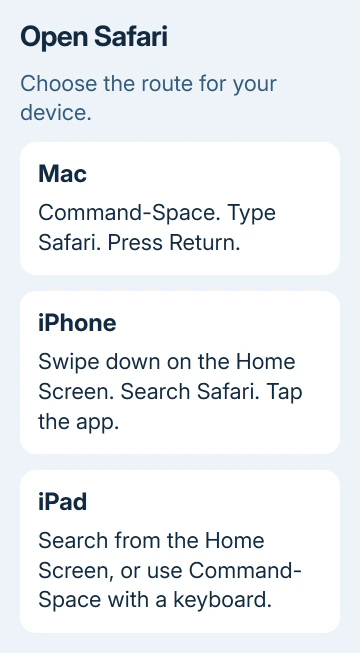
Safari opens from its app icon, but searching for the app is usually quicker when that icon isn't in sight. On a Mac, press Command-Space, type Safari and press Return.
On an iPhone or iPad, use Home Screen search to find and launch Safari. A Safari settings page changes the browser's options; it doesn't open a browsing window.
In this guide
Open Safari on a Mac with Spotlight
Press Command-Space to open Spotlight. Type Safari, then choose the Safari application result and press Return. Look for the blue compass icon so you don't open a document or a web search with a similar name.
Safari should open a browser window with an address field. Depending on its saved settings, that window can contain a start page, your homepage or tabs from the previous session.
An unfamiliar start page doesn't mean you've opened a different app.
Click the address field, type the website address you want, then press Return. For an ordinary search, type your search words in the same field. The address field handles both website addresses and searches.
Apple says apps can open through the Dock or Finder in its Mac app-opening instructions. Spotlight is a convenient first choice because it doesn't depend on Safari already being pinned to the Dock.
If Command-Space doesn't bring up Spotlight, click the magnifying glass in the menu bar if it's shown. Another route is Finder > Go > Applications. Find Safari there and double-click it.
On a Mac with an older release that has Launchpad, its app grid is another way to find Safari. If your Mac's app launcher looks different, use the Applications folder. It gives you another way to open Safari across macOS versions.
I'd search for Safari before changing any settings. A moved Dock icon and an app that won't launch need different responses, and a successful search gets you browsing immediately.
Use a Dock icon or open another window
If Safari's compass icon is already in the Dock, click it once. A running app can be open even when none of its windows are visible. Check the menu bar: when it says Safari beside the Apple menu, Safari is the active app.
Choose File > New Window or press Command-N to open a normal browser window. This is useful after you've closed Safari's last window with the red close button but left the app running.
A new tab stays inside the current window. Choose File > New Tab, or press Command-T, when that's what you want. Choose a separate window for a different group of desktop tabs.
To keep Safari handy, Control-click its Dock icon while it's running and choose Options > Keep in Dock. This keeps a launch shortcut available; it doesn't change which browser opens links from Mail or other apps.
If Safari becomes the active app but a window stays hidden behind another one, check the separate guide to Safari windows opening behind other windows. That is different from a missing app icon.
Find and open Safari on an iPhone
Return to the Home Screen first. Without a Home button, begin your upward swipe right at the screen's bottom edge. With a Home button, press it once. To search, drag downward starting around the center of a Home Screen page.
Type Safari and tap the app result with the compass icon. Swiping from the very top opens other controls, so start the search gesture around the middle of the page instead.
If you see a Search button under your Home Screen icons, you can tap it instead. Whether it appears depends on your phone and Home Screen settings. Use the swipe-down gesture if you don't see it.
Safari can reopen the last tab rather than show a fresh page. Tap the address or search field to enter a different website.
Its position depends on your Safari layout. Look for the field showing the current website's address.
Search isn't the only route. To reach App Library, swipe left until you've passed every Home Screen page. Enter Safari in the search field there. Tap the app result to open Safari.
If Safari opens from search but its Home Screen shortcut is missing, use the instructions for putting Safari back on the Home Screen. Opening the browser doesn't require rearranging all your apps first.
Open Safari on an iPad
Tap Safari in the Dock or on a Home Screen page if its icon is visible. Press your iPad's Home button to leave the current app, if it has one. Otherwise, begin a swipe at the lower screen edge and move upward to return home.
Start a downward swipe around the center of a Home Screen page. Type Safari in search, then tap the app result. With a connected keyboard, Command-Space opens Spotlight, where you can search for Safari.
An iPad can have more than one Safari window. Opening the app can return you to an existing window and its tabs. Once Safari is visible, use its address field to start browsing rather than searching Settings for another launch button.
If searching doesn't show Safari, check App Library as well. On an iPad that supports App Library, swipe left past your Home Screen pages and use its app search.
If neither search finds Safari, check whether the app has been restricted or removed.
When Safari still won't appear
If Safari opens and immediately closes, won't start, or opens a window that doesn't respond, the app itself needs attention. Repeatedly tapping the icon won't solve that.
Restart the device, then follow the relevant Safari opening-failure steps for that platform.
On a family or school device, ask the organizer or administrator whether Safari is restricted. Don't reset the device to work around a managed setting.
Tell them whether Safari is missing from search or appears but won't open.
There isn't a current Safari download for Windows or Android. Apple's Safari update page says Windows no longer receives Safari updates. Use a supported browser on those devices instead of downloading an old Safari installer.
If Safari is still unavailable on an Apple device you manage, tell Apple Support which model and software version you have, and what search returned. Describe the missing app or failure to launch, rather than website loading trouble.
The Short Version
Search for Safari and open its compass-icon app result. Use Command-Space on Mac, or swipe down on the iPhone or iPad Home Screen. On Mac, Command-N opens a window when Safari is already running.
Settings changes the browser; the app opens websites.
Checked November 13, 2026.
 If you have any business, I can build it online






