

Installed Windows 11 updates appear in Settings > Windows Update > Update history. That list shows what your PC installed and when. The online update history explains what each release changed; use the KB number to match the two.
For a problem that started after an update, record that number before changing anything. A release listed online isn't necessarily installed on your computer, and a failed attempt doesn't mean the update finished installing.
In this guide
Find the updates installed on this PC
Press Windows + I, select Windows Update, then open Update history. Expand the category that matches what you're checking. Quality updates, driver updates, and other updates can appear in separate groups.
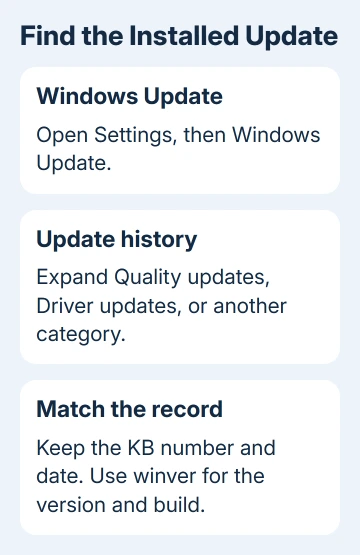
Look for the update name, its KB number, the installation date, and its status, if listed. A KB number identifies a particular support article and release. Keep the whole number, including the letters, when searching for it.
For example, a graphics driver entry and a Windows cumulative update can have similar installation dates. They aren't the same kind of update. Read the full entry before deciding which change might explain a display or startup problem.
The list belongs to this Windows installation. It doesn't combine records from every computer you've used with your account. Open the same page on another laptop if that's the device you're trying to troubleshoot.
Your organization can control updates on a work PC. Different installation dates on two computers don't automatically mean something went wrong. Compare their Windows releases and management policies before forcing a change.
Match the version and build before opening release notes
Press Windows + R, enter winver, and press Enter. In the About Windows box, note both entries labeled Version and OS Build. Close it when you've copied the details; this command doesn't change Windows.
The version identifies the Windows release, such as 24H2 or 25H2. The build identifies the installed update more precisely. You'll need both when a support article lists several releases with different fixes or download packages.
Alternatively, open Settings > System > About and look under Windows specifications. Include the edition when asking for help, because Home, Pro, Enterprise, and Education can have different support deadlines.
Don't confuse the Windows version with a driver version or the version of an app. An Office update can change Word without changing the Windows build. A device driver has its own entry and version number too.
I'd copy the version, build, and relevant KB number into one note. That gives a support adviser something useful to compare, rather than just saying the computer updated yesterday.
Read what the matching update changed
Open the entry's information link when available. Microsoft says its update history provides details of Windows 11 releases.
Choose the release that matches the version you recorded. Then search the page for the KB number from your computer. Browser search is Ctrl + F on Windows and Command + F on a Mac.
On the individual update page, check its release date and OS build before reading the improvements. That keeps you from following instructions for an update with a similar date but a different Windows release.
Read Known issues as well as the improvements. An issue can affect only a particular driver, app, language, or managed environment. Match those conditions to your computer before treating the notice as an explanation.
A newer cumulative update can include earlier fixes. That means an older KB number doesn't always need to appear as a separate recent installation for its repair to be present. Compare your build with the release notes.
To delay a restart while you finish work, pause Windows updates using the supported controls. A pause delays future activity; it doesn't remove an update already installed.
Tell a failed attempt from a finished installation
Return to the main Windows Update page. Check for a pending restart, an installation in progress, or an error code. Update history records events; the main page tells you whether Windows is still waiting for action.
Save open files before accepting a Windows restart request. After signing in, check Windows Update again. If an update failed several times but then installed successfully, those earlier attempts don't mean it is still failing.
If the same update still fails, record the error exactly. The Windows Update error-code guide helps you move from the failed entry to troubleshooting that particular message.
Don't delete update folders just to tidy the list. Removing files changes the problem you're trying to understand and doesn't install a missing update. A readable failure record is useful when you need support.
Use removal only for a matching problem
The history page also provides Uninstall updates. This opens the removal options for updates Windows allows you to uninstall. Some updates can't be removed, so a missing Uninstall control isn't necessarily an error.
Uninstalling a security patch takes away its protection too. Check whether a later update already fixes your particular problem before using removal as the first response to anything that happened on the same day.
The removal steps for monthly patches differ from those for Windows version upgrades. Settings > System > Recovery > Go back, when available, is for undoing a recent version upgrade. It isn't the button for every monthly patch.
If the installation keeps failing or the notes don't match the fault, open Get Help from Start and describe the Windows Update problem. Give support the version, edition, build, KB number, and error or visible symptom.
For a managed laptop, send the same details to your IT team. Ask IT to check the device's approval status and any relevant compatibility notice. Those details help IT check the update problem; clearing the history won't explain it.
The Short Version
Open Settings > Windows Update > Update history for this PC's installations. Use winver to identify its release and build, then match the KB number to the release notes. Check the current update status before removing anything.
Checked November 13, 2026.
 If you have any business, I can build it online






