Straight Talk hotspot trouble can come from the plan's hotspot allowance, the phone's cellular connection, or the Wi-Fi link to your laptop. Start by disabling Wi-Fi on the phone and opening a fresh webpage over its cellular connection.
If that fails too, fix cellular service first. When browsing succeeds on the phone yet the laptop reports no internet, check hotspot access and its remaining allowance. A missing hotspot network needs the phone's sharing settings.
In this guide
1. Check cellular data before changing the laptop
Open Settings on the phone you're using as a hotspot. Turn Wi-Fi off and cellular data on, then open a new webpage. This checks whether the phone has a connection to share without relying on your home router.
If the page doesn't load, check signal and whether the line has active service. Restart the phone and try again where it has better reception. Keep the hotspot off during this check so a second device isn't using the connection.
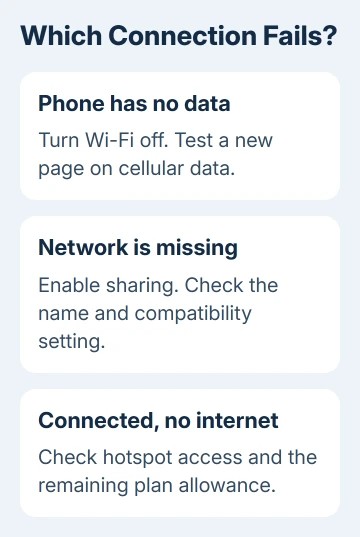
A phone that can't use cellular data won't give your laptop a working internet connection through its hotspot. Changing the laptop's DNS or reinstalling its Wi-Fi driver won't restore service to the phone.
Straight Talk's 611611 text service lists SUPPORT for service troubleshooting and USAGE for current usage. Send the relevant keyword from the Straight Talk phone and follow its reply.
If ordinary cellular data returns, check the hotspot again. If cellular data still fails, tell carrier support that the fault affects the phone itself, including the location and whether calls and texts still work.
2. Confirm hotspot access and the remaining allowance
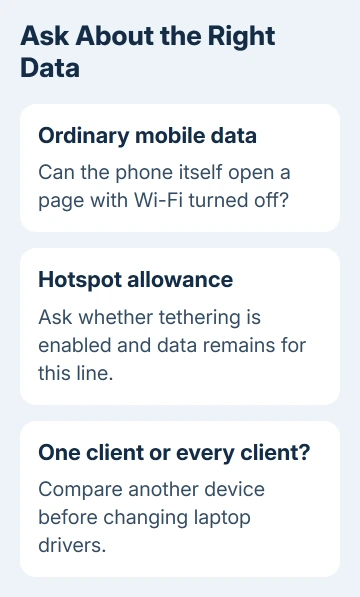
Even when browsing works on your phone, you might not have hotspot data available. Check your active plan and its hotspot allowance. The phone's ordinary data balance and hotspot balance aren't necessarily the same thing.
Text HOTSPOT to 611611 for hotspot-related help or Hotspot-device usage. Text USAGE for current usage details. Read the response for the affected line rather than comparing it with another family member's plan.
A recent payment or an unlimited-data label doesn't tell you whether hotspot access is ready to use. Ask support to check that tethering, which shares the phone's connection, is active and has data left in this service period.
Write down any message asking you to contact the carrier when you turn on sharing. It suggests a plan or account setup issue, especially when cellular browsing already works.
A standalone Straight Talk hotspot is a different product from a phone sharing its connection. Give support that device's model and service details. The iPhone menu steps won't apply to a separate hotspot unit.
3. Make the phone's hotspot visible to the laptop
On iPhone, open Settings > Personal Hotspot and enable Allow Others to Join. Keep that page open while connecting the laptop. Check the displayed Wi-Fi password and the phone's network name.
On iPhone 12 or later, try Maximize Compatibility on the same page if the laptop can't find or join the network. Older clients may connect more easily this way, at a possible cost to performance and Wi-Fi security.
Apple's Personal Hotspot troubleshooting steps also say to check carrier support when Personal Hotspot is missing or won't turn on. Don't try to create the missing service by entering a random APN.
For a Pixel-style Android Settings layout, open Settings > Network & internet > Hotspot & tethering > Wi-Fi hotspot. Turn the hotspot on and read its name and password. Other Android brands use different menu wording.
On Samsung phones, look under Settings > Connections > Mobile Hotspot and Tethering > Mobile Hotspot. Use the settings shown on that phone; a carrier-customized Android build can arrange them differently.
If your Android phone lets you choose a hotspot band, try 2.4 GHz when the laptop can't see the network. Some phones have a compatibility option instead. Use that setting if the phone has no separate band selector.
For an iPhone switch that stays unavailable, the grayed-out Personal Hotspot checks cover restrictions and missing carrier access in more detail.
4. Rejoin when the network appears but connection fails
Open the laptop's Wi-Fi list and choose the hotspot name displayed on the phone. Re-enter the current password. A password saved before a phone change or hotspot rename can keep the laptop trying the wrong details.
In Windows 11, open Settings > Network & internet > Wi-Fi > Manage known networks. Find that hotspot and choose Forget, then join it again from the Wi-Fi list.
Windows 10 uses Settings > Network & Internet > Wi-Fi > Manage known networks. On a Mac, open the Wi-Fi network's details in System Settings and choose Forget This Network, then reconnect.
Restart the laptop if it still won't join. If possible, connect one other device to the hotspot. If that device works, focus on the first laptop's saved connection or Wi-Fi compatibility.
When all clients connect without internet access, revisit the carrier's allowance and hotspot setup. A Wi-Fi connection only confirms that the laptop has reached the phone, not that the phone is sharing internet access.
5. Use carrier-provided settings rather than copied APNs
An APN is the carrier connection profile used for cellular data. Incorrect values can affect service, but a profile copied from an old forum post might belong to a different network or device.
Text APN to the text-help service to update data settings. Follow the reply for your line, or ask support which settings your phone needs. Write down any existing custom values before changing them.
I'd ask support to check hotspot access before manually changing these fields when the phone's own data already works. That gives them the important distinction: cellular browsing succeeds, but tethered devices get no internet.
If support recommends an iPhone network reset, open Settings > General > Transfer or Reset iPhone > Reset > Reset Network Settings. This removes saved Wi-Fi passwords and resets cellular, VPN, and APN settings too.
Leave that reset until you've checked hotspot access and the password. It can't restore a used-up data allowance.
The Windows hotspot setup guide is for a PC broadcasting its own hotspot. Use it when the PC is providing the connection instead of receiving it from the phone.
6. Give support the result that changes the next step
Use Straight Talk's support channel or text SUPPORT to 611611. Say whether this is a phone hotspot or standalone device, whether cellular data works with Wi-Fi off, and whether another client can connect.
Have support confirm your plan includes hotspot use, has data left, and has hotspot service enabled on the line. Give them the exact activation or connection error rather than just saying the internet is down.
If only one laptop fails, ask for help with that laptop's Wi-Fi after the phone passes those checks. If every connected device fails while cellular data works, ask support to focus on hotspot access and the line's settings.
The Short Version
Test the phone's cellular data first, then check the line's hotspot access and allowance. Make sharing visible, rejoin with the current password, and try another client. Use carrier-provided settings when every client still has no internet.
Checked November 15, 2026.
 If you have any business, I can build it online