

A Bluetooth speaker can play music from a Nest or Home through Default music speaker. Open Google Home on your phone and pair it from the Google device's Audio settings, rather than the phone's Bluetooth menu.
The Nest or Home still handles voice requests. Music goes to the external speaker; alarms, timers, and assistant responses stay on the Google device. This doesn't turn an ordinary Bluetooth speaker into a standalone smart speaker.
In this guide
Get the speaker ready and choose the right Home device
Turn on the Bluetooth speaker and put it in pairing mode using its own pairing button or controls. The exact light or sound varies by model, so use the speaker's instructions if it isn't clear when pairing mode is active.
Open the Google Home app on Android or iPhone. Check the home name at the top. If it's the wrong home, tap your account image (or initials), then select Switch home, and choose the home containing your Nest or Home device.
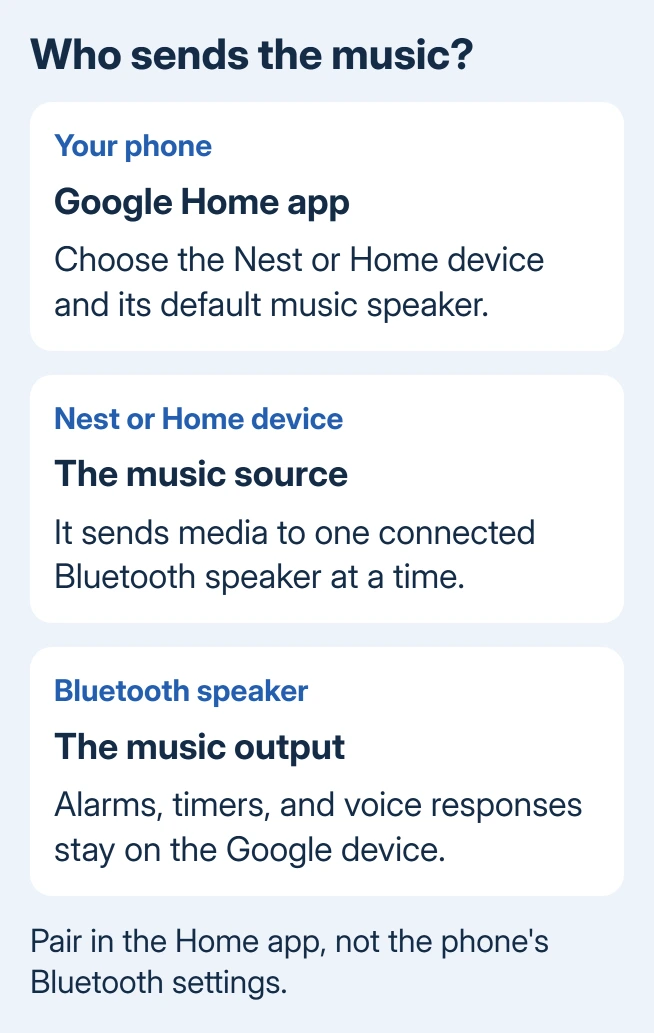
Select Home > All devices, then touch and hold the tile for the Nest or Home speaker or display that will send the music. Open its Settings > Audio. Start from your Google device's tile to choose where it sends music.
If that Google device hasn't been set up on Wi-Fi yet, finish that first. Our Google Home connection guide covers a speaker that can't join its network or appear correctly during setup.
Your Nest or Home device sends the music to the Bluetooth speaker; the app controls that setup. Pairing the speaker directly to your phone makes the phone its audio source, which doesn't set the Google device's default music output.
Pair the external speaker from Audio settings
Google explains the pairing sequence in its Bluetooth speaker instructions and includes an extra step for the Google device's first Bluetooth connection.
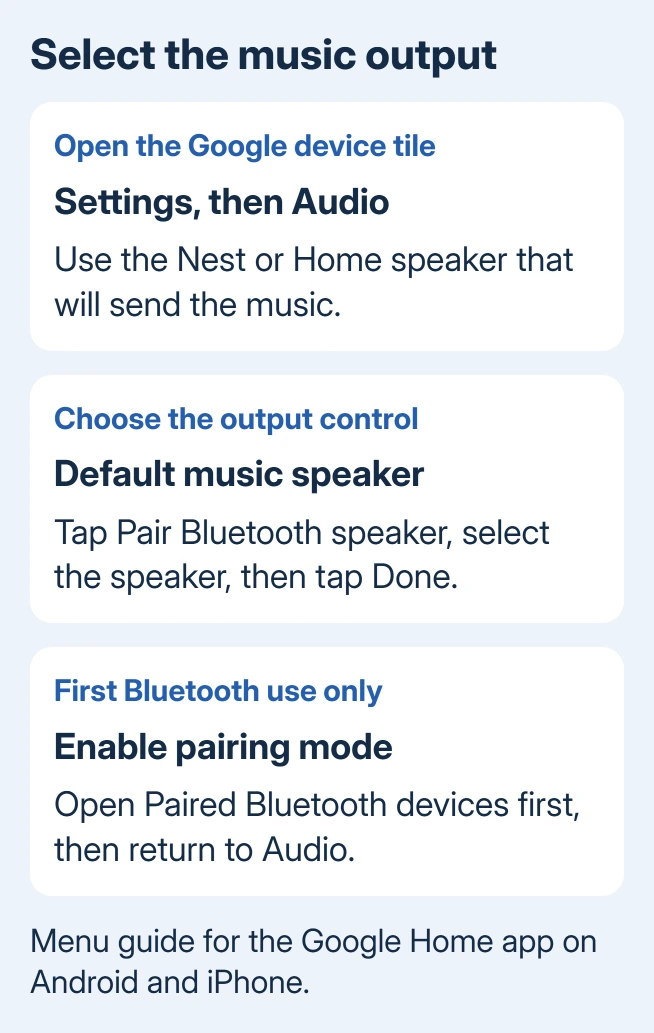
- In Audio, tap Paired Bluetooth devices > Enable pairing mode if you're using Bluetooth on this Google device for the first time.
- Return to Audio.
- Tap Default music speaker > Pair Bluetooth speaker.
- Wait while the Google device scans for nearby Bluetooth devices.
- Tap the external speaker's name when it appears, then tap Done.
The speaker is now paired to that Google device. If several similar names appear, check your speaker's model in its manual before choosing. Avoid nearby headphones or someone else's speaker, even when they appear first.
If the speaker doesn't appear, confirm that it's still in pairing mode. Some speakers leave pairing mode after a while. Bring it near the Google device and disconnect another phone or computer if it's already connected to the speaker.
I'd pair the speaker beside the Nest or Home device first. Once music works, move it to its usual spot and check playback. If it works nearby but fails farther away, check the connection range rather than repeating setup.
Check music playback and the sounds that stay local
Ask the Nest or Home device to play music using your usual music request. The track should come from the Bluetooth speaker. If you can't hear music despite a connected status, check both devices' volume controls.
Raise the Bluetooth speaker's volume with its own controls, then raise the Nest or Home volume. A quiet setting at either end can leave a working connection sounding silent. Test with music rather than a timer.
Timers, alarms, and voice responses still play on the Google device. Hearing a response from the Nest or Home speaker while music comes from the Bluetooth speaker is how this setting is meant to work.
Several speakers or headphones can stay paired, but only one connects for music at a time. The Google device uses its most recent connection. Check the selected output if another paired speaker takes over.
For music that still comes from the Google speaker, reopen Settings > Audio > Default music speaker on the same device tile. Select the external speaker there and test again. Changing a different room's device won't change this one.
Reconnect a speaker that was switched off
The devices normally reconnect after pairing unless the Bluetooth speaker was turned off or disconnected. Start by turning the speaker on and making it ready to accept a connection. Then ask the Google device to connect Bluetooth.
To reconnect in the app, touch and hold the Google device tile and open Settings > Audio > Default music speaker. Tap the paired Bluetooth speaker you want to use. This reconnects your paired speaker without repeating setup.
If reconnection fails, check whether a phone or laptop is already using the Bluetooth speaker. Disconnect that other source, then retry from Google Home. The JBL pairing guide helps with the speaker's own controls on those models.
If you still hear nothing, disconnect and reconnect from the Home device's Audio settings, then try playing music again.
Note whether the speaker is missing, won't connect, or connects silently. Tell support which happens to help them check the connection.
Add the Google device to a group, or remove its pairing
For several rooms, create a speaker group with supported Google devices. Include the Nest or Home that's paired to the Bluetooth speaker. The ordinary Bluetooth speaker doesn't get an independent Google device tile.
Bluetooth may delay grouped playback. For music that sounds out of step, open the affected device's Settings > Audio > Group delay correction. Move its slider while listening to the group, rather than a single speaker playing alone.
To stop using the Bluetooth output while keeping the pairing, open the Google device's Settings > Audio > Default music speaker and tap the connected device to disconnect. A voice request to disconnect Bluetooth is another supported option.
To remove it completely, open Settings > Audio > Paired Bluetooth devices. Tap the X beside that speaker, then Unpair. You'll have to pair it again before that Google device can use it for music.
If you can't find those Audio controls, use Need more help on the Bluetooth support page. Give support the Nest or Home model, speaker model, phone platform, and the exact missing control or failed pairing stage.
The Short Version
Put the speaker in pairing mode. In the Google device's Audio settings, use Default music speaker > Pair Bluetooth speaker, choose it, and tap Done. Check music and both volumes; alarms and voice responses stay on the Google device.
Checked November 15, 2026.
 If you have any business, I can build it online






