

The Operation did not complete successfully virus warning in Windows 10 means antivirus protection blocked a file. Open Protection history to read the detection before retrying the copy, extraction, or installation.
What the antivirus found determines what to do next: remove an untrusted file, get a clean replacement from its publisher, or review a suspected false alarm. Turning off antivirus protection doesn't repair the file.
In this guide
1. Match the warning to its security event
Open Start > Settings > Update & Security > Windows Security > Virus & threat protection. Select Protection history, then expand the event whose time matches the failed operation. Approve the administrator prompt if asked.
Check the threat name, status, and affected file path. An installer, an item inside a ZIP archive, and a file on a USB drive can trigger the same message. The affected path tells you which item needs attention.
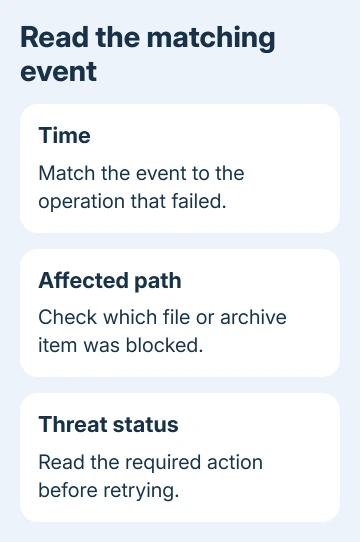
Microsoft's Protection history guide explains what each event means. Events disappear after two weeks, so older warnings can be absent.
Without a matching Defender event, check Windows Security > Settings > Manage providers to see which antivirus is active. Open that program's detection history and review its warning.
Don't assume a similarly named detection from last week explains today's failed operation. Match the time and full path.
Follow that app's steps to remove the file or report a false alarm rather than changing Defender settings.
2. Remove a file you don't trust
For an unexpected attachment, an unofficial installer, or a file from an unknown sender, leave the file blocked. Expand the detection and use the available Quarantine or Remove action, depending on the status shown.
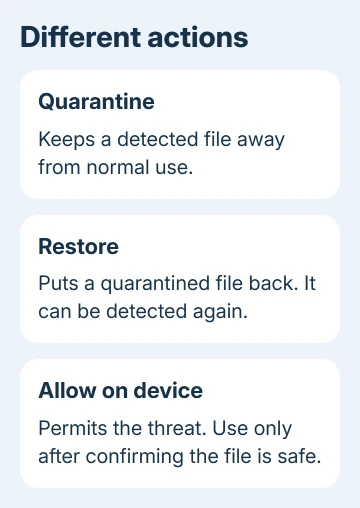
Threat found - action needed requires a decision. Threat quarantined means Defender is holding the file away from normal use. Threat blocked means it removed the threat, so that event needs no further removal.
If the event says Remediation incomplete, expand it and follow the additional action it lists. That status matters more than whether the original File Explorer error has disappeared. The cleanup hasn't finished yet.
Check the original location after the action completes. A quarantined installer won't run from that path, and an archive may still contain the blocked item.
Don't keep extracting the same archive in the hope that another folder will accept it.
For a removable drive, scan the drive before copying more files from it. That helps you check the rest of its contents instead of treating the first blocked file as the only affected item.
3. Update protection and get a clean replacement
Return to Virus & threat protection. Under Virus & threat protection updates, choose Check for updates and let the security intelligence update finish. These updates help Defender recognize threats and unwanted software.
Delete an untrusted download or leave its detected copy quarantined. Get a replacement only from the software publisher or the person who can supply the original legitimate file.
For a work attachment, have the sender check the source before resending.
Try the replacement with protection still enabled. If the new file works, the old copy was the one causing the block. If the detection returns, note its name and ask the publisher to check that file version for a known problem.
I'd get a fresh official installer before making any security exception. It's a simpler way to deal with a damaged or altered download, and you keep the protection that caught the first copy.
A browser's Virus detected download failure is a related but separate screen. Use the Chrome download warning checks when the file never reaches your Downloads folder.
4. Review a false alarm before allowing anything
A familiar filename isn't enough to tell whether a file is safe. Check where it came from, whether the publisher expects that exact file, and whether an updated version is available. Keep a suspected false alarm blocked during that review.
Ask the publisher to submit a sample to the antivirus vendor for review. Defender's Submit a file for malware analysis service requires sign-in and accepts reports of incorrect detections.
When you've confirmed the file is safe, choose Actions > Allow on device in the detection to allow that threat. This is a security decision, so don't use it simply to make the error go away.
Restore returns a quarantined file, which Defender can detect again. Allow on device allows the threat named in that event. If Defender already removed the file, you may need a fresh copy after allowing it.
If you've already chosen Restore and the button fails, the quarantine restoration guide covers that narrower problem. Don't start restoration troubleshooting when leaving the item blocked is the right choice.
To reverse a previous allowance, open Virus & threat protection > Allowed threats, select the item, and choose Don't allow. Then scan again so the file can be checked under normal protection.
5. Scan for other affected files
In Virus & threat protection, select Scan options > Full scan > Scan now. Let the scan finish and review its results. This checks beyond the item that interrupted the original file operation.
For a threat that keeps returning, save open work and choose Microsoft Defender Offline scan from Scan options. Windows restarts to scan outside the usual Windows session. Review Protection history after it returns.
The offline scan is a separate cleanup step, not a way to approve the blocked file. Read the detection and status after the scan to see whether more cleanup is needed before trying the installer again.
If the warning remains with a publisher-verified file, contact that publisher and the antivirus vendor. Send the exact detection name, file version, download address, and affected file path.
For a managed work PC, request a security review from your IT department.
The Short Version
Review the detection, remove unsafe files, update protection, and get a clean replacement. Confirm a suspected false alarm before allowing it. Run a full or offline scan when the problem extends beyond one download.
Checked November 16, 2026.
 If you have any business, I can build it online






