When Windows 11 won't keep your chosen JPG app, or JPG and PNG are missing from its default-app choices, repairing Microsoft Photos can restore those choices. Try Repair first, then Reset if needed, and set your defaults again.
An owner confirmed this restored associations with IrfanView.
Opening a picture once in another program is different from making that program the default. If JPG is available in Settings and the choice simply hasn't been saved, choose the default directly before repairing anything.
In this guide
1. Set JPG directly and check whether Windows keeps it
Open Settings > Apps > Default apps. In the box for finding a file type or link type, enter .jpg. Select the current app, choose the image viewer you want, and confirm with Set default if that button appears.
Close Settings and double-click a JPG in File Explorer. It should open in the selected viewer. Return to the .jpg entry once to check that Windows still shows the app you chose.
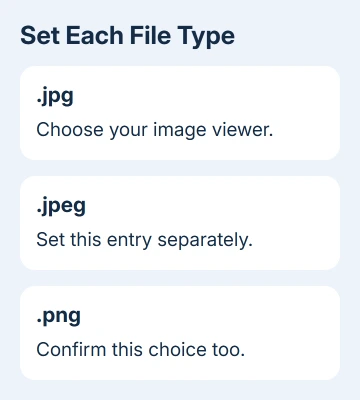
Set .jpeg separately if you use files with that ending. Set .png separately too. These entries can have different defaults even when one image viewer handles all three formats.
Microsoft's default-app instructions describe choosing an app by file type. Save your choice in Settings. A checkbox inside the image viewer may not save your Windows preference.
If the entry accepts and keeps your choice, the problem is solved. The general Windows default-app guide covers other formats when only some documents still open in the wrong program.
If .jpg or .png can't be found, or the choice immediately fails to stick, move to the Photos repair. Installing the viewer again as administrator wasn't enough for the owner in the original report.
2. Repair Microsoft Photos before resetting it
Open Settings > Apps > Installed apps and search for Microsoft Photos. Open its three-dot menu and choose Advanced options. Scroll to the Reset area and select Repair.
On early Windows 11 builds, the app list is called Apps & features. That is the older name used in the original thread. The relevant app remains Microsoft Photos, not the third-party viewer you're trying to select.
Wait for the repair to finish, then return to Default apps and choose your .jpg app again. Test a local picture from File Explorer. The next double-click should launch your preferred viewer without another app-selection prompt.
Repair is the smaller change, so I'd use it before Reset. The app-repair instructions put Repair first and Reset after it when the problem remains.
If Photos doesn't offer Advanced options on your installation, don't try the same menu on a different app just to find a Repair button. Note the controls offered on your PC, then check updates or ask support about the missing repair option.
3. Reset Photos if the association choices are still broken
Return to Microsoft Photos > Advanced options and choose Reset, then confirm. Reset clears the app's local data and preferences, so read its confirmation before proceeding.
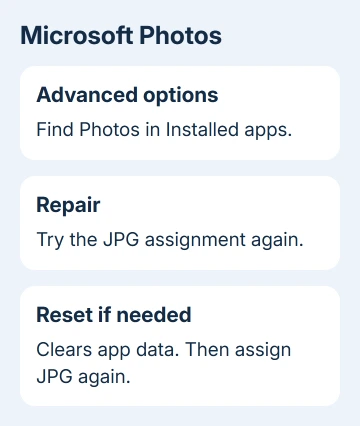
After it finishes, open Settings > Apps > Default apps, search for .jpg, and select the preferred viewer again. Repeat for .jpeg and .png as needed. Resetting Photos doesn't itself choose your replacement app.
An owner in the JPG association discussion reported that using both Repair and Reset made JPG and other file types assignable to IrfanView again.
The owner used both buttons, so we don't know whether Repair alone would have been enough. Try Repair, check the result, and use Reset if the problem remains. It avoids clearing Photos preferences unnecessarily.
Test a second picture after the first one opens correctly. If both use your chosen app and Settings retains the selection, stop there. Removing Photos isn't required to keep another viewer as the default.
4. Make an Open with choice permanent
Right-click a JPG in File Explorer and select Open with > Choose another app. Pick the viewer you want. On current dialogs, choose Always to save the association rather than Just once.
On older Windows 11 dialogs, select Always use this app to open .jpg files, then confirm. The wording changed, but the distinction is the same: opening a file once doesn't save a future preference.
If the viewer isn't listed, use the option to choose an app on the PC and locate its installed executable. For a desktop viewer, choose the actual application, not its installer or a plugin file.
Then double-click a different JPG without using Open with. That checks your saved default, rather than asking Windows to use a particular app once. If it returns to Photos, check the .jpg entry in Settings again and note what it shows.
The original owner reported that selecting the IrfanView executable opened a picture but did not save the association before the Photos repair. If that happens to you too, choosing the same program file again won't solve it.
5. Confirm the file ending and the installed viewer
In File Explorer, choose View > Show > File name extensions. Check the affected picture's ending. A file named .jpeg, .jfif, .png, or .heic won't necessarily follow the .jpg preference.
A JPG that opens but hides dimensions in Properties needs the picture-details comparison.
The file-extension guide shows how to make those endings visible. Check the type Windows sees instead of judging by the picture's thumbnail or a familiar part of its name.
If only one format fails, assign that extension separately in Default apps. Don't rename its ending to .jpg to make it use your JPG default: changing the name doesn't convert the image's contents.
Open the chosen viewer from Start and use its own Open command on the picture. If the app can't open it there either, repair or update that app before changing more defaults.
The default setting chooses a program; it can't add missing format support.
For movie files rather than pictures, a missing MP4 default choice has owner-confirmed Movies and TV repairs.
Why does the JPG choice keep changing back?
Install available Windows updates through Settings > Windows Update. Check Microsoft Store for a Photos update and update your chosen viewer the way you normally would. Restart and choose your .jpg default in Settings once more.
On a managed work PC, ask IT whether a company default-app policy keeps putting the old choice back. Report whether the association changes immediately, after sign-in, or after an update. Those are different triggers.
For a personal PC without company settings, open Get Help from Start and request support for missing JPG choices or a JPG default that won't save.
Include the Windows build from winver, the viewer's name, and whether Photos Repair and Reset changed the result.
The Short Version
Set .jpg, .jpeg and .png separately in Default apps. If entries are missing or won't save, repair Photos, then reset it only if needed, and assign the viewer again. Open with must use Always to change future double-clicks.
Checked November 16, 2026.