

The Show desktop button can disappear when its taskbar setting is turned off. Enable the far-corner option in Settings > Personalization > Taskbar > Taskbar behaviors, then click past the clock and notification area.
Press Windows+D for desktop access while you restore the mouse control. It hides open windows without closing their apps. Missing desktop icons and a completely absent taskbar need different checks.
In this guide
1. Turn the far-corner control back on
Right-click an empty patch of taskbar and choose Taskbar settings. If another window covers it, press Windows+I to open Settings, select Personalization, and then open Taskbar.
Expand Taskbar behaviors. Find Select the far corner of the taskbar to show the desktop and select its checkbox. Keep the other behavior options unchanged during this check.
Microsoft says this option controls the desktop button in its taskbar customization instructions. You don't need a replacement taskbar app to restore this built-in control.
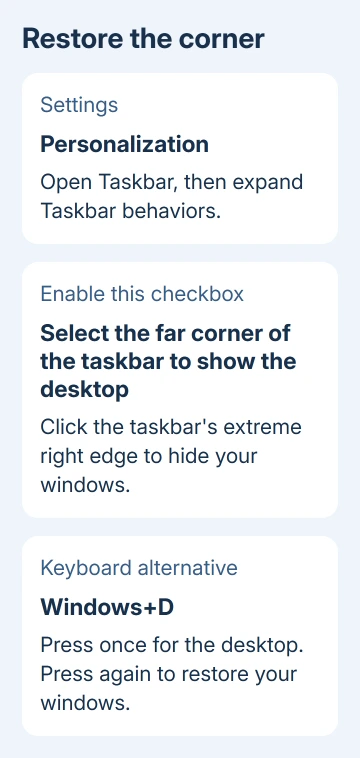
Open a normal app window, then move the pointer to the extreme right end of the taskbar and click. Aim past the notification area rather than at the clock or bell. Your open windows should disappear from view, leaving the desktop.
Click the same corner again to bring the windows back. That second click is useful confirmation that you found the intended control, rather than accidentally minimizing one app with its own button.
The hit area is narrow and doesn't look like a large labeled app button. An apparently empty corner can still be the active control once the setting is enabled. Check its click behavior before changing more settings.
2. Use the keyboard to confirm the desktop still opens
Press Windows+D with an ordinary app window open. Press it again to restore your windows. Keep using this shortcut while you get the corner button working.
When Windows+D works and the corner click fails, check the taskbar setting and where you're clicking. Your files and desktop haven't disappeared simply because the pointer control isn't responding.
If the windows move aside but the expected icons aren't there, use the missing desktop icons checks. Showing the desktop and showing its icons are separate controls.
If the wallpaper itself won't accept clicks or right-clicks, the desktop click repair covers Explorer and windows covering the desktop. A disabled corner button doesn't explain a desktop that ignores every click.
With multiple monitors, Show desktop hides windows across the desktop. It doesn't open a menu of desktop files for one monitor.
One owner wanted a desktop shortcut menu instead. Restoring this button won't give you that menu.
To open a desktop file without hiding all your windows, open File Explorer and choose Desktop in its navigation pane. That accesses the folder rather than changing your taskbar behavior.
3. Reset a setting that's already enabled
If the checkbox was already selected, clear it once. Save any open work and use Start > Power > Restart. After signing in, return to Taskbar behaviors and select the far-corner option again.
One owner thanked the reply that suggested this turn-off, restart, turn-on sequence. The current taskbar instructions also confirm that this checkbox controls the button. It isn't a reason to edit taskbar registry values by hand.
Test the corner with a normal app window again. If it now hides and restores windows, leave the checkbox enabled. There is no need to keep repeating the reset after the control starts responding.
I'd try this simple reset before touching an entire Windows profile. The missing corner usually needs a taskbar setting checked, not your personal files moved into a new account.
If the checkbox changes after sign-in, note when it happens. A managed PC or customization tool can reapply taskbar preferences. Check those settings or tools next; clicking the corner repeatedly won't keep the option enabled.
4. Check taskbar visibility and customizations
Auto-hide can make this narrow corner difficult to reach. Bring the pointer against the display's bottom edge until the taskbar reappears, then click its far corner. Avoid clicking the app behind a concealed taskbar.
In Taskbar behaviors, check Automatically hide the taskbar. Temporarily clear that option to keep the taskbar visible while you compare the corner click with Windows+D. Restore your preference after the comparison if it wasn't the cause.
If you're using a taskbar replacement, shell extension or desktop-customization tool, use that tool's supported option to return to the standard Windows taskbar. Its taskbar can behave differently from the built-in one described here.
Compare the corner again after signing out or restarting if the tool requests it. If the standard taskbar works, report the problem to that tool's developer with the Windows build and software version.
The original 2024 question described Copilot moving beside the clock after an update. The Copilot layout on your current Windows 11 PC may differ.
Use the Show desktop checkbox that's still available in Taskbar behaviors. Removing Copilot or changing unrelated notification settings isn't required by the current instructions for enabling Show desktop.
When the corner still won't respond
Install the updates offered under Settings > Windows Update, then restart when requested. Repeat the corner test once using an ordinary window and compare it with Windows+D.
If neither the setting reset nor standard taskbar helps, open Feedback Hub from Start. Report a Windows taskbar problem and include the Windows build from Windows+R > winver.
Describe whether the checkbox stays enabled, whether Windows+D works, and whether the clock and other taskbar controls still respond. Include any taskbar customization app you use.
Those results show support how far the problem extends: just the corner button, or other desktop controls too.
For a work-managed computer whose checkbox is unavailable or keeps changing, ask IT to check taskbar policies and deployed customization software.
Ask whether the far-corner Show desktop setting is allowed on your PC. The button can disappear while your desktop files remain in place.
The Short Version
Enable the far-corner option in Taskbar behaviors, then click beyond the notification area. Windows+D gives you the same quick desktop access.
If the checkbox was already on, turn it off, restart, and enable it again before checking taskbar customization software.
Checked November 16, 2026.
 If you have any business, I can build it online






