

DRIVER_POWER_STATE_FAILURE points to a driver failing during a change in power state, such as sleep or shutdown. Unplug recent peripherals first, then repair the driver linked to the crashes. A longer sleep timer only avoids a trigger.
The stop code is 0x9F. It can involve different devices, so an Atheros fix from someone else's laptop isn't automatically the right fix for yours.
In this guide
1. Remove a recent device and repeat the same power action
Save your work, shut down, and disconnect recently added nonessential hardware such as a USB adapter or dock. Keep the basic keyboard and mouse you need to operate the PC, then start Windows again.
Try the failing action again: Start > Power > Sleep, Restart, or Shut down. Test the same action each time. A successful restart won't tell you whether a crash on waking from sleep is fixed.
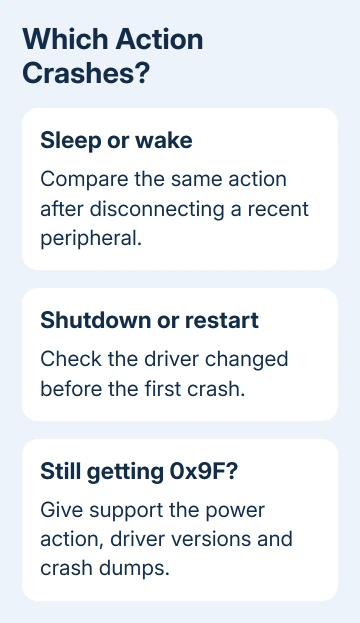
If the crash stops without a particular device, reconnect that device separately and check its supported driver or firmware. When requesting help, identify both the peripheral model and the power action that failed.
Microsoft's 0x9F troubleshooting guidance recommends reviewing recently added hardware and drivers. Some failures happen because a device driver takes too long to respond to a request.
If nothing external has changed, move to the internal devices rather than repeatedly unplugging the same cables. Wi-Fi, graphics, storage, and other drivers can also be involved when the PC sleeps, wakes, or shuts down.
Record when the problem began, including any driver, security-software, or system update around that time. That history is more useful than changing every power preference at once and losing track of what affected the crash.
2. Check the suspected device's driver and recent events
Right-click Start to find Device Manager. Check for devices marked with yellow warnings and inspect the device associated with the recent change. Open Properties and read Device status on the General tab.
On the Driver tab, record the provider, date, and version. The Events tab can show installation and configuration events for that device. Compare those dates with the first crashes rather than treating every older event as a new fault.
If installing a new driver was immediately followed by failures, select Roll Back Driver if available. Complete the prompts with an administrator account, restart, and test the same sleep or shutdown action again.
An unavailable rollback control means Windows isn't offering a previous driver for that device. In that case, ask the computer maker for a compatible package instead of downloading an arbitrary older version.
If there wasn't a recent driver update, check for a matching driver update. On Windows 11, use Settings > Windows Update > Advanced options > Optional updates > Driver updates.
For Windows 10, go to Settings > Update & Security > Windows Update > View optional updates, if offered, and review the Driver updates section. Install the relevant package, then restart before comparing behavior.
Windows 10's free regular support period ended October 14, 2025. You'll still need to plan for security and upgrades, even if a driver repair stops this crash.
3. Match a named module to the actual affected hardware
The original discussion was about a Lenovo laptop. Analysis of its saved crash record identified athrx.sys, an Atheros network driver, and the accepted advice was to install the matching Lenovo network driver.
That advice applies to the device in that case. Don't install Atheros software on an Intel or Realtek adapter. Expand Network adapters in Device Manager to see which hardware your own PC actually has.
If your crash names a networking module, the Wi-Fi driver update guide explains how to select the right adapter. An Ethernet controller and a wireless adapter need different packages even on the same laptop.
A crash summary naming pci.sys doesn't mean you should replace that Windows file. Several drivers can be involved in a device's power request. Support may need to examine the crash record more closely to find which one stopped responding.
Avoid buying hardware based only on a one-line crash summary. Ask support to connect the named module to the device and to the blocked power request before recommending a replacement.
I'd make one driver change and repeat the failing action before changing another. Then a failed first repair still leaves a useful comparison for the support case.
4. Separate a temporary sleep change from a lasting repair
If automatic sleep keeps interrupting work while you're arranging a driver repair, temporarily lengthen the sleep interval. In current Windows 11 Settings, use System > Power & battery > Screen, sleep & hibernate timeouts.
The wording varies by Windows 11 version and whether the PC has a battery. Older builds use Screen and sleep. On Windows 10, the controls are under Settings > System > Power & sleep.
Record the old interval before changing it. Return to that setting after the driver repair and test sleep again; avoiding sleep doesn't tell you whether the problem is fixed.
If the crash occurs at shutdown or restart instead, changing automatic sleep won't address that trigger. Keep the failure tied to the action that actually causes it and continue with the driver or firmware review.
The article on windows moving after sleep covers a different result: the desktop resumes but rearranges apps. If the PC shows a stop code and restarts, follow the crash repair steps in this article.
5. Collect the crash details for a targeted repair
Open Event Viewer > Windows Logs > System and inspect events around the crash time. Record relevant error text and any named device or driver. An unexpected-shutdown event records that the PC shut down unexpectedly, but may not explain why.
If C:\Windows\Minidump contains crash files, tell your computer maker's support team that they are available. Share them through the support case with the Windows version, device model, driver versions tried, and the failing power action.
Ask for a 0x9F power-transition dump review and model-specific driver or firmware advice. Firmware changes need the exact computer model and the maker's procedure; don't install a BIOS package for a similar-looking laptop.
If you can't use the desktop, enter recovery with Shift+Restart. Choose Troubleshoot > Advanced options > Startup Settings > Restart, then 4 for Safe Mode. On encrypted PCs, have the BitLocker key ready for recovery.
Safe Mode loads fewer drivers so you can reach repair controls. If support finds a VPN, antivirus, or another added driver blocking the request, use that product's supported update or removal process rather than deleting its .sys file.
The Short Version
Compare the failing power action with recent peripherals removed, then repair the matching driver. Changing the sleep timer temporarily avoids the trigger. For continuing 0x9F crashes, request dump analysis and support for your exact model.
Checked November 16, 2026.
 If you have any business, I can build it online






