Missing File Explorer headings can mean the folder isn't in Details view, but a missing Size column needs a different check. Switch to Details and inspect the column choices first.
If the headings remain blank and other Windows controls are broken too, treat it as a Windows repair problem. Explorer doesn't have a separate installer to download for this repair.
In this guide
1. Put the folder in Details view
Open the affected folder and look at how its files are arranged. Large icons, tiles, and a plain list don't provide the same column heading row as Details view. Changing the view is the quickest useful check.
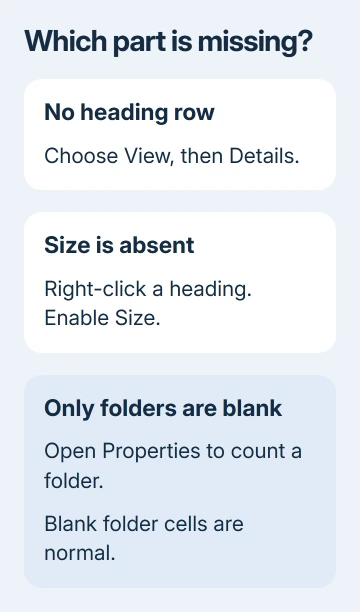
In Windows 11, choose View > Details in File Explorer. In Windows 10, open the View ribbon tab and select Details. The file area should show a row containing headings such as Name, Date modified, Type, and Size.
On Windows 7, use the Change your view control and select Details. The original report describes Windows 7, so its controls won't match the Windows 11 command bar.
Compare one ordinary folder with the folder that looks wrong. If Details view restores the headings, stay with that view. If the heading row is present but Size isn't, change the column selection next.
If the row is still blank in Details, don't keep switching between icon sizes. The original affected owner had already chosen Details, and selecting it again didn't repair their missing labels.
2. Bring back the Size column without resetting Windows
Right-click an existing heading, such as Name, to open the available-column menu. Select Size if it isn't checked. If it isn't offered in the short menu, choose More, locate Size in the list, and enable it.
Look across the full file area after applying the change. A narrow window or a wide neighboring column can put another column out of sight. Maximize the window and check any horizontal scrollbar before treating a label as missing.
If labels exist but text is cut off, widen the relevant column by dragging the separator at its edge. This gives the heading and its values more room. Your files haven't gone missing just because their labels are cut off.
Now check a regular file, such as a text document or photo. The Size column should show how much space the file's contents take up. If the heading appears and files have values, the column has returned even if folder rows remain blank.
Folders are a separate case: Explorer doesn't normally fill their Size cells with a total of everything inside. Use a folder's Properties to see its size. Blank folder cells alone aren't damaged headings.
I'd stop at the view controls when they restore normal file values. A Windows repair adds work without helping a folder whose only problem was an unchecked column.
3. Look for the wider failure before repairing system files
Check whether the heading labels are missing in several folders, then try opening Windows Update and Devices and Printers on an older Windows 7 PC. Record which controls fail rather than assuming one bad folder explains everything.
One owner on Microsoft's forum had more than blank headings. Windows Update wouldn't open properly, adding a printer failed, and System File Checker reported damaged files it couldn't repair.
With those controls failing too, it's time to check Windows itself. It doesn't mean a single missing Size column comes from the same damage, or that every display problem needs a replacement disk.
Back up important files before deeper repair, particularly if the PC reports disk read errors. Copying that owner's drive exposed defective sectors, so a view setting wasn't their only problem.
If copying produces read failures, ask a repair technician to assess the drive before running repeated repair attempts. Keep the failed filenames and disk messages. Repairing Windows files won't make defective storage dependable.
4. Repair protected Windows files on a working drive
For Windows 10 or 11, open Start, type Command Prompt, right-click its result, and choose Run as administrator. Approve the prompt so the repair tools can work on protected system files.
Use the system file repair procedure: first run DISM.exe /Online /Cleanup-Image /RestoreHealth. Wait for that command to finish before starting the next scan.
Then run sfc /scannow and allow verification to reach completion. DISM repairs the store of Windows files used for repairs. SFC then scans the protected files Windows uses and draws replacements from that store.
Read the final result. If it says files were repaired, restart and check the same folders again. A result saying some files couldn't be repaired means you need the next repair route, rather than an endless scan loop.
For Windows 7, the current DISM RestoreHealth command isn't the equivalent repair step. Use an administrator Command Prompt for sfc /scannow, then keep its result for the technician handling that older system.
The original owner's SFC scan found corruption but didn't restore the headings. Their eventual success came after an in-place Windows repair on a copied drive. For that owner, the repair installation worked when SFC hadn't.
5. Arrange a repair installation when the damage remains
Explorer is part of Windows. Use the Windows repair route instead of downloading a replacement explorer.exe or looking for a separate Explorer installer. The appropriate recovery option depends on the installed Windows version.
For Windows 11, the repair reinstall through Windows Update explains the option when that recovery control is available. It preserves apps and files, but keep your separate backup.
For the old Windows 7 case, have a technician check the drive and repair media first. That owner restored headings and other controls with an in-place upgrade; don't apply their old installation steps to Windows 11.
Give support the Windows version, whether the row is blank or only Size is absent, the SFC result, and any disk errors. With that information, support can judge whether changing the view is enough or Windows needs repair.
The Short Version
Choose Details, enable Size, and test an ordinary file before repairing anything. Persistently blank headings with other broken Windows controls need system repair, with disk health checked first when copying reports read errors.
Checked November 16, 2026.