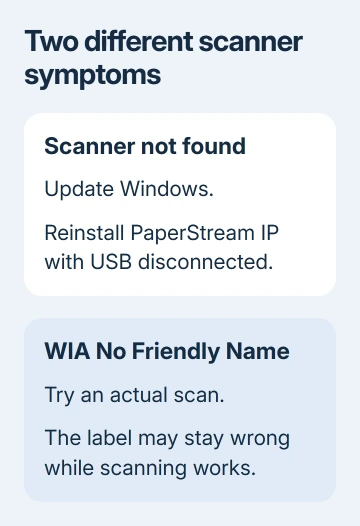
PaperStream scanner failures after Windows 11 24H2 can come from a USB recognition bug that Windows updates have since fixed. Update Windows, then reinstall the current PaperStream IP driver with the scanner disconnected.
A scanner listed as WIA No Friendly Name is a separate display issue. The name can stay wrong even when scanning works, so try scanning a page before reinstalling anything for that label.
In this guide
1. Check the Windows build before rolling anything back
Open Settings > System > About and read Windows specifications. Record both the version and OS build. The documented fault affects USB-connected fi and SP series scanners on Windows 11 24H2 and Windows 11 LTSC 2024.
Ricoh's updated scanner recognition procedure sets the repaired 24H2 build at 26100.3624 or later. Its April 17, 2025 update names KB5055523.
An earlier announcement named KB5053598 in March 2025. The later FAQ gives the newer fix and installation sequence, so don't stop at the first announcement or hunt for that older package when newer cumulative updates are available.
For an unpatched 24H2 PC, follow the disconnect, remove, update, and reinstall order in the next section. For a work computer, have IT confirm the permitted Windows update level.
For a separate update installation failure, use the Windows update troubleshooting steps. An update that hasn't finished can't be counted as an installed scanner fix.
The older forum advice to return to 23H2 predates the published repair. I'd finish the current update and driver procedure before considering a Windows reinstall for this particular scanner failure.
2. Reinstall PaperStream IP in the documented order
Sign in with a Windows administrator account. Close your scanning software and disconnect the scanner's USB cable. Leave USB disconnected through driver installation so the old driver doesn't reconnect midway through repair.
Open Settings > Apps > Installed apps and remove the PaperStream IP driver entries. The procedure calls for removing all those drivers before updating Windows and installing the latest driver.
Finish Windows Update and restart the computer. Return to Settings > System > About and confirm that a 24H2 installation has reached the repaired build or a later build. Record the full number if the scanner still fails afterward.
Open the download page for your exact scanner model. For the fi-7030 in the original report, the current page lists PaperStream IP (TWAIN) 3.40.2, released May 28, 2026. Use the current download for your model rather than an old Setup DVD.
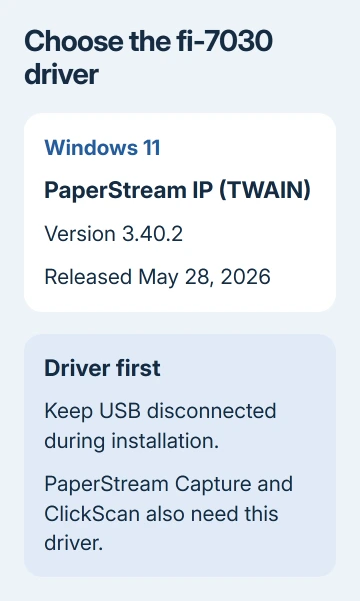
The driver and capture app are separate downloads. PaperStream Capture or PaperStream ClickScan needs PaperStream IP (TWAIN). Installing the capture app alone doesn't complete the driver repair.
Install the appropriate driver before reconnecting the scanner. Reopen the capture software, select the scanner, and scan one page. Check that the image reaches the app; completing Setup isn't the final test.
If Setup fails before it finishes, keep its complete error and the installer filename. Tell support whether Setup stops early or finishes but leaves the scanner unavailable. Those are different failures.
3. Check scanning even if the displayed name is wrong
Open the scanner selection screen in the application you actually use. Look for the scanner and try a page. The control's name varies between apps. Look for the option to choose a scanner or scanning source.
The FAQ separates two problems: the device not being recognized properly and its name displaying as WIA No Friendly Name. The second can remain unresolved after the recognition fix, while scanning is still possible.
Don't keep uninstalling a working scanner because the label looks unfinished. Check which scanner the entry controls and whether the image reaches the expected destination. If it does, focus on the name rather than reinstalling the driver.
If one application scans and another doesn't, record both names and results. The original report includes that split, with a business app failing while other software worked. Check that app's selected scanner driver too.
The documented USB issue doesn't affect a LAN connection. If your model supports Ethernet or Wi-Fi, the general Windows scanner checks cover connection and app setup.
Windows' scanner setup controls let you check whether the PC sees the device. Your capture app can still need its own source selection afterward.
Don't assume every scanner can switch to a network cable. Use the connection types supported by its model. The fi-7030 download is for the model in that report; it doesn't add a network connection to a USB scanner.
4. Check a remaining driver-selection failure
If the scanner is still missing, follow the FAQ's linked device driver update procedure for your model. Keep the updated Windows build and driver version in your notes.
An owner restored their scanners by choosing a different compatible driver in Device Manager and restarting. They reported this workaround before the Windows fix. Apply the current update procedure first.
Open Device Manager > Imaging devices, right-click the scanner, and choose Update driver. Select Browse my computer for drivers, then Let me pick from a list of available drivers on my computer.
Keep Show compatible hardware checked. The owner selected a second entry, but your list can differ. Follow the vendor's driver identification procedure instead of choosing by row position.
Select your scanner's exact model and choose Next. The current procedure says either entry works when that model name is duplicated. Close the successful update window, then try scanning a document again.
This driver-selection issue can return when the scanner moves to another USB port. Repeat the documented selection for that port if it happens, rather than removing all the software again.
If no suitable entry appears, stop and send support the list shown. An unrelated driver might display the scanner's name without letting your capture app scan.
5. Send support the exact point that still fails
Contact fi/SP support with your scanner model, Windows build, PaperStream IP version, connection type, and error code. State whether Setup fails, the scanner is absent, or it scans with the wrong displayed name.
For a business application, include its version and whether PaperStream Capture can scan. The original question also mentions DYMO software, but this fi/SP fix doesn't explain a separate label-printer installer failure.
The Short Version
Disconnect USB, remove the old PaperStream IP drivers, update Windows, then install your model's current driver before reconnecting. Test an actual scan: a remaining WIA No Friendly Name label can be only a display problem.
Checked November 16, 2026.