A missing header or footer in Word 2016 can come from a printing option that leaves out text boxes and other drawing objects. Turn on Print drawings created in Word first when the missing content includes a logo or text box.
Hidden text and the paragraph holding a graphic can affect ordinary header text too. If the header appears in preview but gets cut off on paper, check its position and the printer's printable area.
In this guide
1. Let Word print the header's drawing objects
In Word 2016 for Windows, open File > Options > Display. Under Printing options, select Print drawings created in Word, then choose OK. Return to File > Print and inspect the affected page.
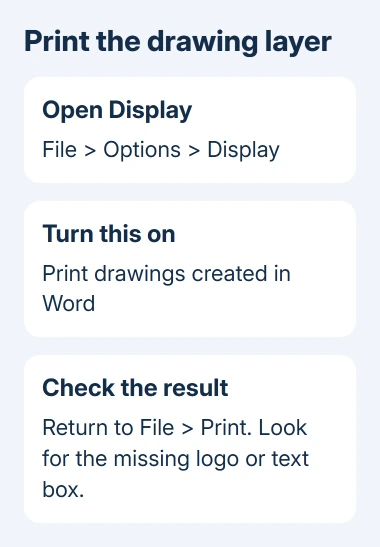
The setting includes drawing objects such as shapes and text boxes. A header can look like ordinary lettering while its words actually sit inside a text box. That's why a setting for printing ordinary text won't necessarily help.
Microsoft explains this checkbox in Word's Display options. Clearing it leaves drawing objects out of the output. Don't confuse it with the separate option for printing page background colors and images.
I'd check this before moving the footer. It changes one setting and lets you compare the same page immediately, without disturbing the document's layout.
If the logo or boxed text returns in preview, print one affected page. When preview still lacks it, leave the checkbox selected and check hidden formatting next. More copies won't bring back content that's missing in preview.
2. Check hidden text and the paragraph holding the graphic
Make a copy of the document before changing its formatting. Double-click the header or footer to edit it, and select the missing text. Open Home > Font using the small dialog launcher and inspect Hidden.
Clear Hidden for text that should print. In File > Options > Display, the Hidden text display checkbox helps reveal hidden content on screen; Print hidden text is a separate printing choice.
Don't enable Print hidden text across a document full of private prompts just to recover a footer. Clear Hidden on the text you want readers to see, and keep notes that shouldn't print separate.
One owner in the original discussion used a template with hidden reminders at the start. Deleting that hidden text made the footer return in preview; pasting the reminders back didn't immediately make it disappear again.
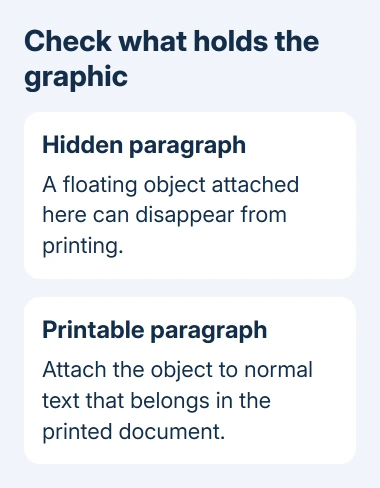
That change worked for that owner, but it doesn't explain every missing footer. An adviser also explained that a floating graphic anchored to a hidden paragraph becomes hidden with that paragraph.
For a floating logo or text box, look at the paragraph holding its anchor. Select the object and look for its anchor marker with formatting marks visible. Put its anchor on a normal, printable paragraph rather than a hidden reminder.
If the document came from a work template, ask its author to check that anchor and the template's Hidden formatting. Fixing your copy helps with today's print job. Fixing the template keeps new documents from inheriting the same problem.
3. Compare the first page with the next page
Open File > Print and move between the first two pages. A missing first-page header with a normal second-page header can be intentional. The header tools' Different First Page option gives the opening page its own header and footer.
Double-click the first page's header to inspect that area's content. Don't switch off Different First Page automatically if the document needs a clean cover. Add the required content to the correct first-page area instead.
The Word header guide covers those separate header areas. This matters when the missing item belongs only on the title page, rather than throughout the document.
For missing content after a section break, inspect the header or footer in that section as well. A later section can have its own header, even when the previous section is correct.
When every page's header is present in editing view but absent in preview, return to the object and hidden-formatting checks. First-page settings don't explain a drawing disappearing from all pages.
4. Adjust placement only when preview shows the content
If the footer appears in preview but gets cut off on paper, check the printed result. Confirm the paper size in Word matches the sheets loaded in the printer, then print a single page with the footer moved farther from the edge.
While editing the footer, use Footer from Bottom on the header tools tab. The matching header control is Header from Top. Review the full page after changing either distance so the content doesn't collide with the body.
There isn't one safe edge distance for every printer. Use the printable-area information for your printer model rather than repeatedly trying the smallest number Word accepts.
For paper size, printer selection, and printing just one page, use the Word print settings guide. Those checks are useful after the header is actually present in preview.
The original asker had already increased the bottom margin and moved the footer inward, yet it remained absent from preview. That result is why margin changes shouldn't be the first fix for this particular symptom.
5. Try a new file to check for document damage
Start with an empty Word file. Add a plain header using Insert > Header. Print-preview it on the same PC. Then add a small text box to that test header and compare again.
If plain text appears but the text box doesn't, revisit the drawing-print option. If both appear, the original file or its template needs closer attention. Keep that working sample to show the person maintaining the template.
Send IT the failing document and working sample, with private information removed. Include the Word version, printer model, and whether preview or only paper lacks the content. Ask them to check hidden anchors and template formatting.
Word 2016 for Windows is outside support. If the same failure persists in a supported Word release, use its Help support options with those samples rather than reinstalling the old suite repeatedly.
The Short Version
For logos and text boxes, use Word's drawing-print checkbox. Check Hidden formatting and graphic anchors next. Compare first-page headers separately. Move content inward when preview shows it but paper cuts it off.
Checked November 16, 2026.