An embedded Excel table can stop reopening in Word because an Excel add-in blocks it. Close Word, open Excel separately and disable its COM add-ins temporarily. Owners confirmed this fix for the Office 2010 fault.
A different case involves a document opened from SharePoint, or a Word or Excel process still running after its window closes. Those need a different next step when the add-in change doesn't help.
In this guide
1. Turn off Excel's COM add-ins, then reopen Word
Start with Excel's settings, even though Word shows the error. Word needs Excel to edit the embedded worksheet, and an Excel add-in can stop it from opening.
Save the open documents, then exit Word. Open Excel directly from Start, with a blank workbook rather than the problem document. In Excel 2010, select File > Options > Add-Ins.
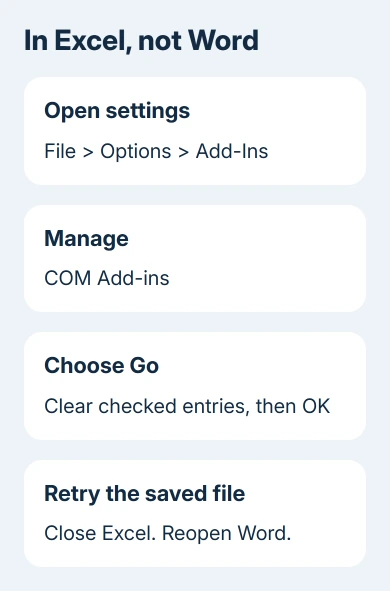
At the bottom, change Manage to COM Add-ins, then select Go. Note which entries are checked, clear their checkboxes and select OK. Close Excel completely before opening Word again.
Double-click the embedded table in your saved document. When it works, the object opens for spreadsheet editing instead of displaying the message that Excel isn't installed or responding.
Microsoft's COM add-in instructions explain that clearing a checkbox unloads the extension without deleting it from the computer. Use the checkbox for this test, rather than the Remove button.
The original reports include PowerPivot and an Acer extension, but the problem wasn't limited to either one. A Word 2013 owner later recovered this way too. An empty COM Add-ins list means this particular fix has nothing to switch off.
If editing returns, restore the extensions individually and repeat the saved-document test after each change. That tells you which add-in needs an update from its maker. Leave it off while you work if your organization allows that.
2. Save, close and test the same object again
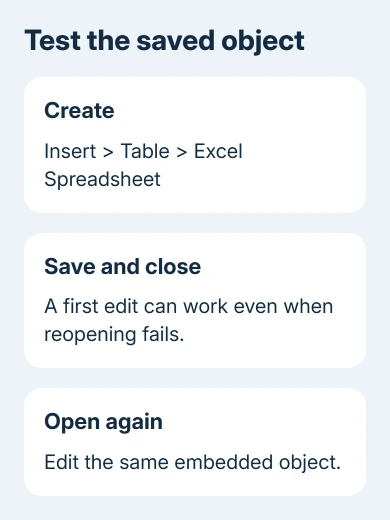
Editing a newly inserted spreadsheet once isn't enough. The original failure happened after saving and closing Word, even though creating the object had worked normally.
Make a small change in a copy of your document, click outside the worksheet and save. Close Word, reopen that copy and try editing the same object again. This checks the part of the process that was actually failing.
If the first edit works but the next opening doesn't, keep that distinction in your support report. It tells the technician that creating the spreadsheet works, but opening it again after saving doesn't.
For comparison, create a small blank document and choose Insert > Table > Excel Spreadsheet. Enter a harmless value, save it locally and repeat the close-and-open test.
If that small document works, concentrate on the original file and where it is stored. If both fail, an app or add-in problem is more likely than damage to just one worksheet.
3. Close any Word or Excel process left running
One owner in the embedded-table discussion said disabling add-ins didn't help, but closing leftover Word and Excel processes did. Try this before reinstalling Office.
Save every open Word document and Excel workbook first. Closing a process can discard unsaved work, including a workbook hidden behind another window.
Exit both apps, then press Ctrl+Shift+Esc. On Windows 10 and 11, look for Microsoft Word and Microsoft Excel in Task Manager. Expand an app group if needed and check for a window you still need to save.
On Windows 7, the Processes tab uses executable names such as WINWORD.EXE and EXCEL.EXE. End only the remaining Word or Excel process after their normal windows are closed and your work is saved.
Start Word again and retry the object. If editing works now, Word or Excel hadn't fully closed the last time. If the same failure immediately returns, move to the document-location check.
4. Try a local copy when SharePoint is involved
Download the Word file to a local folder as a separate copy, then open that copy in desktop Word. Keep its original file extension and try the embedded table before changing anything else.
A SharePoint user in the same discussion could edit the embedded files after downloading the document and reopening it locally. This lets you compare the file on your computer with the one opened through SharePoint.
If local editing works, finish urgent changes in the copy and ask the document owner how to return the updated file. Don't overwrite a shared version while someone else is editing it.
If the local copy also fails, SharePoint alone doesn't explain the problem. Keep the local test file for the technician and move to recovery or application repair.
5. Recover the worksheet without replacing the original
When only one document fails, try a known-good earlier copy or request the original workbook separately from its sender. The table can still look right on the page even when Word can't open it for editing.
Several owners recovered embedded spreadsheets from a copy of a .docx file opened as a ZIP archive. The embedded files normally sit in word/embeddings. Work on a duplicate and extract files to another folder.
First, check whether the workbook you extracted opens correctly in Excel. Don't assume every file in that folder is a readable Excel workbook, and don't rename the original document or replace its contents.
An older .doc file isn't the same ZIP-based format. Use an earlier saved copy or ask someone with a working Office installation to recover its worksheet instead of changing its extension and expecting an archive.
Once you can read the values, keeping a transferred table's cells together helps with a separate paste problem. It won't restore an embedded object's editing controls.
When the embedded worksheet still won't open
Ask IT to compare the same local test file on a second computer. Include your Office version, the Excel add-ins list and whether the failure affects new objects, existing objects or both.
For a failure across several documents, the Office repair steps are a reasonable next route. Repair didn't help every owner, so tell IT what you've already tried before reinstalling Office again.
The Short Version
Disable Excel's COM add-ins, then test after saving and reopening Word. Next, close leftover app processes and compare a local copy. Recover the worksheet separately if the failure stays with one document.
Checked November 16, 2026.
 If you have any business, I can build it online