

Stereo Mix isn't required to record computer sound. In Audacity, choose Windows WASAPI as the host and your playback device marked (loopback) as the recording device. This records your speaker or headphone audio without Stereo Mix.
If another recording app specifically needs Stereo Mix, check whether the driver supplies it. If you just want to save the sound playing on your PC, loopback is the more direct option.
In this guide
1. Choose Windows WASAPI instead of the microphone
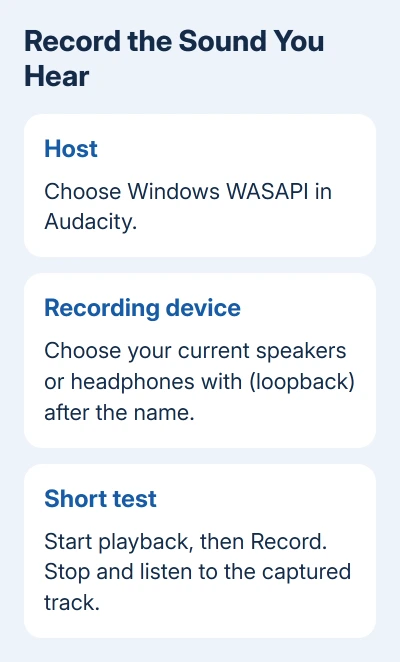
Open Audacity and click Audio Setup. Under Host, select Windows WASAPI. WASAPI is how Audacity communicates with Windows audio. Loopback records your output device's sound instead of microphone input.
Open Audio Setup > Recording Device and choose the output you actually hear, with (loopback) after its name. For example, audio playing through the laptop speakers needs that speakers device, not a microphone input.
Older Audacity layouts may show these choices in a device toolbar or under Edit > Preferences > Devices. You still need the same pair: Windows WASAPI and the loopback input for the device you're listening through.
One owner in the Stereo Mix thread confirmed this worked. Hidden-device checks hadn't helped their Cirrus Logic-equipped Dell.
The Audacity playback manual describes WASAPI loopback and explains why a built-in sound card's input can't capture every external output.
2. Match loopback to the output carrying the sound
In Windows 11, open Settings > System > Sound and check the selected output. Windows 10 places the output selection under the same Sound settings page, though the layout differs.
For USB headphones, choose their loopback device. For an HDMI monitor, choose that output's loopback device. The built-in speakers' input won't capture a different output just because both belong to the PC.
Changing from speakers to Bluetooth headphones can therefore leave Audacity recording the old device. Recheck the recording selection after connecting a headset, docking station or monitor that changes your output.
Play a short audio sample that you have permission to capture. Confirm that you can hear it through the selected device before pressing Audacity's red Record button. That checks you aren't recording an unused output.
Watch the recording meter and waveform. A moving meter and a growing waveform mean sound is reaching the recording. If the track is just a flat line, check the selected output before changing a Windows driver.
If Audacity gives an error with mono recording, choose 2 (Stereo) Recording Channels in its audio settings. Some devices don't support WASAPI loopback in mono. Record a short test again after changing that setting.
3. Make a short recording before starting the full session
Play the source audio first, then press Record. WASAPI needs audio to be playing. If you press Record before the source starts, the recording can sit waiting instead of capturing sound.
After a few seconds, press Stop. Stop the original playback too, then play the Audacity track. Listen for the expected sound and check that it isn't your room or microphone instead.
If the recording picks up speech near the laptop but misses the computer's sound, reopen Recording Device. The recording setup still has a microphone selected. Choose the correct loopback input rather than increasing microphone volume.
Turn off Transport > Transport Options > Enable audible input monitoring in the manual's menu layout. Keeping it unchecked avoids feeding recorded computer audio back into playback.
Loopback can capture notifications and other programs using the same output. Close or mute unwanted sources before the full session. Your short test should contain only the material you meant to capture.
After the test plays correctly, make the full recording and export an audio file through Audacity's File menu. Keep the editing project too if you want to work on it later.
4. Check Stereo Mix only when another app needs it
Press Windows + R, enter mmsys.cpl, and press Enter. Open the Recording tab. Right-click the list's empty space. Turn on Show Disabled Devices, then Show Disconnected Devices.
If Stereo Mix, What U Hear or a similar playback-recording input appears disabled, right-click it and choose Enable. Select it inside the recording app, then repeat the short playback test.
If nothing appears, those view settings can't add a recording input that isn't there. Stereo Mix depends on the audio hardware and its driver. A new Windows 11 PC can lack it even if an older Windows 10 machine displayed it.
Check the PC maker's audio driver for your exact model if the installed driver seems incomplete. A Realtek package for another computer won't add a supported Realtek input to Cirrus Logic hardware.
I'd use working loopback rather than keep reinstalling drivers just to recover that label. Driver replacement makes sense when the maker supplies the missing function, not when the only goal is to record sound that WASAPI already captures.
For video too, see the Windows recording options. If playback is silent before recording starts, use the Windows sound checks first.
If active loopback still fails, post on Audacity's forum with your version, host, recording device, Windows output and exact error. Ask the PC maker about Stereo Mix if your required app can't use loopback.
The Short Version
Select Windows WASAPI and the listening device's loopback input in Audacity. Start playback before recording and check a short sample. Hidden-device settings can reveal an existing Stereo Mix input, but can't add one the driver lacks.
Checked November 17, 2026.
 If you have any business, I can build it online






