Word's minimize, maximize and close buttons can disappear because of an old FastPictureViewer conflict, especially in Office 2013 and 2016.
If that viewer is installed, remove it and reopen Office before replacing a graphics card or reinstalling Word.
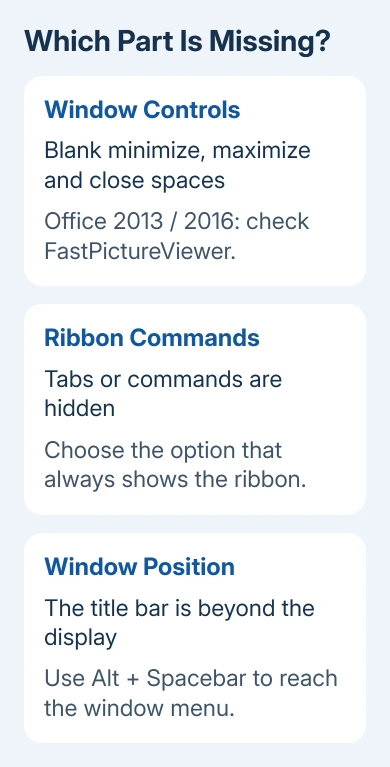
A hidden ribbon is a different problem: the tabs disappear, but the window controls aren't necessarily broken. First check which part of the window has gone missing, then use the matching fix.
In this guide
1. Remove FastPictureViewer when the button spaces are blank
In the older reports, this fault left blank spaces where the window buttons should be. Some owners could still click the invisible controls. Missing checkboxes elsewhere in Office made the same display problem harder to recognize.
One owner restored the controls after removing FastPictureViewer, as they reported on Microsoft's forum. A later Office 2016 report confirmed the same result after three Office reinstalls and a graphics-card replacement hadn't helped.
Save your documents first with Ctrl+S. On Windows 11, open Settings > Apps > Installed apps and search for FastPictureViewer. Choose Uninstall from its app menu.
Remove the installed viewer product, rather than an unrelated picture app.
On Windows 10, use Settings > Apps > Apps & features.
On the older Windows versions involved in the reports, open Control Panel > Programs > Programs and Features, select FastPictureViewer, FastPictureViewer Professional or its Codec Pack, and choose Uninstall.
Close the Office apps and launch Word again. Check the top-right corner, then open another affected Office app. If the controls return in both apps, the change fixed their shared display problem, rather than a problem with one document.
Keep the viewer's installer or purchase details if you'll need them later. If its name isn't in the installed-app list, don't remove other software at random.
If the viewer isn't installed on your PC, continue with the window checks.
I'd check for that viewer before spending time on Office repair. It's a specific match for the reported combination of invisible window buttons and other missing Office graphics. It isn't a reason to uninstall every photo tool.
2. Bring back a hidden ribbon or an off-screen title bar
Press Esc to leave a temporary full-screen or reading view.
Find Ribbon Display Options, near the upper-right corner in older Word layouts or the ribbon's lower-right corner in newer ones. When available, choose Show Tabs and Commands to keep the ribbon visible.
In newer Word releases, the wording can instead include Always show Ribbon. Pick the display mode that leaves commands visible. Ctrl+F1 also switches between a collapsed and expanded ribbon in desktop Word for Windows.
That fixes missing tabs and command buttons. It doesn't address a title bar whose minimize, maximize and close controls are still invisible. Look at the ribbon, then the title bar, to see which controls are still missing.
For a window pushed partly beyond the display, select Word on the taskbar and press Alt+Spacebar. This opens the window menu.
Choose Restore if available, then use the menu's Move command and keyboard direction keys to reposition it.
Press Enter when the window is back in reach. If moving the window brings the title bar back, it was outside the usable screen area. Repositioning the window fixes that problem; removing FastPictureViewer isn't needed for it.
The Windows window shortcuts also let you close the active window with Alt+F4. Save first.
These keys give you a way out while the mouse controls are unavailable.
If even the document itself has disappeared from Recent, handle that separately by searching for the missing Word file. Invisible controls don't mean the saved document has been deleted.
3. Check Office 2013 themes and graphics options
An Excel 2013 owner without FastPictureViewer reported that the fault appeared with Light Gray but not the other Office themes. In Office 2013, choose File > Options > General > Office Theme and compare Dark Gray.
That changes the theme across the suite. If the controls return, keep the working theme. A repair and several profile resets hadn't helped that owner, so deleting Office folders isn't the next step for this pattern.
Office 2013 exposes File > Options > Advanced > Display > Disable hardware graphics acceleration.
If your version has that checkbox, note whether it's selected before changing it. Then close and reopen Word to see whether the controls return.
This setting changes how Office draws its interface. It was suggested in the original discussion, but the asker said it didn't solve the fault. The later Office 2016 owner also reported no difference with acceleration enabled or disabled.
Don't treat that suggestion as the confirmed solution for this exact symptom. If it makes no difference on your PC, restore its previous state.
Continue to repair only when the viewer fix and visibility checks don't explain what you're seeing.
Current Microsoft 365 builds may not offer that old checkbox. Its absence isn't another fault, and it isn't a reason to add registry settings copied from an old Office discussion. Use controls your installed version actually provides.
4. Repair Office when several app windows are affected
Make a blank file in Word, then compare its controls with the problem document. Also check Excel if it's installed.
If only one document has the problem, have that file checked. If several Office apps have broken controls, look at the Office installation or software they share.
Use Office's repair choices when multiple apps remain affected. On Windows 11, find Microsoft 365 or Office under Installed apps, open its menu and choose Modify.
On Windows 10, select it in Apps & features.
Choose Quick Repair first for a Click-to-Run installation. If it doesn't help, Online Repair is the fuller option; keep the PC connected while it runs.
An older Windows Installer edition offers a Repair command instead of those two choices.
After repair, reopen Word and check a blank document's title bar and ribbon. Repeating an identical reinstall isn't useful when the same outside program is still triggering the display fault.
When the controls still won't draw
Use File > Account > About Word to record the version and build.
Ask Microsoft Support for help with missing window controls across Office apps, and mention whether FastPictureViewer was installed and whether another Windows app draws normally.
Include an image of the blank control area without private document text. For a managed work PC, give IT those version and comparison details before removing shared software.
Give support the affected Office version, rather than just the age of your monitor.
The Short Version
For invisible Office 2013 or 2016 window buttons, check FastPictureViewer first. A collapsed ribbon or an off-screen window needs its own visibility fix.
Repair Office only after those checks, and report the exact build if blank controls persist.
Checked November 17, 2026.
 If you have any business, I can build it online