Third-party security software is the first suspect when KB5053656 rolls back with "Something didn't go as planned". In the original report it was Malwarebytes, and removing it with its own cleanup tool let the update install.
KB5053656 is also optional. Microsoft released it as a March 2025 preview, and the April 2025 security update folded in all of its changes, so skipping it costs you no fixes.
When every update rolls back, the fix is an in-place reinstall from Microsoft's Windows 11 ISO file. It repairs Windows without touching your apps or files, and on 24H2 Home or Pro it moves you to a version that still gets updates.
In this guide
1. Check your build before chasing the update
Press Windows key + R, type winver and press Enter. The window shows a line like Version 24H2 (OS Build 26100.3194). The number after 26100 tells you which updates you already have.
KB5053656 takes Windows to build 26100.3624. If your number is 3624 or higher, its changes are already on the PC and the failed attempt doesn't matter.
A lower number, like the asker's 3194 from February 2025, means no update has gone in since then, so the problem is bigger than one preview.
Check your edition while you're there: Settings > System > About shows Home, Pro, Enterprise or Education. Home and Pro stopped getting 24H2 updates in October 2026, which matters in step 4.
The rollback screen itself gives no error code, but your update history keeps one. Open Settings > Windows Update > Update history and look under Quality updates for the failed entry and the code beside it.
Write that code down. If it's a common one such as 0x800f0922, the error code guide explains what it means before you start removing software.
2. Stop Windows from pushing the preview
Open Start > Settings > Windows Update and turn off Get the latest updates as soon as they're available. With the toggle off, Windows stops fetching previews like this one on its own.
Turning it off doesn't cost you any protection, because Microsoft's page on that toggle says security updates arrive either way. The April 8, 2025 update, KB5055523, already includes the improvements from KB5053656.
If the failed install keeps retrying at every restart, select Pause updates on the same page. That buys you a quiet week or more while you try the fixes.
If the regular security updates fail with the same rollback message, the preview was never the real problem. Something on your PC is stopping every install, and steps 3 and 4 tackle that.
3. Remove Malwarebytes or other security software properly
Security apps load drivers deep inside Windows, and those can block the file changes an update makes. Windows then shows "Something didn't go as planned" and undoes everything, which is the loop the asker was stuck in for weeks.
A normal uninstall can leave those drivers behind, so reach for the maker's cleanup tool instead; the big security suites each offer one on their support sites. For Malwarebytes it's the Support Tool, and the order matters:
- Download the Support Tool from Malwarebytes' help site and open the mb-support file in Downloads. Select Yes when User Account Control asks for permission, then accept the license.
- Select Advanced in the left menu, then Clean, then Yes. Select OK to restart.
- After the restart the tool opens again. Select Yes for the post-reboot cleanup.
- When it offers to reinstall Malwarebytes, decline for now.
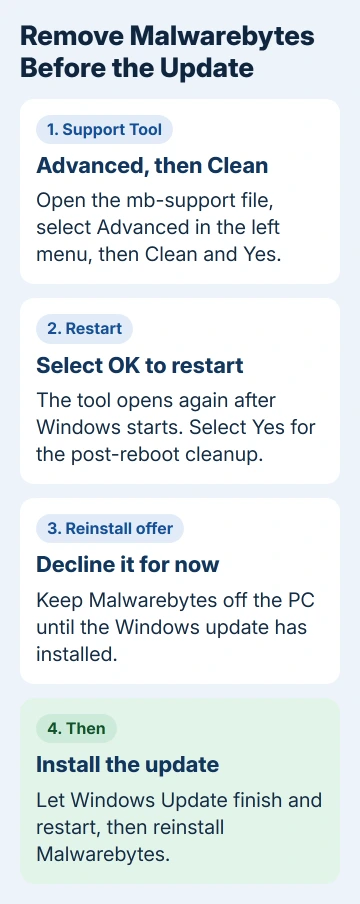
Back in Windows Update, let the waiting update install. For the asker, that was the fix: "This worked." Reinstall Malwarebytes afterward; Microsoft Defender switches itself back on in the meantime, so the PC isn't left unprotected.
One catch: in the same thread, removing Malwarebytes didn't help another owner, whose logs were never checked. So security software may not be what's blocking your PC at all, and step 4 covers that case.
I'd still try this step before step 4. Removing a security app is quicker than reinstalling Windows, and you can reinstall it straight away if nothing changes.
4. Run an in-place reinstall from the ISO
An in-place reinstall replaces Windows' own files and its update machinery but keeps your apps, files and settings. One owner's MSI laptop wouldn't take this update whatever they tried, including setup from a Media Creation Tool USB.
What worked for them was mounting the ISO (opening it like a disc) and running setup from inside Windows. The update then downloaded and installed, Windows Update said "You're up to date", and Windows stayed activated.
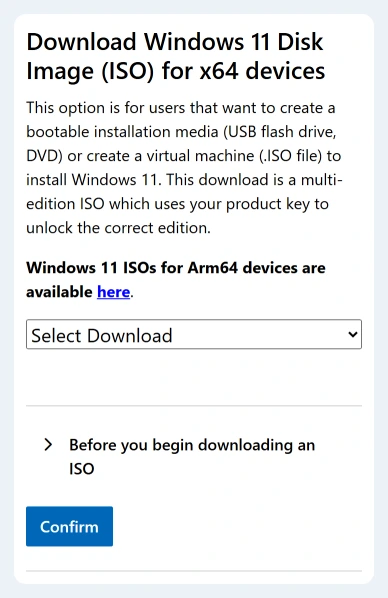
- Open Microsoft's download page for Windows 11, choose Windows 11 (multi-edition ISO for x64 devices) under the ISO heading and select Confirm. Pick your language, confirm again and start the 64-bit download.
- Right-click the downloaded file and choose Mount, then open setup.exe from the new drive.
- Select Change what to keep and pick Keep personal files and apps.
Microsoft's reinstall guide covers backups and activation, so look it over before you run setup. Because the ISO you download is Windows 11's current release, it also moves a 24H2 Home or Pro PC onto a version that still gets updates.
On Enterprise or Education, which keep 24H2 fixes until October 2027, the Reinstall now button in Recovery does the same repair without a download.
What didn't help
The asker had already run DISM and SFC (Windows' built-in repair commands), reset Windows while keeping files and settings, and cleared the update cache. The Windows Update troubleshooter wouldn't even start for them.
They had also tried the March security update, KB5053598, through Windows Update and by hand. Both rolled back the same way, which is another sign the block sat on the PC rather than in one update.
When nothing works
Windows writes down why an update rolled back in its CBS logs, the files it keeps about every update it installs. Right-click Start, choose Terminal (Admin) and run this command, which packs them into CBS.zip on your desktop:
GCI -Path 'c:\windows\logs\cbs\*.*', 'c:\windows\inf\setupapi.dev.log' | Compress-Archive -destination (join-path ([environment]::GetFolderPath('Desktop')) \CBS.zip)Open the Get Help app, ask for a Microsoft agent, and have them look over the CBS log for the rollback. For the asker, a moderator read those logs and named the blocking app the same morning.
If updates are stuck rather than rolling back, the stuck update fixes are the better match.
The Short Version
- KB5053656 is an optional March 2025 preview; the April 2025 security update includes its changes.
- If it rolls back, remove Malwarebytes or other security software with the maker's cleanup tool, install the update, then reinstall it.
- Still failing: run setup from the mounted ISO and keep files and apps. A 24H2 Home or Pro PC comes out on a supported version.
Checked November 19, 2026.