OneNote saves your custom tags to a small settings file, Preferences.dat, only when the program shuts down completely. If you close the window but ONENOTE.EXE keeps running in the background, the new tags never reach that file.
For one owner on OneNote 2010, Outlook was what kept ONENOTE.EXE alive. With Outlook open, it carried on after OneNote's window closed. Close Outlook first, then OneNote, and the process ends and your tags stick.
In this guide
Why the tags disappear after a restart
The tags you apply to notes live in the notebook, but the list of tags you've created or changed lives on the PC, in Preferences.dat. OneNote writes that file as it exits. If the exit never finishes, nothing is written.
That's also why ending the process by hand doesn't help. The owner who tracked this down lost their tags when they ended ONENOTE.EXE in Task Manager, just as they did when it kept running.
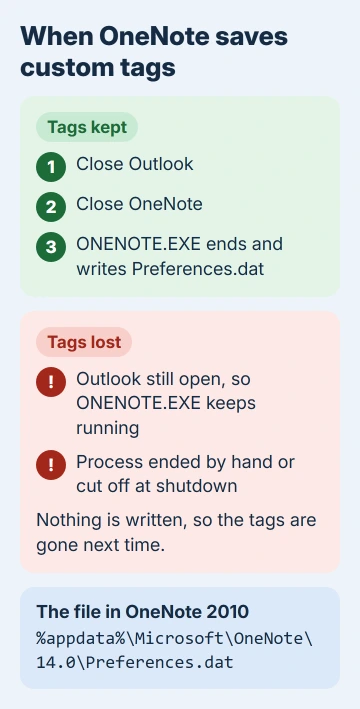
You can check whether this is happening on your PC. Open File Explorer, paste this line where the folder path shows at the top and press Enter, then open the numbered folder for your version:
%appdata%\Microsoft\OneNoteOneNote 2010 uses the 14.0 folder; newer desktop versions use a higher number, 16.0 for OneNote 2016 and the Microsoft 365 app. If the Date modified on Preferences.dat is days old although you made tags today, OneNote isn't getting to save.
1. Close Outlook before you close OneNote
OneNote and Outlook are linked through tasks: a task you flag in OneNote shows up in Outlook, and the owner who fixed this made a lot of their Outlook tasks that way. As long as Outlook was open, ONENOTE.EXE kept running too.
- Close Outlook.
- Close OneNote.
- Look for ONENOTE.EXE in Task Manager (Ctrl+Shift+Esc) on the Details tab, which is Processes on Windows 7 and XP.
- If it's gone, start OneNote and check your tags. They should be there, and Preferences.dat should show today's time.
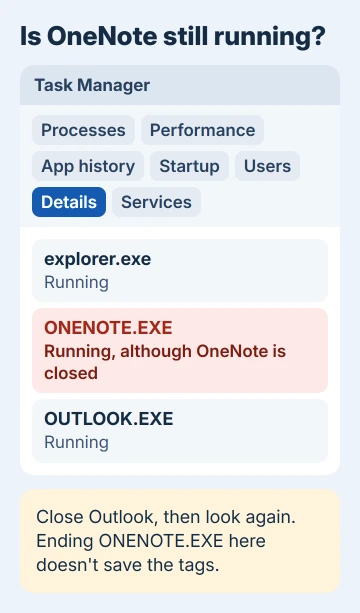
That owner could repeat it every time. With Outlook closed first, OneNote's process ended and the tags were saved; with Outlook open, it stayed running and the tags were lost.
You may also see ONENOTEM.EXE, the small OneNote helper in the notification area, among the icons by the clock. It made no difference in their case, so you can leave it alone.
Make that order a habit before you restart or shut down. One adviser who saw ONENOTE.EXE hang around suspected Windows was cutting it off before it could save, so close OneNote yourself and give it about 10 seconds first.
Outlook's own OneNote features go through an add-in, and if that misbehaves too, the Send to OneNote add-in steps cover it.
2. Let OneNote build a fresh Preferences.dat
If ONENOTE.EXE closes properly and Preferences.dat still never changes, the file itself may be damaged. A OneNote development manager on Microsoft's forum gave these steps for that case.
- Close OneNote and confirm in Task Manager that ONENOTE.EXE has gone.
- Rename Preferences.dat to Preferences.old, so you keep it as a backup.
- Start OneNote, close it again, and check that a new Preferences.dat has appeared; OneNote makes one when the old file is missing. Note the time on it.
- Start OneNote, create your custom tags, close it and wait about 10 seconds.
- Start OneNote again. The tags should be there and the file's time should have moved on.
The new file starts with OneNote's default options, so look through File > Options afterward. For the owner who found the Outlook link, a fresh file alone didn't help, because ONENOTE.EXE still wasn't closing.
3. Copy a working Preferences.dat from another PC
If another PC of yours saves tags fine, its Preferences.dat can rescue this one. The same owner copied the file from their home PC into the 14.0 folder on the work PC, and every custom tag came across; both ran OneNote 2010.
Close OneNote on both PCs before you copy, and keep the old file as a backup. The file also holds other settings, such as folder locations, so check File > Options afterward and fix anything that points to the wrong drive.
I'd also keep a copy of a good Preferences.dat once your tags are right. If they vanish again, copying it back is quicker than rebuilding a long list by hand.
4. Rebuild the list once, then back it up
If the tags are already gone, you'll have to make them again, so do it in one sitting and save the result properly.
- On the Home tab, right-click in the tags list and choose Customize Tags. To change a single tag, right-click it and choose Modify instead.
- Click New Tag for each one you need, then use the arrows to put your most-used tags at the top. The first nine get Ctrl+1 to Ctrl+9 shortcuts.
- Close Outlook, then OneNote, and check Task Manager as in fix 1.
- Copy the freshly saved Preferences.dat to a backup folder, such as one in Documents.
What didn't help
You can spare yourself the heavy fixes. The owner tried all of these before spotting the Outlook link, and none of them changed anything:
- Repairing Office 2010.
- Removing OneNote and installing it again.
- Starting OneNote in safe mode and clearing its cache, which also meant hours of downloading about 2 GB of notebooks again.
Skip the cache reset in particular. Custom tags aren't kept in the cache, and a big set of notebooks takes a long time to sync back down.
A cache reset does fix a different fault, though: OneNote's cache error 0x26, where the message says OneNote can't access the notebook cache file.
When the tags still won't stay
Check the file's Date modified after a clean exit, with Outlook closed and nothing left in Task Manager. If it changes, the fix worked.
If it never does, OneNote still isn't finishing its save, and it's time for someone to look at the PC itself.
On a work PC, show IT the Preferences.dat date and the steps you've tried. At home, OneNote's Help menu gets you to Microsoft's support team: File > Help in OneNote 2010, Help > Contact Support in the Microsoft 365 app.
Once the tags stick, they sit in the tags list on the Home tab beside the built-in ones, ready for the sections and pages you've set up in OneNote.
The Short Version
Custom tags are written to Preferences.dat only when ONENOTE.EXE fully exits. Close Outlook before OneNote, check Task Manager for a leftover ONENOTE.EXE, and close OneNote yourself before a restart.
If the file still never updates, rename it so OneNote builds a new one, or copy a working Preferences.dat from another PC.
Checked November 20, 2026.
 If you have any business, I can build it online