PowerPoint 2011 for Mac can report a chart dialog error when damaged Office preferences block Excel's chart tools. Resetting them and logging back in restored editing for several owners, even with no Excel dialog open.
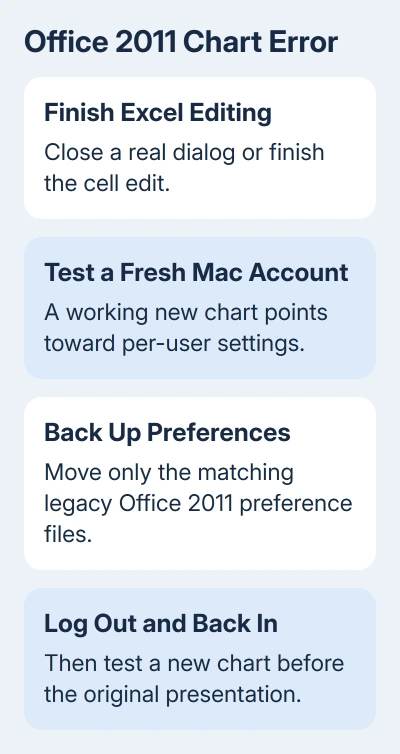
Start by finishing any real Excel edit or dialog. If the message persists, back up before moving the legacy preference files, and log out and back in before testing again.
In this guide
1. Finish any Excel edit before changing preferences
Switch to Excel and look for an open dialog or a cell that's still being edited. Finish or cancel the cell edit, close the dialog, then return to PowerPoint and try editing the chart again.
PowerPoint uses Excel for chart data, so an open Excel dialog can stop PowerPoint from opening the chart data. If the chart opens normally afterward, you don't need the preference reset described later.
When no Excel dialog is open and the error persists, the message doesn't tell you the cause. The original asker had already closed applications, restarted repeatedly and tried opening Excel first without success.
Their failure affected both copied Excel charts and charts created inside PowerPoint. If your problem follows only one chart, test a new chart in a blank presentation before changing settings used by the whole Office suite.
2. Confirm this is the Office 2011 Mac problem
Choose PowerPoint > About PowerPoint and note the version. These steps concern Office for Mac 2011, with reports from OS X Lion. They aren't Windows Office repair steps and shouldn't be applied to Microsoft 365's modern folders.
The error begins with To insert a chart, you must first close any open dialog boxes and can continue by asking you to cancel editing mode in Microsoft Excel. It can appear while editing an existing chart, not just inserting one.
Check whether it affects more than one presentation and whether Excel itself can open the chart's workbook. That helps you check whether PowerPoint is struggling to use Excel or Excel can't open the workbook at all.
For unrelated presentation problems, the PowerPoint guide covers normal editing. The preference reset is for the persistent legacy chart error, rather than a general way to repair every PowerPoint file.
3. Try a separate Mac user account
On Lion, open Apple menu > System Preferences > Users & Groups. Unlock the pane with an administrator password and use the plus button to create a temporary standard account. Keep your existing account and its files.
Log out, sign in to the temporary account and open PowerPoint. Make a new presentation and add a simple chart. Use a new file for this check, so you don't need to change access to your normal Documents folder.
The original asker confirmed that charts worked in a new user account. Their copy of Office was already up to date, so another update wasn't what changed the result. The same installed apps worked with a different user's settings.
If the same new chart fails in both accounts, don't assume your original preferences are the cause. Keep the exact error and version details to show the technician helping with your older Mac.
If the new account works, return to your normal account for the reset. The temporary account is just for this check. You don't need to move all your documents or start working from a new login.
4. Back up and move the Office 2011 preference files
Back up first, then quit all Office applications, including Word, Excel, PowerPoint and Outlook. The reset affects settings across Office. Keep the old files until you've checked chart editing and your normal setup.
In Finder on OS X 10.7 or 10.8, hold Option while opening the Go menu, then select Library. This opens your user's hidden Library, not the Library at the top level of Macintosh HD.
The accepted reset describes two locations inside that user Library:
- Application Support > Microsoft > Office > Preferences > Office 2011
- Preferences > Microsoft > Office 2011
Create a backup folder outside those locations. Move the files from the matching Office 2011 preference folders into separately named backup folders, so you can tell which location each set came from.
Don't delete the whole Microsoft folder or move Outlook's mail database. Move only the named Office preference files. If the folder layout doesn't match, stop and check the version rather than guessing at similarly named folders.
A German-language owner found the first location used Einstellungen instead of Preferences. Check the localized folder name before deciding the folder is missing.
Keeping the files in a backup folder lets you put them back if needed. You may need to set your app preferences again if the reset works. Leave the backup files alone while you check the result.
5. Log out and back in, then test a new chart
Log out of the Mac account and sign back in, or restart the Mac. Then open PowerPoint and add a new chart to an empty presentation before reopening the troublesome presentation.
An owner confirmed that moving the files from Library > Preferences > Microsoft > Office 2011 into an archive, then logging out and back in, restored chart editing. Another reply recommended clearing both preference locations.
Don't skip signing out and back in; it was part of the workaround that succeeded. Closing and reopening PowerPoint alone isn't the same test, and it can leave you thinking a reset failed before you've completed it.
The original asker removed only PowerPoint preferences and still had the error. Other owners got charts working by resetting Office or Excel settings too. A failed PowerPoint-only reset leaves those other settings to check.
One owner succeeded by removing the PowerPoint and Excel folders from Library > Application Support > Microsoft and logging in again. I'd leave that broader change to a technician who can preserve the contents first.
When to stop repairing this installation
Microsoft ended Office 2011 for Mac support on October 10, 2017. There are no new fixes or phone and chat support for that edition.
Some owners still saw the error after preference resets, Office reinstalls and fresh accounts. If that's your result, take the backup and test results to a Mac technician, or move document copies to a supported Office installation.
For a current Mac setup, downloading PowerPoint is a separate process. Use modern troubleshooting steps for Microsoft 365; the folders here belong to Office 2011.
The Short Version
Finish any real Excel edit first. For the persistent Office 2011 Mac error, test a fresh account, back up and move the matching preference files, log out of macOS, then log in again. Keep the backup and plan a supported replacement.
Checked November 21, 2026.
 If you have any business, I can build it online