No Man's Sky's Error creating WebSockets message means its online connection failed, but doesn't identify the cause. Check the game's app permission and network filters first, then compare another connection if the error remains.
A problem on one PC points toward that computer's software. Failure that follows the same account across working PCs calls for an account or connection check. Reinstalling the game repeatedly won't tell those cases apart.
In this guide
1. Check the game's Windows firewall permission
Leave the firewall enabled. For Windows 10 and 11, open Windows Security > Firewall & network protection > Allow an app through firewall. Select Change settings if you have administrator access.
Look for No Man's Sky and check the boxes for network profiles beside it. Allow it on the profile your connection actually uses. A private-network permission won't apply when Windows classifies the current connection as public.
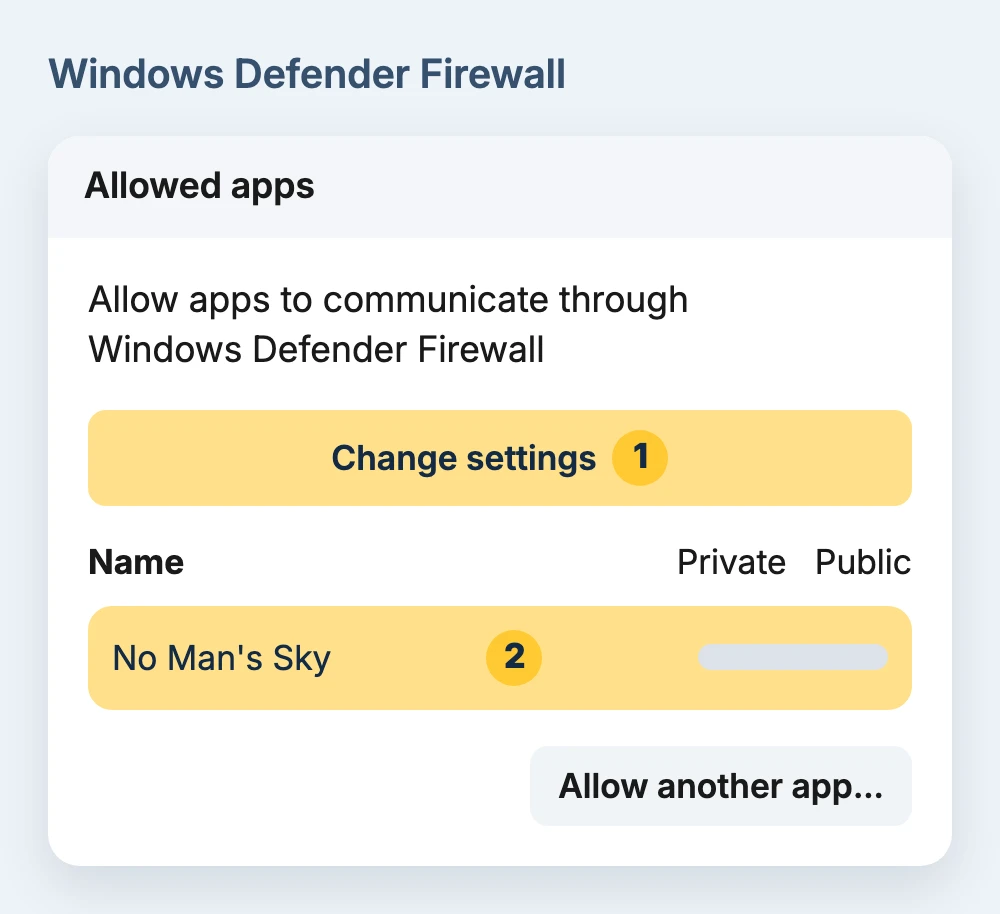
If the game isn't listed, select Allow another app, browse to its actual executable and add it. For a Steam installation, Properties > Installed Files > Browse opens the installation folder; the game executable is in Binaries.
Use Microsoft's app-permission approach instead of creating a permanent open port. Allow the installed game, not an unrelated executable with a similar name.
Quit and relaunch the game, then open Options > Network. Check whether the WebSockets message has cleared and online controls work. A browser opening pages isn't the same check as the game reaching matchmaking.
When the app permission looks correct but the error remains, inspect the other security software next. Don't turn off Windows protection and assume that every other network filter has stopped too.
2. Review third-party network filters as well
A security suite, VPN or filtering utility can control connections separately from Windows Firewall. Open its app or connection rules and look for both the game and Steam if you use the Steam edition.
Check for an explicit block or an old rule pointing to a previous installation path. Correct the rule for the current executable and restart the game so it makes a new connection attempt.
One owner in a solved Linux report traced this exact error to Portmaster even though it didn't show a blocked game connection. That fixed their setup. On your PC, a filter may be stopping traffic without showing a block.
If Portmaster or another filter is installed, follow its help instructions to briefly pause filtering and test the game, then restore protection. If that works, repair the product's rules rather than leaving the PC unprotected.
Linux players should review their own filtering tools and current Proton setup rather than following Windows Security menus. The report's successful result came from identifying Portmaster, not from changing Windows firewall settings.
If no filter changes the result, restore anything you paused and compare the connection next. Keep a note of the result to avoid repeating an unsuccessful change later.
3. Compare a different connection before resetting the router
Close the game and switch the PC onto a usable phone hotspot or a second network. Relaunch the game and look in Options > Network. The account and PC stay unchanged in this comparison; only their connection changes.
If matchmaking works there, focus on the original network, its filtering or its internet route. Tell the network owner or provider that ordinary browsing works but the game's online connection doesn't.
If the error remains on the hotspot too, the home router is less useful to keep resetting. Return to the computer's filtering rules and consider whether the same account fails on another PC.
When the PC also cannot browse, fix the connected-but-no-internet problem first. That wider outage has to be resolved before the game's matchmaking test can tell you much.
A VPN changed the result for an owner in a separate Steam discussion, after several routes hadn't helped. They later reported that one connection worked; the thread doesn't name a universal working server.
Treat an existing VPN as a comparison, not a reason to buy a subscription or cycle endlessly through regions. Give support the useful result: whether changing the route changes this exact error.
4. Compare the account on a working PC
If another PC is available, compare the same game account there on a connection where the game normally works. Log in yourself using your own account. You don't need to share your password with anyone.
If the account still fails while another legitimate account works on that PC, send that distinction to support. Support can then look beyond the original computer's drivers and game files.
A September 2025 thread ended with the owner reporting a region-related difference tied to a China-redeemed key. That is a report to raise with the seller or Steam Support, not a confirmed rule for every copy bought in that region.
Keep your purchase receipt and the key's stated region restrictions. Ask support if the license permits online play in your location. Don't change store country or buy another copy just to test a theory.
For Steam itself failing to launch or sign in, repair the Steam startup problem before testing the same game account on another PC. Steam needs to run properly for that comparison to help.
5. Give Hello Games the connection results
Use the Hello Games request form and choose the appropriate game issue. Include the full message, Windows or Linux version, storefront, game version and when the problem began.
Record whether discovery services also fail, whether the hotspot changed anything, and the result of testing that account on a different PC. Add the names of installed network filters and the app-permission result.
Include failed attempts too. An owner who had verified files, reset network settings and tested a hotspot still reported an account-region difference. Tell support what didn't help so they can look beyond another network reset.
The Short Version
Allow the current game executable, review network filters and compare another connection. For an account that fails on different PCs, request a license or account check. Keep the error and comparison results for Hello Games.
Checked November 27, 2026.
 If you have any business, I can build it online