The SMAPI installer can be blocked because macOS can't verify it. Approve the trusted installer in System Settings > Privacy & Security > Open Anyway, then retry. Opening the blocked file repeatedly won't grant permission.
An Operation not permitted: 'internal' error needs a different permission check. A warning about software damaging the computer also needs separate treatment. Read the whole warning before deciding which permission to change.
In this guide
1. Match the message to the installer you downloaded
Check that your installer came from the SMAPI download page, reached directly rather than through a repackaged mod bundle. SMAPI loads Stardew Valley mods, but the installer and the mods themselves are separate downloads.
Extract the downloaded ZIP into its own folder outside your Stardew Valley game folder. Keep the extracted files together. The command file needs the rest of its installer package, so don't move only that file onto the desktop.
Find the Mac command installer in the extracted folder. The guide calls it install on Mac.command in one section and install on macOS.command in its warning example. Use the file supplied with your download.
A Windows batch installer won't run as the Mac installer, even if renamed with a .command extension. Replace an incomplete or untrusted package with the official download before approving it.
If the Mac instead reports a damaged app or known malware, stop that attempt. Apple warns that a damaged app or malware alert has a different meaning from an unidentified-developer warning.
For the cannot-verify warning on the trusted Mac installer, approve that file in Privacy & Security. Save any different warning's wording. It determines which repair to follow and helps you avoid granting unrelated permissions.
2. Approve the blocked command in Privacy & Security
Try opening the Mac command file so macOS records the blocked attempt. If the warning offers Done, choose it. Then open Apple menu > System Settings > Privacy & Security and scroll to the Security area.
Find the notice for the blocked installer and select Open Anyway. Confirm the prompt and enter your Mac password if requested. The installer should open in Terminal instead of showing the same warning again.
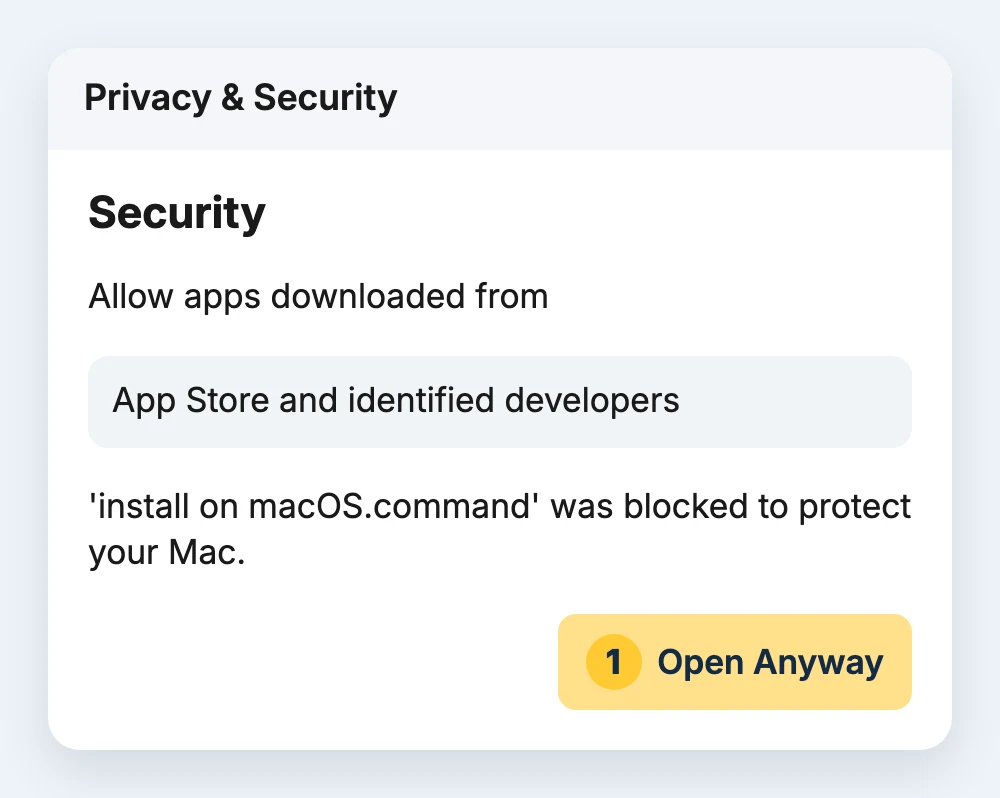
The final confirmation can say Open or Open Anyway, depending on the warning and release. Read the filename in that prompt. The approval should apply to the SMAPI installer you just opened.
This creates an exception for that item. Don't disable Gatekeeper across the Mac or use a command that removes security checks from every app. Keep the approval limited to the download you chose to trust.
If the notice isn't present, retry the same extracted Mac command file, then return to Privacy & Security. A managed Mac can restrict these controls. Have the administrator review SMAPI and approve it through the managed settings.
Once Terminal displays the installer choices, the blocked-file problem is resolved. Follow the installation prompts. If Terminal now prints a permission error, keep that exact error and continue with the matching permission check.
3. Enable Terminal in Developer Tools when needed
The Mac installation instructions also include a Developer Tools permission route. Open System Settings > Privacy & Security and look for Developer Tools.
If that entry isn't visible, open Terminal through Spotlight and enter:
spctl developer-mode enable-terminalThis is the command supplied for making the Developer Tools control available. It isn't an instruction to turn off Gatekeeper. Return to Privacy & Security, open Developer Tools, add Terminal if needed, and enable it.
For a custom terminal such as iTerm, enable that terminal too if it's the app running the installer. The guide also lists Stardrop when that mod manager is used. Approving one terminal doesn't give another app the same permission.
Restart the Mac after changing these permissions, then run the extracted installer again. If you previously received the SMAPI malware warning, the guide calls for a restart before another installation attempt as well.
If Steam remains open and the installer still won't run, quit Steam fully before trying again. Once installation finishes, reopen Steam normally. You'll know it's worked when the installer finishes and the modded game starts.
4. Use Full Disk Access for the internal permission error
For Operation not permitted: 'internal', use the guide's Full Disk Access procedure. On current macOS, open System Settings > Privacy & Security > Full Disk Access and add the terminal running the installer.
On an older release using System Preferences, the route is System Preferences > Security & Privacy > Privacy > Full Disk Access. Unlock the pane to make changes, then add Terminal with the plus control.
Full Disk Access gives the terminal access to more of your files, so use it for this specific error, not for unrelated installer warnings. Retry the installer after granting access and check whether that specific error disappears.
If the same command now shows the installer choices, follow the prompt. If it fails with a new message, record the new wording. More permissions won't necessarily fix a missing package file or an incompatible game installation.
A separate Mac Terminal permission guide covers other protected-folder errors. Those steps cover errors beyond this installer's specific internal error.
5. Finish installation and check the game launcher
Follow the installer's prompts for the Stardew Valley installation you actually play. For Steam, launch the game through Steam afterward. The Mac instructions don't require the Windows-style Steam launch-options change.
If a previous attempt left a Windows command in Steam's launch options, compare it with the Mac instructions before keeping it. Copying Windows setup instructions can leave a working Mac installation launching through the wrong command.
To update SMAPI, run the newer installer; its update procedure handles the previous installation. To remove it, run the installer and choose its uninstall option. Deleting a few files isn't the same as running the uninstaller.
If the installer succeeds but the game won't start, move to the SMAPI player troubleshooting guide and provide the error log through its help route. Include the macOS version, game version, installer message and terminal app you used.
When checking extracted files with support, open Terminal at the installer folder so Terminal is working in the folder you're discussing. Keep using the commands in the installation guide.
The Short Version
Approve the trusted blocked installer through Open Anyway. Check Developer Tools for Terminal, and use Full Disk Access for the separate internal permission error. Finish the Mac installer and launch the Steam version through Steam.
Checked November 27, 2026.
 If you have any business, I can build it online