
If AC6 crashes after Continue, try turning ray tracing off before reinstalling. For crashes in Assembly or AC Data, start with game updates. Note where Armored Core VI closes so you can try the fix that matches.
These checks are for the Windows Steam version. If your whole PC restarts or shows a stop code, note that too. You'll need different checks for Windows crashing than for a game closing to the desktop.
1. Install the offered game update and retry the same action
Exit Armored Core VI and open Steam > Downloads. Finish any update queued for the game before launching it again. Restart the PC if Windows or a driver update is waiting for a restart too.
Bandai Namco's version 1.07 patch notes list fixes for crashes after customizing an AC in Assembly and applying Weathering in the Paint menu. These fix those particular crashes.
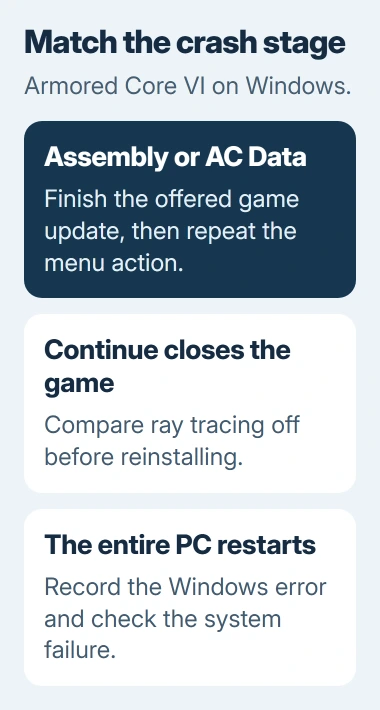
The earlier version 1.03 notes list fixes for an AC Data crash and a Steam crash when changing graphics settings in a multiplayer room. Install the update offered now, rather than looking for those old versions.
After updating, repeat the action that failed. Note whether you can reach the hangar, load the same mission or make the same menu change without a crash. Reaching the title screen alone won't tell you whether it's fixed.
If crashes began after a Windows update, the timing isn't enough to explain them. The Windows game-crash explanation covers a separate lighting-driver problem and the symptoms to check for.
2. Turn ray tracing off for a crash after Continue
Try this when the title screen works but loading your save closes the game. Open System > Graphics Settings from the main menu. Open the quality settings you can change and set Ray Tracing to Off.
Back out to the title menu, then retry Continue. Check whether you can enter the hangar and then start the activity that failed. Keep the rest of the picture settings unchanged for this comparison.
Owners report in a launch-era Steam thread that turning ray tracing off let them load their saves again. Another still had crashes with it already off, so try this for a crash while loading a save.
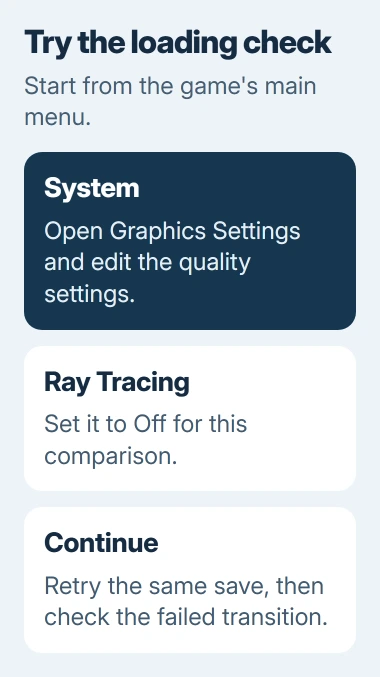
Ray tracing is an extra graphics effect. Turning it off changes that effect without starting a new campaign, so you can keep your existing save while trying the setting.
If your save loads, play far enough to repeat the part that crashed. If the game still closes, check its files next. Leave unrelated graphics options alone while you try these fixes.
3. Verify the installed files through Steam
Close the game fully. In your Steam Library, right-click ARMORED CORE VI FIRES OF RUBICON and choose Properties > Installed Files > Verify integrity of game files. Wait for the check and any replacement download to finish.
The verification instructions explain how Steam checks your installed game files. Try it after an interrupted update, if content is missing or if the installation has been changed.
Steam can skip local settings files even when the rest of the check succeeds. Read the result, let it finish and test the game. A validation message doesn't always mean your drive is damaged.
Checking the files won't change your graphics settings or test Windows stability. If the same action still crashes afterward, move to drivers and background apps.
If you've installed mods, follow their removal instructions to return to the game's supported setup. Keep your saved progress while repairing the installation; leave unfamiliar save folders alone.
4. Update Windows and the graphics driver
Open Settings > Windows Update, apply any offered updates and restart if prompted. Check for a graphics-driver update through your graphics card (GPU) maker or laptop maker too.
For a laptop, use a graphics driver supported for your model. For a desktop card, use the GPU maker's supported driver. You don't need a third-party driver bundle for this check.
The Steam launch troubleshooting covers Windows updates, drivers, file checks and apps that interfere with games. Try each separately to see which one helps.
Once the driver is installed, try the same save or menu action. If AC6 crashes but other games work, tell support that. This result alone isn't a reason to replace your graphics card.
If the PC reboots or loses power during the test, use the unexpected PC restart checks. Check what happened in Windows even if you were playing AC6 when the whole system crashed.
5. Check background-app conflicts with a clean boot
Start by closing optional recording, overlay, tuning and other gaming apps, then reopen AC6 through Steam. Keep the launcher and services the game needs running.
If that helps, reopen the optional apps one at a time. If one brings the crash back, note its name and version for support. Keeping that order lets you check each app without removing all your gaming software at once.
For a deeper comparison, follow the Windows clean-boot instructions. Open System Configuration, select Services, check Hide all Microsoft services, then disable the remaining services for the test.
Follow the linked steps to disable startup apps in Task Manager and restart. Note which items were enabled so you can restore your normal startup afterward, and leave the advanced boot settings alone.
If AC6 works, turn a group of startup items back on and try again. If that group brings the crash back, check each item separately. If AC6 still crashes during the clean boot, restore normal startup and send support the results.
When the same crash keeps returning
Tell support exactly what you were doing when AC6 crashed, your Windows version, GPU, driver version and the game's displayed version. Include whether ray tracing was already off, verification replaced files or a clean boot helped.
Include the visible error message. For hardware details, press Windows+R, enter dxdiag and press Enter. In the window that opens, select Save All Information. Send the report to support instead of posting it publicly.
If your existing save is the only thing that still crashes after these checks, ask support how to keep your progress before changing it or starting a new campaign just to test Continue.
The Short Version
Update AC6, try ray tracing off for a Continue crash, check the game files and update drivers. Check persistent app conflicts through a clean boot. Keep your save and tell support exactly what still crashes.
Checked November 5, 2026.

Isaac Smith is the founder and editor of PC Glance, a website that covers computers, laptops, and technology. He is a tech enthusiast and a computer geek who loves to share his insights and help his readers make smart choices when buying tech gadgets or laptops. He is always curious and updated about the latest tech trends.