
To AirDrop a link from Chrome on your Mac, open its address in Safari and choose File > Share > AirDrop. The nearby Apple device receives the webpage address, and you can keep using Chrome as usual.
The link doesn't include your signed-in browser session. A shopping cart, work dashboard or page behind a login may ask the recipient to sign in before they can see the same content.
1. Copy the address of the page you actually want
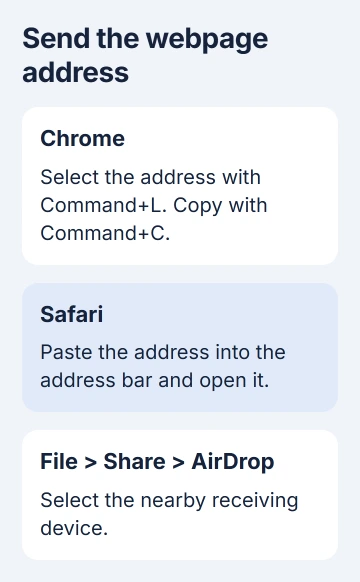
Open the Chrome tab you want to share. Press Command+L to select its address, then Command+C to copy it. Check the selected address before copying, especially if several tabs have similar titles.
For a link inside a page, Control-click that link and choose Copy Link Address instead. Copying the address bar would send the page you're already reading, which can be different from the link you meant to share.
Check a temporary login or private invitation link before sending it. Share only an address the recipient should have. AirDrop encrypts the transfer, but the address can still give someone access to private content.
For a downloaded PDF or picture, send the saved file instead. A link points to content online; the file carries the content itself. A page link won't include a document stored only in Downloads.
2. Open the copied address in Safari
Open Safari from Applications or the Dock. Press Command+L, paste with Command+V, then press Return. Wait until the right page or its sign-in screen appears before opening the sharing menu.
Safari doesn't need to become your main browser. Skip bookmark imports and default-browser prompts, and keep Chrome signed in. Leave the original tab open until the recipient confirms that the right link arrived.
Choose File > Share, then AirDrop. The toolbar's Share control works too. Apple's webpage-sharing instructions include the File menu option.
The Mac sharing guide also covers sending Safari webpages through AirDrop. Sharing selected words works differently, so return to the page itself if AirDrop isn't offered for a text selection.
I'd use this route for an occasional link because you don't need an extension. Chrome's own tab sharing is a separate option, useful when both devices already use Chrome with the same account.
3. Make the receiving device available
Keep your Mac and the receiving device nearby, with Wi-Fi and Bluetooth enabled on both. The AirDrop requirements put the range at 30 feet, or 10 meters. Turn AirDrop on before choosing the recipient.
On the receiving iPhone or iPad, open Control Center. Hold the connection controls and tap AirDrop. Choose Contacts Only with matching contact details, or the temporary 10-minute receiving option.
On a receiving Mac, turn on Control Center > AirDrop. Choose whether to accept contacts or allow other nearby senders, and keep the Mac awake for the transfer.
For Contacts Only, the recipient needs a contact card with the sender's Apple Account phone number or email. A name alone isn't enough. If the device never appears, the Mac hasn't found it yet and hasn't sent the link.
If the receiving device still doesn't appear, follow the iPhone-to-Mac AirDrop checks. They cover missing devices and stalled transfers separately, without changing your browser setup.
4. Select the device and complete any code prompt
In the Mac's AirDrop sharing window, select the device or person you want. The recipient accepts the request. If both devices use your own Apple Account, the transfer is accepted automatically.
With iOS, iPadOS or macOS 26.2 and later, sharing with someone outside Contacts can require an AirDrop code. The recipient follows the prompt to get the code and gives it to the sender, who enters it on the sending device.
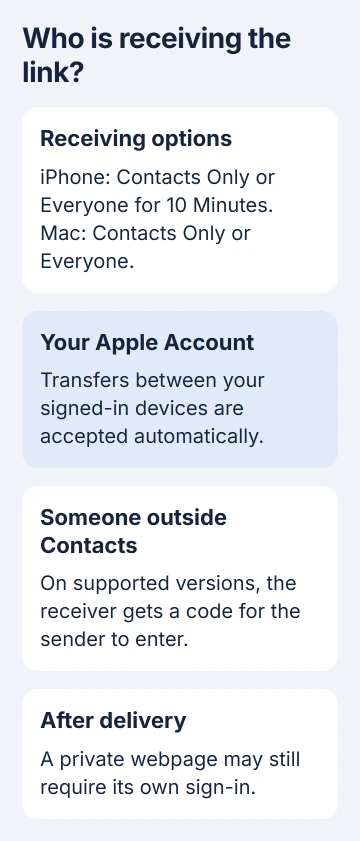
The code prompt isn't a Chrome error. Enter the receiver's code to finish sharing. Another code won't be needed for 30 days unless the contact relationship is removed sooner.
Check the receiving screen after acceptance. If the link opens but asks for a password, AirDrop has delivered it. Sign in to that service on the receiving device if the account owner has access there.
A link won't include an unsent form or your private Chrome profile. Use the service's share or export feature when the recipient needs information that the link doesn't include.
Use Chrome's own tab sharing when AirDrop isn't needed
For Chrome devices using one Google Account, open More > Cast, save, and share > Send to your devices. Select the device listed there. This works separately from nearby AirDrop.
Google's tab-sharing steps explain the account requirement. If a device is missing from this menu, check its Chrome account setup. Changing AirDrop's receiving setting won't add it.
The Chrome shortcut reference can help if you keep selecting the wrong tab or address. Try sharing one ordinary page before retrying a service that needs a sign-in.
Contact Apple Support if Safari can't AirDrop a normal webpage. Include your macOS version and whether files transfer. If the website shows an error after delivery, send that service the address and error message instead.
The Short Version
Copy the address from Chrome, open it in Safari, and choose File > Share > AirDrop. Make the receiver discoverable, finish any code prompt, and check the delivered page. Sending a link doesn't transfer a signed-in browser session.
Checked November 5, 2026.

Isaac Smith is the founder and editor of PC Glance, a website that covers computers, laptops, and technology. He is a tech enthusiast and a computer geek who loves to share his insights and help his readers make smart choices when buying tech gadgets or laptops. He is always curious and updated about the latest tech trends.