
Add a missed Apple Watch workout in the iPhone's Health app. Open Browse > Activity > Workouts, tap the add control and enter your session. Its start and end times give Exercise credit; its calories give Move credit.
Check that the workout is missing before adding it. If the watch or another fitness app already saved the session, check that record so you don't enter the same exercise twice.
Check the day before creating another workout
Open Fitness on the paired iPhone and go to the day you exercised. Look for a session with the right activity and time, especially if you used another app or ended the workout from a different device.
Then open Health > Browse > Activity > Workouts and review the entries around that time. You'll add the missing session in this category, so check what's already there before creating another record.
If the watch still says it's saving the workout, follow the workout saving checks first. Give the existing save a chance to finish before entering the same session manually.
For a workout you didn't start tracking, gather the details you know: activity, date, start time and end time. Add distance or energy if you have a usable record, rather than guessing to fill every field.
A manual entry saves the details you type. It can't bring back heart-rate readings or a route your watch never measured, so it won't have the same information as a fully tracked run.
Open Workouts in the iPhone Health app
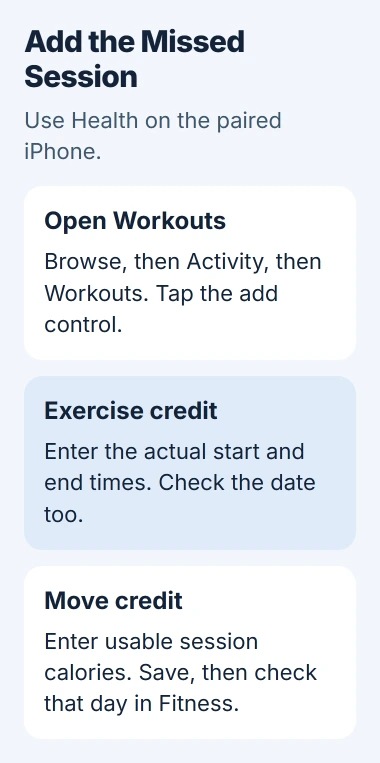
On the iPhone, open Health, tap Browse, choose Activity and open Workouts. Tap the Add control in the upper corner to create a workout record.
Apple's manual workout instructions use this Health route. Add the record on your iPhone; you don't need to start a fake live workout on the watch to replace yesterday's exercise.
If your layout has Search instead of a Browse tab, search for the Workouts health category. Open that category's page and look for its add control, rather than choosing an unrelated workout app result.
Check that you've selected Workouts, not Steps or a daily activity total. Those are separate categories. Adding a step count won't enter the session's activity and times.
If you can't see the add control, check that you're on the category page rather than a summary card or an existing session. Note the category name and your iOS version for support if the control still isn't available.
Enter the activity and actual session times
Choose the activity type that matches what you did. Enter the date and time you started, followed by the date and time you finished. Check both before saving.
Check the dates if you exercised around midnight. A session that starts late one evening and ends the next morning needs different dates. Putting both times on the wrong day puts the workout in the wrong part of your history.
Check AM/PM if your iPhone uses a twelve-hour clock. Choosing morning instead of evening can turn a short session into a much longer entry, even when the minutes look right.
Check that the times cover the session you remember. If you exercised for half an hour, the start and end should cover that half hour on the correct day.
Use the time you spent exercising, rather than a whole afternoon that included travel or sitting afterward. The entry should cover the activity you completed, without counting the time around it.
If you only remember part of the session accurately, enter what you know. Don't invent times to close an Activity ring. Save a note elsewhere if you need to remember that you added the workout from an estimate.
Add energy only when the value is usable
The calorie and time fields do different things. Your session's total calories give Move credit. Its start and end times give Exercise credit.
Check the unit beside the field before copying a value from another record. If the two records use different energy units, the same number won't represent the same amount.
A cardio machine or training app may show a session estimate. If you use it, check which activity and duration it covers. A full-day energy total isn't a calorie value for one workout.
I'd use a known session value instead of picking a calorie number just to close the ring. It fills the gap in your record, but entering an estimate doesn't make it a measured calorie count.
If the watch was worn but failed to record a pulse, use the Apple Watch heart-rate checks for future sessions. Entering calories afterward doesn't repair that tracking problem.
Save the entry and inspect its result
Tap Done after reviewing the activity, dates, times and any extra details. Open Fitness on the iPhone or Activity on the watch and go to the day of the session.
The Activity rings update for the workout you added. If it's an older workout, check that day's rings. Today's rings won't show yesterday's exercise.
Check the workout list again too. Make sure your entry matches the session and that another record didn't finish syncing while you typed, creating a duplicate.
If the workout appears but the ring doesn't look right, check the time and energy fields separately. A missing calorie value needs a different correction from an incorrect session length.
If another fitness app also records your exercise, check its Health access before adding more records. The Health data controls show which apps can add information to each category.
Remove an incorrect manual record carefully
To correct an entry you typed, open Health > Browse > Activity > Workouts and find Show All Data in the category's options. Use Edit to select the mistaken record for deletion.
Before confirming, check the record's date and time. Delete All removes every record in the category, and iCloud sync can carry a deletion to your other devices because Health shares that data.
Delete only the mistaken entry, then add the correct session.
If the workout or Activity credit still doesn't appear, give support your iOS version, watchOS version and the fields you entered. Explain whether Health lists the workout and which day's ring doesn't match it.
The Short Version
Add a missed session through Health, Activity and Workouts on the iPhone. Review its date and times, add usable calorie information, then save. Check that day's workout list and Activity rings before creating another entry.
Checked November 5, 2026.

Isaac Smith is the founder and editor of PC Glance, a website that covers computers, laptops, and technology. He is a tech enthusiast and a computer geek who loves to share his insights and help his readers make smart choices when buying tech gadgets or laptops. He is always curious and updated about the latest tech trends.