
An Arzopa portable monitor can turn on and show No Signal because power reaches it while video does not. Check whether the laptop's USB-C port carries display output. For an HDMI connection, provide the monitor's separate USB power too.
The right connection depends on the Arzopa model and laptop. A USB-C connector fitting both devices does not establish that the port and cable carry video.
Choose a complete connection before changing drivers
Arzopa's connection guide separates USB-C video from HDMI plus power. Start with the setup the laptop actually supports, using the monitor's own supplied cables where possible.
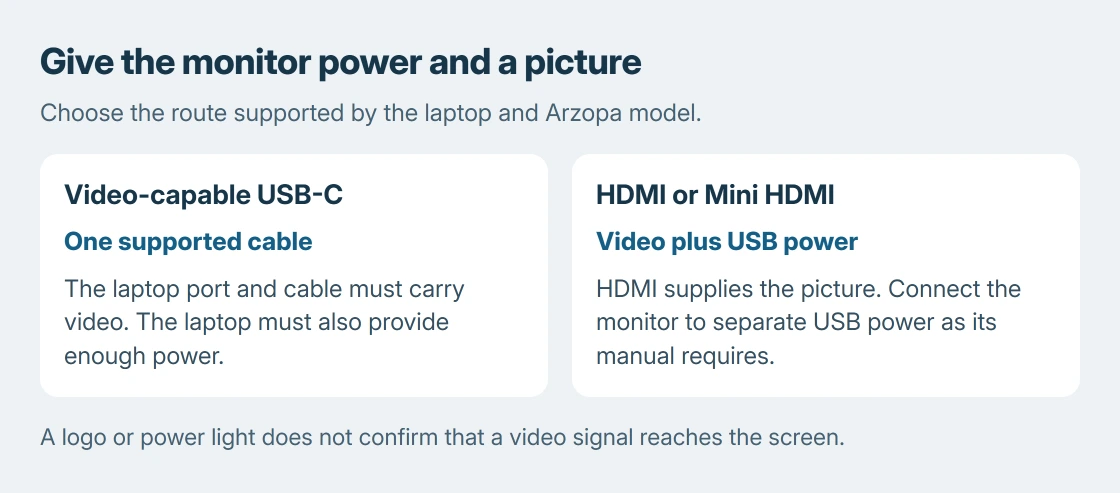
For a supported single-cable setup, connect a video-capable USB-C port to the monitor using its full-featured cable. The laptop must supply the required display signal and sufficient power.
Status: Arzopa's connection and support guidance checked October 25, 2026. Cable and port requirements are documented; no monitor or laptop connection was tested.
With HDMI, connect the laptop's HDMI output to the Arzopa's matching video input, often Mini HDMI. Then connect the monitor's USB power input to a suitable power source. Check the exact sockets and power requirement in the model's manual.
The logo appearing confirms some power, not a complete video connection. The order is ours: confirm both paths before replacing a graphics driver.
Why a charging cable can leave the screen blank
Microsoft says a USB-C display connection can be limited when the port, accessory or cable lacks the necessary capabilities. Check the laptop's specifications for video output through the chosen port.
DisplayPort Alt Mode or a suitable Thunderbolt connection can provide that output. A plain USB-A-to-USB-C power connection does not provide the same monitor video path.
The U-shaped cable is full-featured in applicable packages, as documented by the vendor. USB-A-to-C supplies power only; check the package against the model.
If the laptop's USB-C port has no display output, use its supported HDMI route instead. Buying another charging cable or reinstalling Windows cannot add a missing hardware capability.
Select the input and check Windows display mode
Open the monitor's own menu and choose the input used by the cable. The button position and menu wording vary by model; use the manual linked from Arzopa's support center.
In Windows 11, press Windows + P and select Extend for a second workspace, or Duplicate to show the laptop image on both screens. Check whether the monitor now displays a picture.
For a screen still absent from Windows, the second-display troubleshooting guide covers the detection and graphics branches. Make the direct cable connection first so a dock is not part of that comparison.
If Windows lists the monitor but the panel stays dark, select that display in Settings > System > Display and use a supported resolution and refresh rate. The Windows HDMI controls guide explains which settings affect the picture.
A picture arrives, then the monitor restarts or flickers
Arzopa's support guidance checks additional power, cable seating and another source device for repeated shutdowns. Supply power as the model requires, particularly when relying on HDMI for the picture.
Compare the direct laptop connection with the dock removed. If the monitor stays stable directly, concentrate on the dock's display capability, power and cabling rather than resetting the monitor repeatedly.
If the problem follows the monitor across suitable cables, adequate power and another supported source, contact Arzopa. Give support the model, laptop, ports used and whether the symptom is No Signal, flicker or a complete restart.
Those outcomes matter: a missing signal and an unstable power supply can both produce a black screen, but the successful comparison tells support which connection to examine next.
The Short Version
USB-C needs a video-capable laptop port and cable. HDMI needs separate power. Select the matching monitor input, enable the second display in Windows, and compare a direct connection before changing drivers or blaming the panel.

Isaac Smith is the founder and editor of PC Glance, a website that covers computers, laptops, and technology. He is a tech enthusiast and a computer geek who loves to share his insights and help his readers make smart choices when buying tech gadgets or laptops. He is always curious and updated about the latest tech trends.