

Set a keyboard shortcut in Everything to open its Windows file search while you're in Chrome. Chrome has separate keys for searching the web, your open tabs and the page you're reading.
A saved document and a page open in Chrome need different searches. Everything normally searches file and folder names. It won't replace Chrome's tab search or search the text of every website you've visited.
Give Everything a shortcut that works from another app
Open the Everything desktop program. Choose Tools > Options, then select Keyboard. Click inside Show window hotkey and press the key combination you want to assign.
Try Ctrl + Alt + E, for example, if another program isn't using it. This is your choice of shortcut, not a default you'll find on every installation. Click OK to save it.
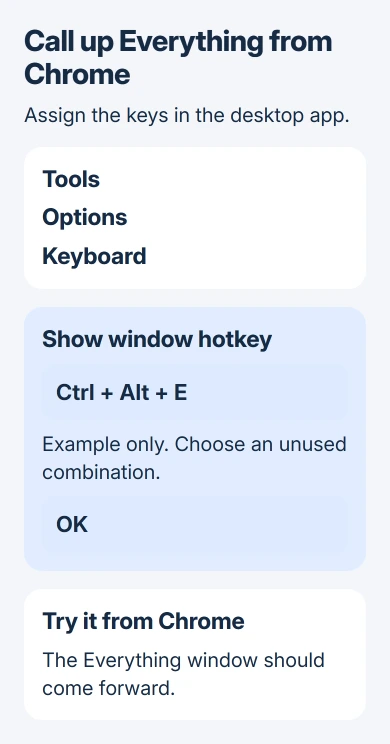
Switch back to Chrome and press your new shortcut. An Everything window should appear at the front, ready to search for a file name. Try it from a second app too, to check that it works outside Chrome.
The Everything options reference separates this hotkey from commands used inside the search window. A shortcut assigned in the wrong place may work only while you're using Everything's window.
If another app responds, return to Show window hotkey and choose different keys. I'd leave Ctrl + L for Chrome's address bar so it keeps doing the browser job you expect.
Choose Show, Toggle or New window for the behavior you want
Show window hotkey brings an existing Everything window to the front, or opens one if needed. It's a simple choice for keeping one file-search window handy while you're in Chrome.
Toggle window hotkey also hides the window when Everything is already at the front. If your search disappears when you press the shortcut again, check whether you selected Toggle.
New window hotkey opens another search window each time. That's handy for comparing two searches, but you can end up with several windows open while browsing.
Choose what you want the shortcut to do, then assign the keys. Using the same keys for several actions makes the result confusing. Start with Show and leave the others unassigned unless you need them.
Keep the file-search program available in the background
Everything needs to be running for its hotkey to work. In Tools > Options > General, check Run in background to keep it available after you close its search window.
Enable Start Everything on system startup to have it ready after you sign in to Windows. The program and its list of files can load without opening a search window on your desktop.
Close the Everything window, then try your shortcut from Chrome. If it reopens, Run in background is working. If it doesn't, open Everything from Start and try the hotkey again before changing Chrome settings.
Choosing Exit stops the program, even with Run in background enabled. If the hotkey stops working after Exit, start Everything again. You don't need a browser extension for that.
If Everything opens but search in Windows Start is broken, use the Windows Search fixes. Everything's hotkey doesn't rebuild that separate search service.
Search the saved file by a useful part of its name
Type a distinctive part of the file name into Everything. Results normally update as you type. Add another part of the name if you get too many matches.
For a PDF with report in its name, an example search is:
report *.pdfIn this search, report matches part of the name and *.pdf limits the results to PDF files. It doesn't search the text inside them. Use words from the saved file name rather than a sentence you remember from the page.
Check Path, the result's folder location, before opening the file. Two files can have the same name in different folders, and a new download may sit beside an older copy.
For browser navigation after a search, the Chrome shortcut guide covers more tab and navigation controls. Keep those browser commands separate from your file-search hotkey.
Use Chrome's address bar for web searches
With Chrome at the front, press Ctrl + L to select the address bar. Type your search and press Enter.
Google says in its keyboard shortcut guide that Ctrl + K also starts an address-bar search. Both browser shortcuts work separately from the hotkey you set in Everything.
For a word you saw on the current page, press Ctrl + F. Chrome shows matches on that page; it won't list files from Downloads or search all your open tabs.
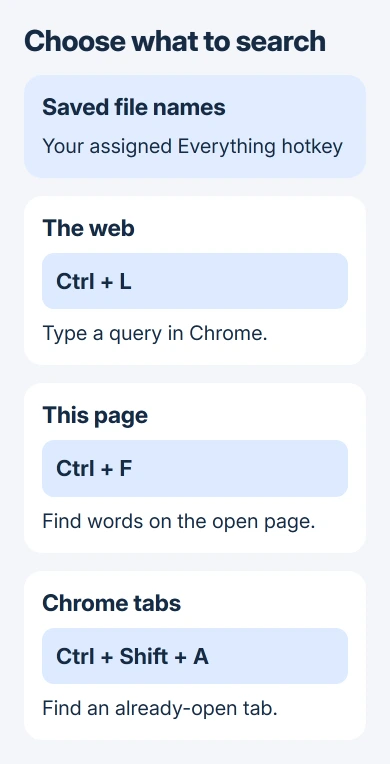
To locate an open Chrome tab, press Ctrl + Shift + A and type part of its title. Another route is the address bar's @tabs search. Choose the matching tab to switch to it.
On a Mac, the Chrome shortcuts are Command + L, Command + F and Command + Shift + A. The Everything setup in this guide is for its Windows desktop program.
When the shortcut opens the wrong search
Check which app opens. Everything's Name and Path results show files on your drive. Chrome's address bar uses its selected search engine, while its Find box searches only the page you're reading.
If only your Everything hotkey fails, check the saved keys and whether the program is running. If a Chrome shortcut fails, click in the browser window and try again outside any remote-desktop session.
If the conflict continues, tell the relevant support team which keys you pressed and which app responded. That gives them a specific shortcut problem to check, rather than a report that search is slow.
The Short Version
Assign Everything's Show window hotkey for file names and keep the program running. In Chrome, use Ctrl + L for the web, Ctrl + F for page text and Ctrl + Shift + A for tabs. Pick the search by what you're looking for.
Checked November 6, 2026.

Isaac Smith is the founder and editor of PC Glance, a website that covers computers, laptops, and technology. He is a tech enthusiast and a computer geek who loves to share his insights and help his readers make smart choices when buying tech gadgets or laptops. He is always curious and updated about the latest tech trends.