
Changing your Microsoft account's country won't move your OneDrive files to another country. Language and date settings change what you see; moving an organization's cloud storage needs a separate administrator-run process.
Work and school accounts keep regional preferences in the Microsoft 365 profile and SharePoint settings. Personal OneDrive uses different controls, so those menus may be absent.
Check which account and page need the change
Check which account you're using. Personal and work accounts can be signed in on the same computer, but each has separate settings. The Windows cloud icon may belong to a different account from the one open in your browser.
Note where you see the problem: the OneDrive file list, a document editor or your Microsoft account profile. If an option is missing, support can use that detail to point you to the right setting.
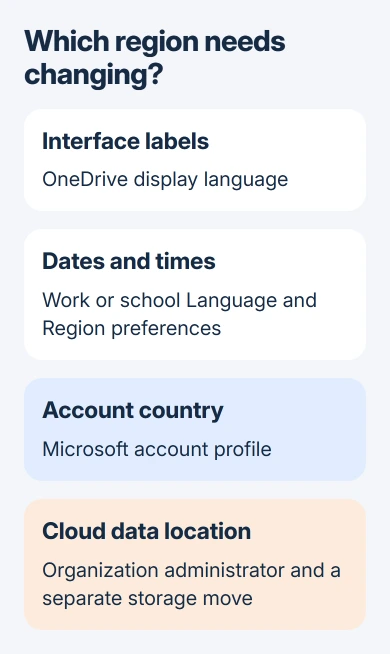
If you want to move the folder to another drive, go to the local-folder section. That changes where your computer keeps its copy, not the country where the cloud service stores it.
Change the language on personal OneDrive
Sign in to your personal OneDrive account on the web and open Settings. Select the language you want with the display-language control. Apply the change, return to your files and check the navigation labels.
The OneDrive language instructions apply to the menus and labels you see. Changing them won't translate the text inside your documents.
If a Word document still opens in a different language, check Word and the document separately. Its text and spelling-check language are separate from the language of the OneDrive page.
Personal accounts don't have every regional option in an organization's SharePoint profile. If you can't find the date format you want in your personal settings, ask support about how that page displays dates.
Reinstalling the sync app won't add a missing setting to your web account. First check the account type and the exact page showing the wrong language or date.
Set work or school dates, time zone and locale
Microsoft's personal language and region instructions describe how to reach these settings through your organization's SharePoint profile. The controls depend on its policies and interface.
Follow this route where your profile offers it:
- Select your name or picture on an organizational Microsoft 365 or SharePoint site.
- Choose My Microsoft 365 profile, then Update your profile.
- Use the link at the bottom of Edit your profile to open Edit Details.
- Open the ellipsis (three-dot) menu and choose Language and Region.
- Set the relevant preferences, then select Save all and close.
To use your own regional choices, select Always use my personal settings under Choose your settings. Check Locale for regional formats and Time Zone for the zone used to display times.
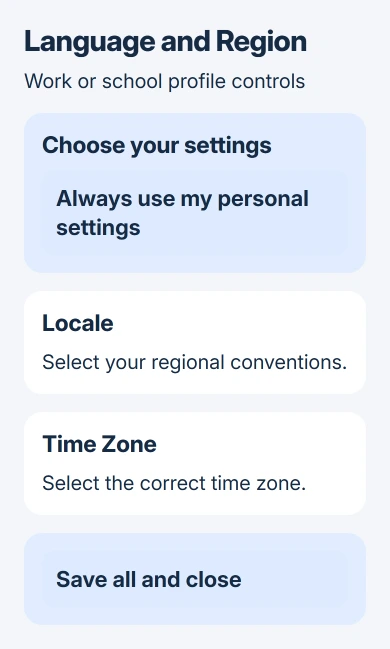
Choose the time zone for where you work if displayed times are wrong; changing the language won't fix that. Check Time Format if you want to switch between a 12-hour and 24-hour clock.
Save, reopen the affected site and check the same date or time that looked wrong. These settings change your view; your coworkers keep their own site preferences.
If the profile link or a setting is missing, tell your administrator which account and page you're using. They can check whether your organization allows the change.
Update a personal Microsoft account's country after a move
After a long-term move, open Your info in your personal Microsoft account dashboard. Choose Edit profile info, select the new Country or region, then save.
Use the personal account connected to your OneDrive. Changing the country on a second account won't update the first, even if their email addresses look similar.
Changing your account's region can affect access to purchases and subscriptions. Check what will change before doing it for billing reasons. To change the menus' language, use the language setting instead.
Check the restrictions in the country-change instructions. An account balance won't transfer between regions, and a recent region change can block another change.
After saving, reopen Your info and check the selected country. That confirms you've updated your profile. The country field doesn't move your cloud storage.
Ask the administrator about the cloud storage geography
To move your organization's OneDrive storage to another region, ask the Microsoft 365 administrator. Eligible organizations with Multi-Geo can place users' storage in supported regions and arrange moves between them.
Multi-Geo lets an organization use several data regions. Its Preferred Data Location is the storage region requested for a user, separate from their display format or billing address.
An administrator runs the OneDrive geography-move process. You can't start it from your desktop sync app's settings.
Ask IT which destinations are available, what license is needed and when the move will happen. Follow their request to close files and stop editing during the move. Your OneDrive can temporarily become read-only.
If you have a personal account and need storage in a particular country, contact account support.
Moving the computer's OneDrive folder is a separate task
To move the synced folder to another drive on your computer, follow the folder-location procedure. You'll unlink the account, move the folder, then link the account again using the new location.
Read those steps before dragging a folder to another drive while it's still syncing. Moving the computer's copy doesn't change the cloud storage region or your account's regional preferences.
If files stop updating after you change an account or folder, use the OneDrive syncing checks. Note the error on the affected account before changing another setting.
If OneDrive isn't available at all on a work computer, the OneDrive disabled checks explain how company policies can affect it. Changing the region won't override an administrator's restriction.
The Short Version
Use language settings for labels and your work or school profile's Language and Region for dates and times. Your info changes a personal account's country. Moving cloud storage is a separate task from moving the folder on your computer.
Checked November 6, 2026.

Isaac Smith is the founder and editor of PC Glance, a website that covers computers, laptops, and technology. He is a tech enthusiast and a computer geek who loves to share his insights and help his readers make smart choices when buying tech gadgets or laptops. He is always curious and updated about the latest tech trends.