
Chrome exports your saved passwords through Google Password Manager > Settings > Export passwords > Download file. Choose the right profile first so the CSV contains the logins you want to import into another password manager.
That file contains readable login details. Keep it only for the transfer, check the imported entries, then remove the temporary copy from your computer.
Before exporting, open the profile that holds your logins
Click the profile picture near Chrome's upper-right corner. If several profiles appear, select the one you normally use for the passwords you're moving. Work and personal windows can have different saved entries.
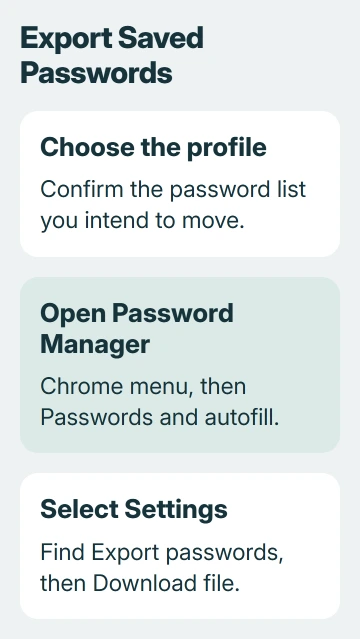
Open the three-dot menu, then Passwords and autofill > Google Password Manager. Look for a few accounts you recognize in its password list. Check the list itself instead of relying on the window's color or profile nickname.
Chrome can save passwords in your Google Account or locally on the device, depending on how you've used it. The password storage guide explains those two locations.
If the list is empty, check the profile before exporting. Our missing saved-password checks cover that problem. Exporting the wrong list won't recover passwords stored somewhere else.
I'd check a personal login and a less frequently used account before continuing. That gives you two entries to look for after the move, without opening or copying every password.
Export the password file from Chrome on a computer
Follow these steps in desktop Chrome on Windows or Mac. You'll start inside the browser, so you don't need a password-export website or an extension.
- Open Chrome's three-dot menu.
- Select Passwords and autofill, then Google Password Manager.
- Choose Settings inside the password manager.
- Find Export passwords.
- Select Download file and follow any prompt to confirm your identity.
- Save the CSV somewhere you can find for the import.
Google explains password exports using the Download file control. A menu beside the password list may be from a different layout. For this procedure, use Settings inside Google Password Manager.
Choose a temporary local folder you control. Don't email the export to yourself, paste it into chat, or leave it in a shared folder. Anyone who opens the file can read its usernames and passwords.
After the save dialog or download finishes, check that the file is on your computer. Opening the export page alone doesn't save it. Note the filename and location so you can find it when you import.
Check what the file is meant to carry
CSV means comma-separated values: a table stored as plain text. A spreadsheet app may open it by default, but that doesn't make it a protected spreadsheet. It's still a readable password transfer file.
The import needs the website address, username and password. Choose the new manager's Chrome-import option first, rather than opening the CSV and rearranging its columns yourself.
A password file doesn't move your whole Chrome profile. Bookmarks, history, extensions and open tabs use separate methods. Check those items separately if you're moving your complete browser setup.
Check passkeys separately with the new manager. Chrome's Export passwords control creates a password CSV, so you'll need to confirm that your other sign-in methods have moved too.
Keep your two-step verification methods available while checking important logins. A saved password won't replace access to the phone, security key or other method an account requires.
Import into the destination, then inspect its list
Open your new password manager and find its import command. Select Chrome or its CSV format when offered, choose the saved file, then wait for the result before making another export.
If you're moving to another Chrome installation, open its Google Password Manager > Settings. Under Import passwords, select Select file, choose the CSV and follow the remaining prompts.
If Google rejects the file's layout, compare its column names with the Google Account import guide: url, username and password.
Find the two accounts you checked earlier in the new manager's list. Confirm the website and username, especially if you have several accounts with one service. A website name alone won't tell you which login you're looking at.
If the import fails, note the exact error before editing the file. The new manager's support team can check the required format. Changing an unrelated file's ending to .csv won't change its contents.
Finish the transfer before removing its temporary file
Once the new manager shows the entries you expected, delete the CSV from its saved folder. On Windows, remove its Recycle Bin copy too; on Mac, remove it from Trash when you're ready.
Check anywhere else you copied the file during the transfer. A second copy on a USB drive or in a cloud folder remains readable after you remove the original download.
Deleting the temporary CSV doesn't delete your passwords in Chrome. Leave Delete all Google Password Manager data alone during cleanup; that control affects saved logins rather than the exported file.
Exporting also leaves the original password entries in place. Decide separately whether you want Chrome to save future logins. The Chrome password-saving controls explain that setting.
If you just want the same Google Account's passwords on another computer, account storage may save you from transferring a file. Review the Chrome profile options before making extra copies.
If you can't find the export control, check Settings inside Google Password Manager, then contact Chrome Help if needed. Include your Chrome version and profile type, keeping the CSV private.
The Short Version
Select the right Chrome profile, open Google Password Manager > Settings, and choose Download file under Export passwords. Import the CSV, check that the accounts you wanted are in the new manager, then delete the temporary file copies.
Checked November 5, 2026.

Isaac Smith is the founder and editor of PC Glance, a website that covers computers, laptops, and technology. He is a tech enthusiast and a computer geek who loves to share his insights and help his readers make smart choices when buying tech gadgets or laptops. He is always curious and updated about the latest tech trends.